-
Productivity Prompts You Can Use Today in Copilot Chat

Try these copy‑and‑paste prompts for Copilot Chat to help you write faster, prioritize work, create executive updates, and make quick data decisions. Each prompt includes clear input instructions and output formatting—plus notes where Microsoft 365 Copilot can take it further.
All faculty and staff at UAB have access to Microsoft Copilot Chat which is an approved AI tool that can enhance your productivity in day-to-day work. Learn more about accessing this tool at uab.edu/ai/tools. Below are some prompts you can copy and paste into Copilot to immediately get some results.How to use these prompts:
- Navigate to https://m365.cloud.microsoft/chat and sign in with UAB credentials
- Copy and paste the prompt
- Copy and paste your source between triple backticks: ```
- Specify audience, tone, format, and length
- Iterate: "shorter," "more direct," "bullet points," "add dates"
Prompt 1: Write & Edit FasterRewrite the message to be professional, concise, and put the main ask first.
Audience: senior managers. Tone: direct.
Output: ≤120 words + 3 action bullets.
Text: ```[paste text]```
Proofread the text for grammar, clarity, and tone.
Output: 1) corrected version, 2) change log (grammar/wording/tone) with examples.
Text: ```[paste text]```
Prompt 2: Prioritize & PlanFrom the weekly context below, list my top 3 priorities and the single highest‑impact action for each.
Output: table with Priority | Action | Owner: me | Due: this week.
Context: ```[paste calendar highlights, deadlines, notes]```
Break down the goal into steps with owners (me), target dates, risks, and mitigations.
Output: checklist I can paste into Planner.
Goal: ```[paste goal]```
Note: This is better in Microsoft 365 Copilot (paid version). The Recap/Set priorities scenario can scan Outlook/Teams/To Do automatically as context rather than you having to type them or copy and paste them.
Prompt 3: Email & Meeting EfficiencySummarize the email thread.
Output: decisions made, open questions, and action items with suggested due dates.
Thread: ```[paste thread key excerpts]```
Draft a reply that 1) confirms decisions, 2) asks concise clarifying questions, and 3) sets next steps with a proposed timeline.
Reference: ```[paste summary above]```
From these meeting notes, create a follow‑up message with decisions, owners, deadlines, and the next checkpoint date. Add a clear subject line.
Notes: ```[paste notes or transcript excerpts]```
Note: This is better in Microsoft 365 Copilot (paid). In Outlook/Teams, Copilot can summarize threads/meetings and draft replies in‑place, including attachment summaries.
Prompt 4: Executive UpdatesCreate a 3‑paragraph executive summary with headings: Wins, Risks, Next Steps. Keep it under 200 words, plain language.
Updates: ```[paste updates]``` Turn that summary into outlines for 3 slides (title + 3 bullets each + 1 KPI to display).
Audience: CHRO staff meeting.
Summary: ```[paste summary]```
Note: This is better in Microsoft 365 Copilot (paid). In Word/PowerPoint, Copilot formats summaries/slides using live content in the slides without you having to copy and paste into PowerPoint.
Prompt 5: Quick Ops (explainer/how‑to)Explain how to calculate percentage increase using a 1‑minute method and example.
Output: 5 step bullets + formula template + 3 common mistakes to avoid.
Define the concept in plain English with 5 bullet takeaways for a non‑technical audience.
Concept: ```[paste concept]```
Note: Copilot Chat provides web‑grounded explanations with citations.
Prompt 6: Data & Decisions (paste small tables)Given the data table, recommend the single best chart to tell the story and justify why. Then describe how to build it (title, axes, labels).
Data: ```[paste a small table or CSV snippet]```
Generate the Excel formula(s) to perform this calculation and explain each part. Provide a short worked example with sample values.
Calculation: ```[describe calculation]```
Identify trends and outliers in the dataset and recommend 2 actions for this week.
Output: 5 bullets (3 trends + 2 actions), ≤120 words.
Data: ```[paste a small summary table]```
Note This is better in Microsoft 365 Copilot. In Excel, Copilot suggests formulas/builds charts; the Analyst agent performs deeper reasoning and Python‑backed analysis.
Resources to Learn More- External Article: Copilot Search in Bing (AI overviews & citations)
- External Article: Copilot in apps for work (Word/Excel/Outlook/PowerPoint/OneNote)
- External Article: Recap Your Week/Set Priorities with Copilot
- Copilot in Excel + Analyst Module
Written by Jerad Watson, L&D Manager
-
Tip for Centering Data in Excel

Looking for a time-saving shortcut when working with text in Excel? Discover a time saving trick for centering data in a flash.
Do you have a label or other text in your Excel sheet that you need to center across multiple cells? The most common method is typically to merge the cells together. However, it is possible to center data without merging those cells.
How to center data without merging cells- Open the Excel workbook and navigate to the worksheet.
- Select the cells where you want to center the text.
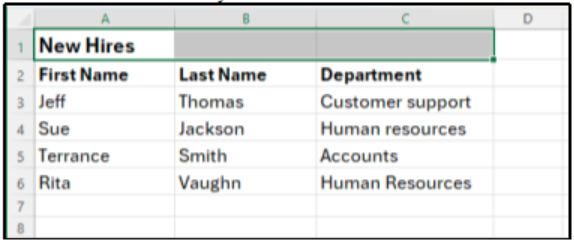
- Press Ctrl + 1 (Windows) or Cmd + 1 (Mac) to open the Format Cells dialog box.
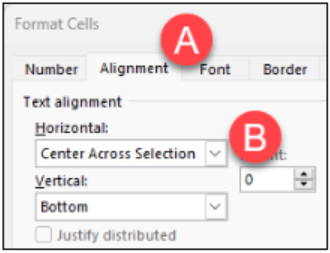
- Click the Alignment tab. Under Horizontal, click the drop-down menu and select Center Across Selection, then click OK.
Resources to Learn MoreWritten by Alison Kniseley, L&D Specialist
References: Richard, Cowboy Accounting, 2025