Import OLT Course Template from Canvas Commons
The Office of Learning Technologies has shared our course templates and specific modules of our course templates for 24/7 self-service imports. You can edit and publish the contents of the template after the import. Follow the directions below to access and import the desired Course Template item.
Note for users of screen readers: letters in parentheses in the instructions refer to corresponding areas on example images. If you have any questions about these instructions, contact Learning Technologies for assistance.
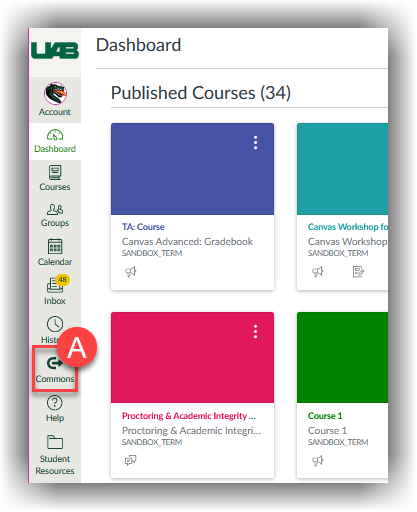
- Access Canvas Commons (A) from the Canvas Global Navigation Menu on the left.
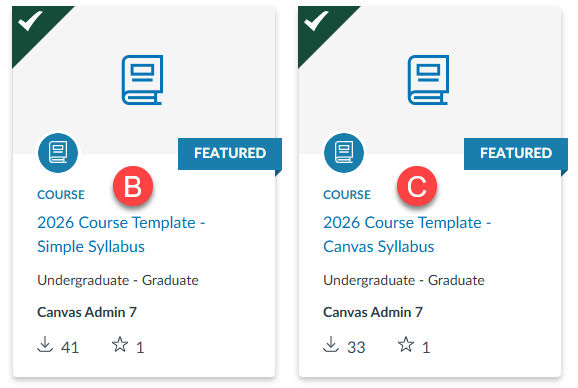
- If you do not see the course templates initially, type the word “Template” in the Search (B) to filter the results. You can choose from the template based on your chosen syllabus tool:
- Simple Syllabus (B) *
- Canvas Syllabus (C) *
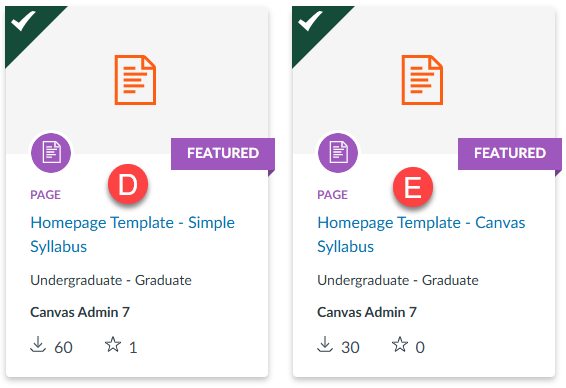
- You can also choose to only import the homepage for a course using either Simple Syllabus (D) or Canvas Syllabus (E).
Note: If you import the 2026 Course Template – Canvas Syllabus, it includes syllabus content that appears on the Canvas Syllabus tab in the course navigation menu. Please note that importing this template into your course will overwrite any existing syllabus content on that page in your course.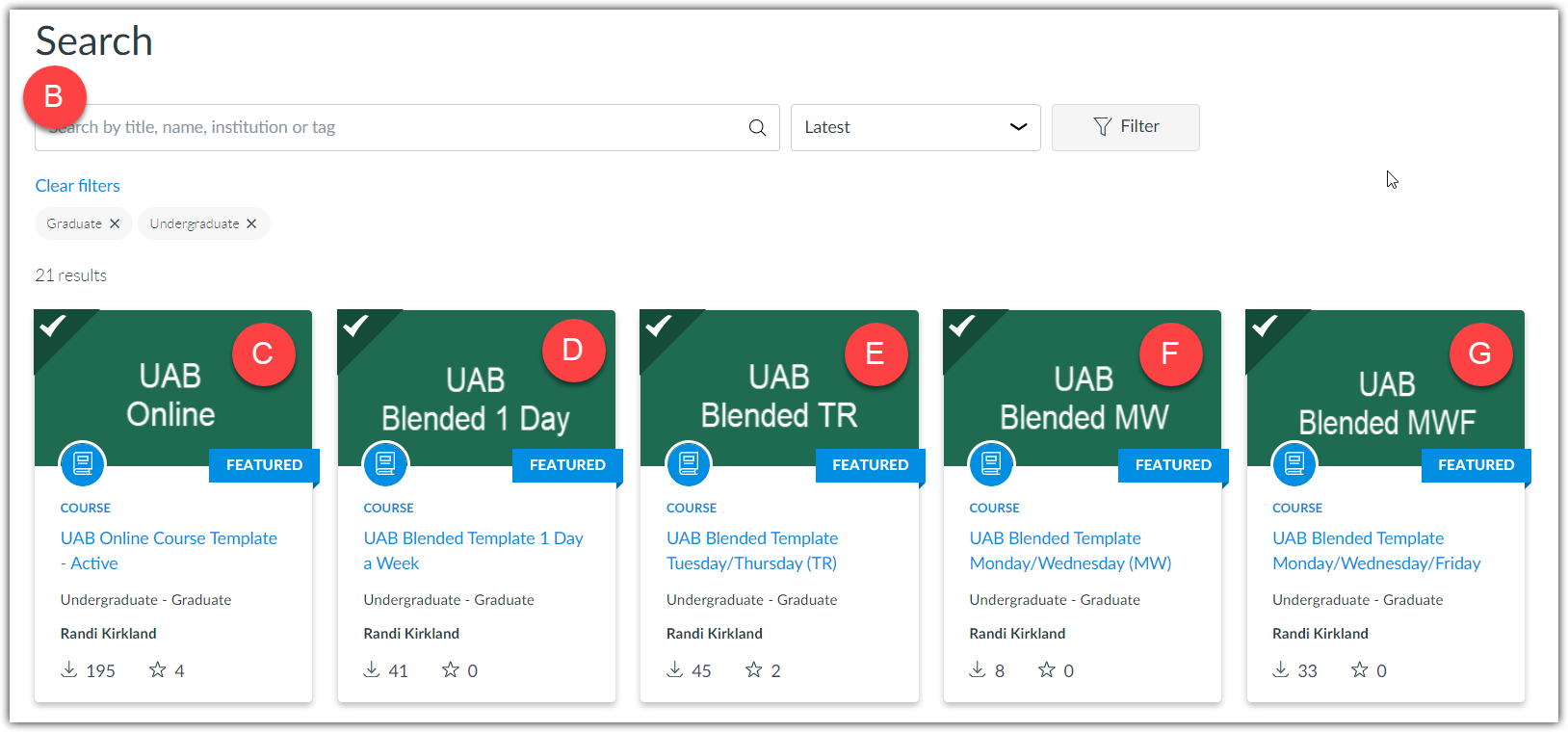
- Select Import/Download (F).
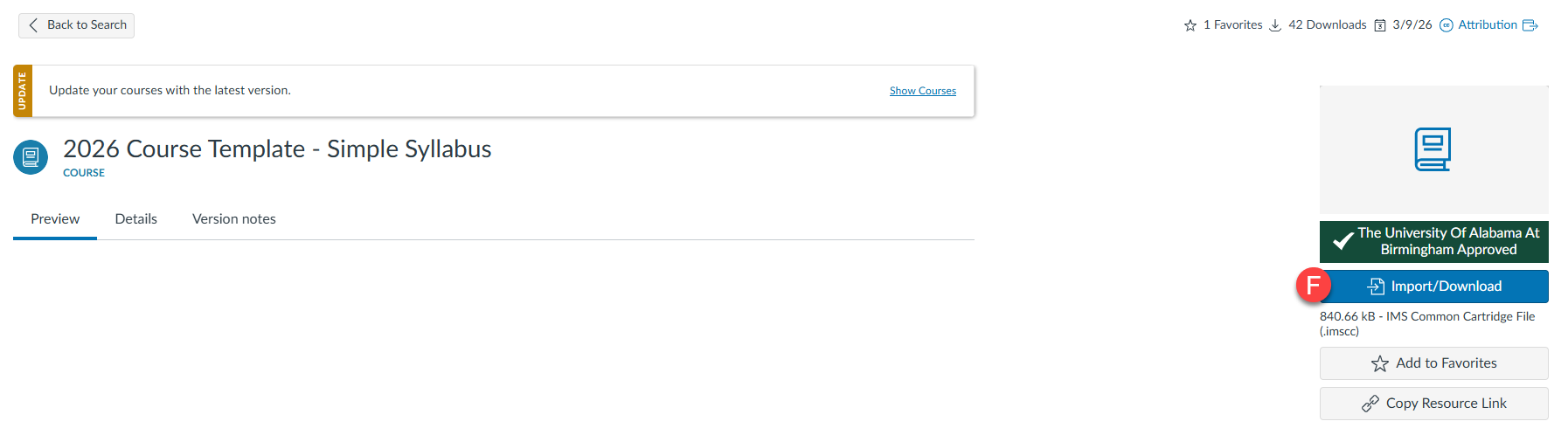
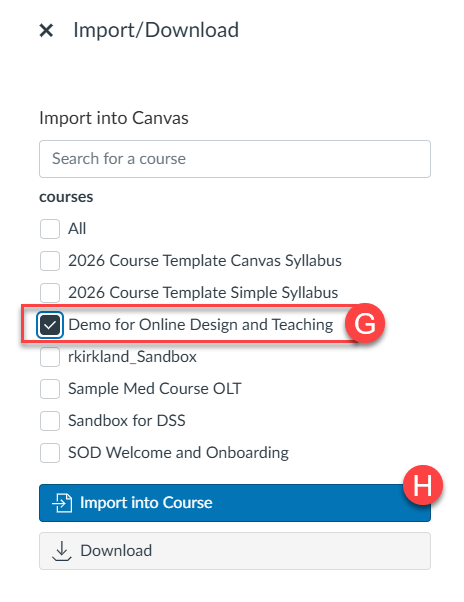
- A list of courses where you have Content Creation rights will be displayed. Select the desired destination course(s) (G). Review your selection options and select Import into Course (H) when ready.
- A green banner with the text “You have successfully started the import” will appear on the screen once the import has started. The content usually takes 2-5 minutes to appear in the destination courses.
Need Assistance?
If you would like instructional design assistance in setting up your course, please fill out our Instructional Design Request form. If you would like training or assistance in using Canvas or Canvas Commons, please contact Learning Technologies.