Phone: (205) 996-1757
Email:
The UAB Center for Teaching and Learning (CTL) team is available for individual faculty consultation at the Center for Teaching and Learning by appointment. We are also available to meet with departments, faculty groups, and others as requested to discuss and train faculty on:
- the practice of teaching in the classroom
- active learning methods
- course design and assessment
- pedagogical principles
- learning theory
- effective employment of the IDEA evaluation
- use of technology in education
- cultural awareness in the classroom
- other topics
Location
The CTL is located on the fourth floor of UAB's Lister Hill Library (1700 University Blvd, Birmingham, AL 35233). As with most buildings on UAB's campus, a valid OneCard is required for building entry. Important: faculty must scan their OneCard in the elevator for access.
Visit the UAB Campus map opens a new website for detailed directions from your current location.
Parking
There is limited meter parking on the streets surrounding Lister Hill Library. Learn more about parking at UAB opens a new website.
For on-campus faculty, the CTL is centrally located so we are just a short walk away from most areas on campus. There is a Blazer Express bus stop in front of the library if walking is not an option.
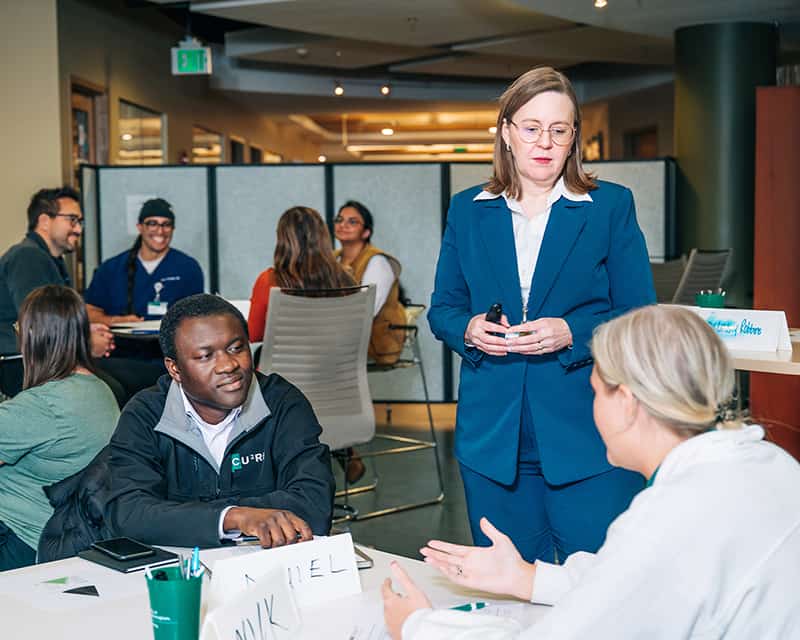
The UAB Center for Teaching and Learning (CTL) is a unified hub that brings together three complementary strengths: Teaching & Learning, Learning Technologies (OLT), and Continuing Education & Lifelong Learning (CELL). Together, these units support educators and their learners through every stage of the teaching, learning, and professional development journey.
Teaching & Learning (CTL)
Our team delivers research-informed workshops, programs, consultations, and communities of practice that strengthen teaching effectiveness across the university. We focus on high impact practices, inclusive course design, active learning, assessment for improvement, using AI in the classroom, and scholarly teaching. Faculty and student-serving staff members engage through workshops, individual consultations, learning communities, and tailored departmental presentations that translate evidence-based strategies into meaningful daily practice.
Office of Learning Technologies (OLT)
The Office of Learning Technologies equips instructors and academic units with the tools, training, and support needed to deliver high quality teaching with technology in any modality. OLT provides instructional design services, LMS guidance, and training in academic technologies. By integrating classroom technologies and digital pedagogies, OLT helps faculty design engaging, accessible learning experiences (online, hybrid, and in person) backed by robust technical and pedagogical support.
Continuing Education & Lifelong Learning (CELL)
Continuing Education & Lifelong Learning expands UAB’s reach by supporting units as they develop and offer noncredit bearing courses, workshops, certificates, and programs for professionals, organizations, and community members. By aligning workforce needs with UAB expertise, CELL supports UAB academic units in creating flexible, career-relevant pathways, micro-credentials, short courses, and corporate partnerships that foster upskilling and reskilling across the region and beyond.
Visit the CELL Website Opens an external link.
What the CTL Offers
- Comprehensive support: A single point of access for excellence in teaching, in instructional technology, and professional learning needs.
- Seamless collaboration: Integrated services that connect course design and delivery, instructional technology, and lifelong learning initiatives.
- Scalable innovation: Evidence-based practices paired with the right tools and formats to reach learners wherever they are.
- Expanded impact: For-credit and non-credit pathways that strengthen student success, faculty development, and workforce readiness.
Who We Serve
- Faculty & Instructors: Consultations, workshops, programs, technology services, and communities of practice that advance teaching excellence.
- Academic Units: Department-level partnerships for curriculum initiatives, program redesign, and modality optimization.
- Professionals & Organizations: Flexible continuing education and learning solutions aligned to workforce goals.