The deadline for Title II digital accessibility compliance has been extended to April 26, 2027. Even though the deadline has shifted, it is important to remain committed to addressing this concern across our digital platforms. With that in mind, we wanted to answer some questions we’ve received over the last couple months and reiterate some valuable resources that can help you adopt these changes. See UAB's Digital Accessibility website for more information.
Questions & Answers
Can I use Co-Pilot to make my PowerPoints accessible?
In general, the answer is no. At this time, Co-Pilot is not able to scan a PowerPoint and make it accessible, especially in the case of inserted SmartArt assets. Fortunately, PowerPoint’s built-in accessibility checker does a great job of taking you step-by-step through elements that need tweaking for accessibility.
Additionally, Co-Pilot can be used to generate alt text for images that will be added to the PowerPoint. Just be sure to upload the image to Co-Pilot prior to inserting it in the PowerPoint. You may generate the alt text and then copy/paste it into PowerPoint once prompted in PowerPoint’s accessibility checker.
What is the difference between providing alt text for an image or marking the image as decorative?
If the image enhances the text on screen or provides important context to what has been written, it requires alt text. A brief description image content is necessary. When screen readers reach the image, the alt text instructs them what to read. Without alt text, the screen reader would announce “image” or simply the file name, which can be frustrating for listeners, not knowing if the image is important.
If the image does not provide importance to the text (a logo for example), it may be marked as “decorative” which signals to screen readers to ignore reading it altogether. It can make for a smoother listening experience for users if it’s not a crucial element on the page.
Do I need to mark the logo in my Outlook signature as “decorative”?
Unfortunately, Outlook does not have a way to do this. Therefore, you can either right-click the image in the Edit Signature interface to add alt text that states “UAB logo” or you may title the image itself “UAB logo” prior to inserting into the signature. If no alt text is provided, the screen reader will read the file name, so it’s best to be descriptive, again so that listeners know they are not missing important information.
If I submit digital signage to Communications, do I need to make sure they are accessible?
Since the images submitted for digital signage are being distributed on signage and not through email or another digital platform like Canvas or the website, you do not need to consider screen readers in this instance. However, it is still important to remember color contrast, which is a form of accessibility. Please make sure that any submitted digital signs include proper contrast between text and background.
If I add alt text to images in a PowerPoint, does that alt text persist if I export the file as a PDF?
Unfortunately, the answer is no. Once exported, alt text and accessibility tags will need to be readded. To avoid exporting to PDF and starting from scratch with accessibility, an alternative is to share the PowerPoint itself. The issue with sharing your original PowerPoint slides is often the file size due to embedded images. Before sharing the file, you may compress the images to reduce the file size significantly.
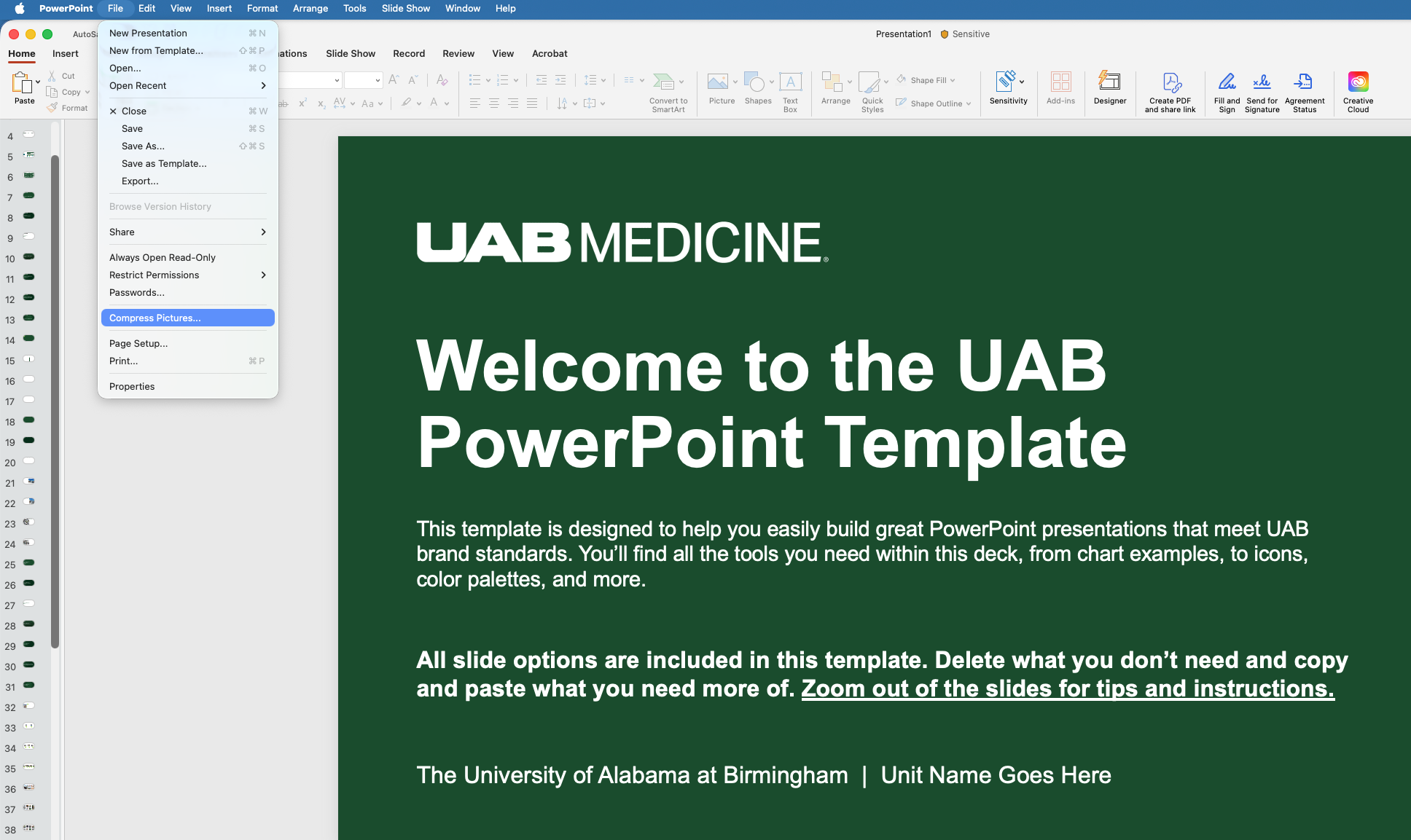
Step 1
To compress images, select the File menu and press the Compress Pictures option.
Step Two
On the popup window, select the 150 ppi option from the Picture Quality dropdown menu.
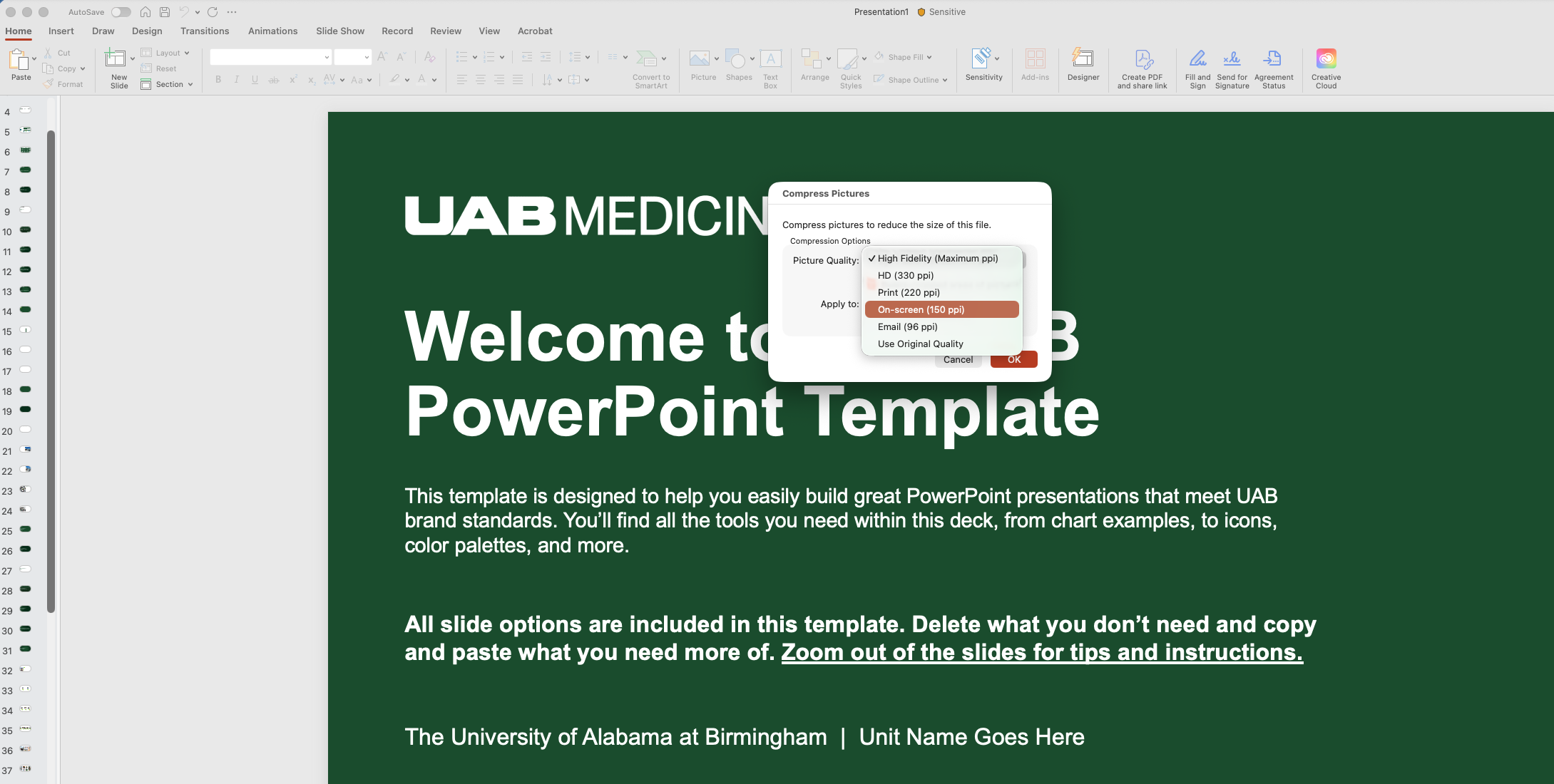
You are now ready to save your file and share it. For reference, I compressed a PowerPoint file that had 7 images on 6 slides and reduced the file size from 7.1 MB to 2.1 MB. In longer files, this reduction is substantial.
If documents are stored in Box or MS Teams, do they also need to be made accessible, even if they are not uploaded to the website?
Yes, documents stored on any digital platform and shared with others need to be made accessible moving forward.
If I do not plan on distributing my PowerPoint after presenting a lecture or webinar, do I need to make the file accessible?
If the file will not be made available after presenting, it is not necessary to complete the accessibility checker. If you decide to share it in the future, those steps will need to be taken, though.
Do my printed flyers need to be made accessible?
Similar to digital signage, keep color contrast in mind. Other than that, printed materials do not need to be made accessible for screen readers.
What is the best way to handle alt text for headshots?
Avoid using physical descriptions or references to gender and age. If the text in the document states the individual’s name and title, the alt text can simply be “Headshot of Dr. LastName.” If the headshot appears in the document well after a reference to the individual’s name you may include more information: “Headshot of FirstName LastName, M.D., director of ExampleProgram.”