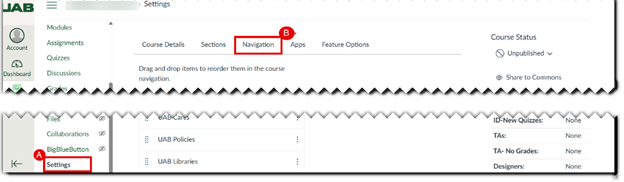
Note for users of screen readers: Letters in parentheses in the instructions below refer to corresponding areas on example images. If you have any questions about these instructions, contact the Office of Learning Technologies for assistance opens a new website.
- Select Settings (A) from the course navigation list, then click the Navigation (B) tab to ensure Microsoft Education is enabled for your course.
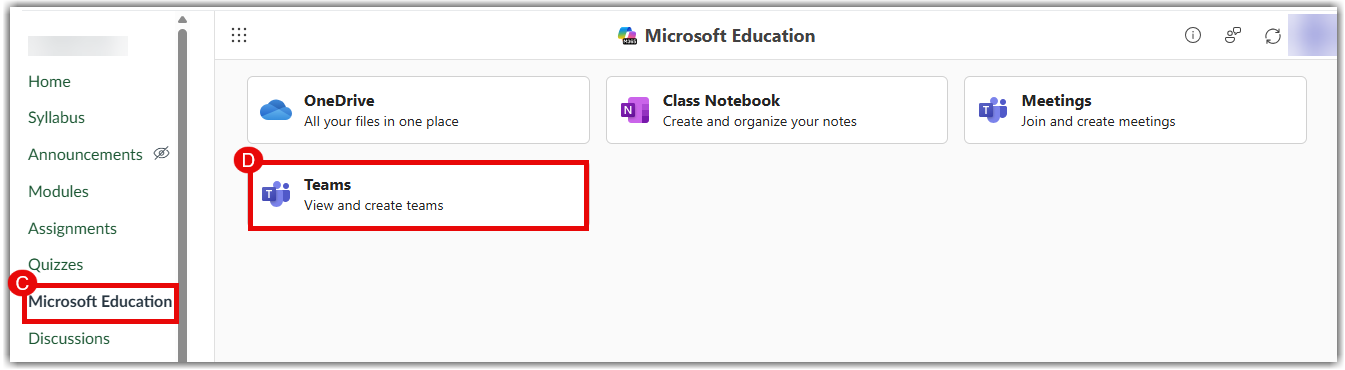
- Select Microsoft Education (C) from the course navigation list. Click the Teams tile (D) to view and create teams for your course.
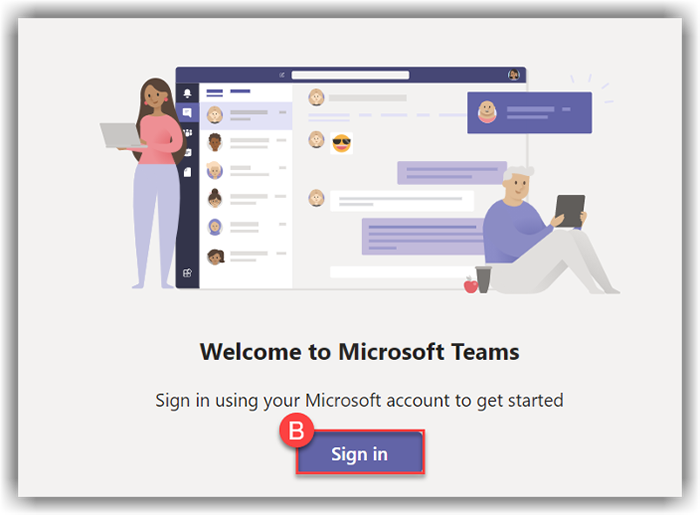
- You may be asked to sign in with your Microsoft Account. If you see this screen, click Sign In (B). Sign in with your UAB email address; you will then be redirected to the UAB sign-in.
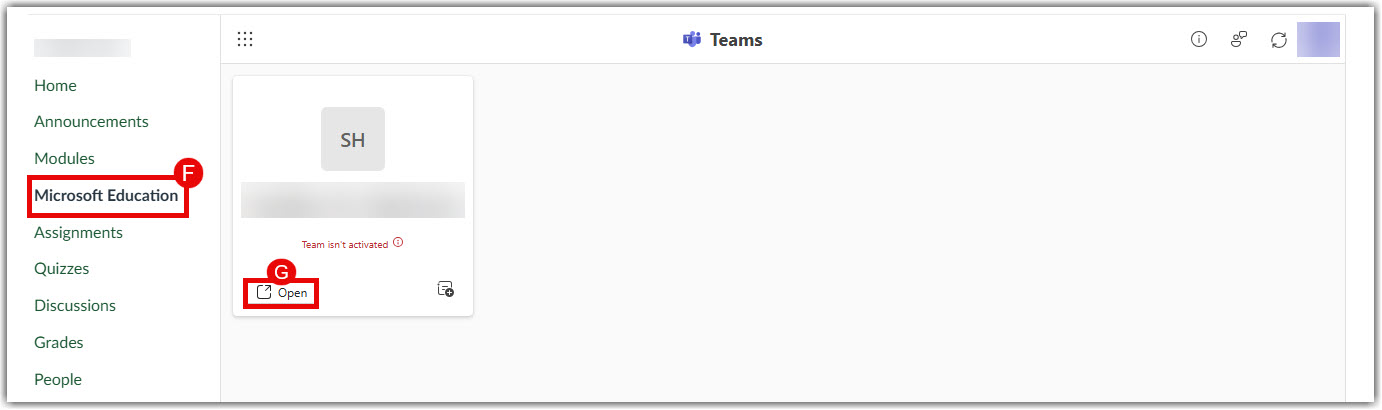
- On the Microsoft Education (F) page, find your course card and click Open.
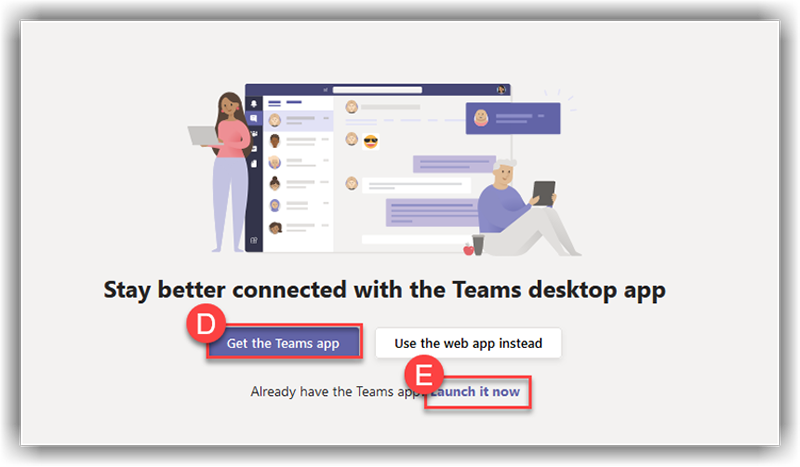
- Another browser tab will open. If you do not have the Microsoft teams app installed, click Get the Teams app (D) and follow the instructions to install it. If you already have it installed, click Launch it now (E).
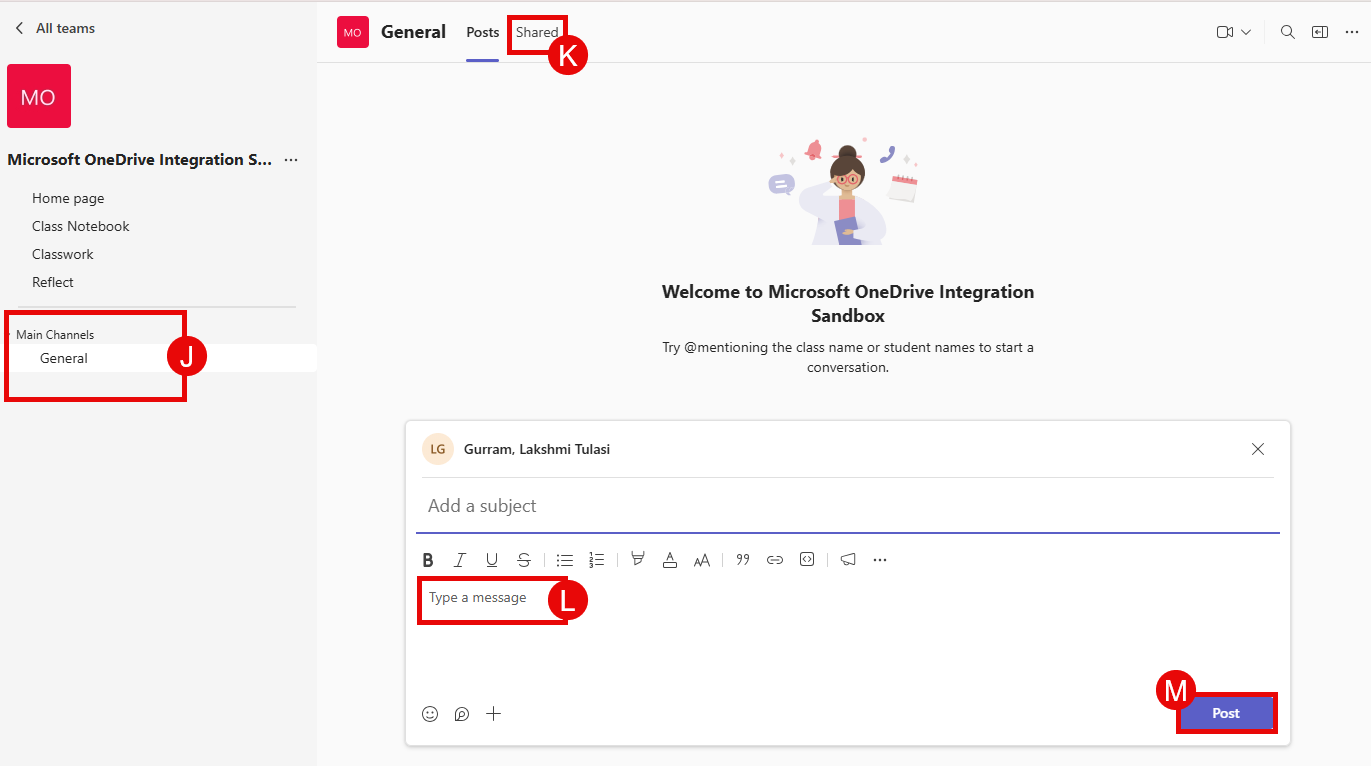
- In your Microsoft Teams Class, a welcome message for your course will appear in the center of the screen.
- Access the General channel (J) or any other channels listed under the Main Channels section on the left.
- Access and upload resources using the Shared (K) tab located at the top.
- Type a message (L) to start or reply to a conversation.
- Click Post (M) to send your message to the class.
- Access additional guides and information from Microsoft Support opens a new website.