Note for users of screen readers: Letters in parentheses in the instructions below refer to corresponding areas on example images. If you have any questions about these instructions, contact the Office of Learning Technologies for assistance opens a new website.
Submit Assignment
Students can submit videos to a Canvas assignment using Kaltura. Kaltura allows students to embed and submit a video that is already stored in their video library (My Media) or record/upload a video directly into the assignment. Note: Instructors must have 'Text Entry' as a submission method in order for you to submit Kaltura Videos. Follow the directions below.
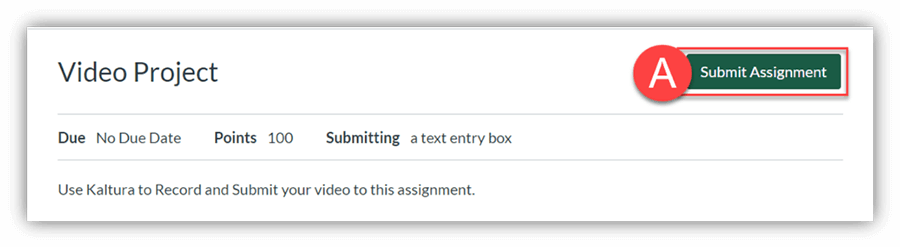
- Locate the Canvas Assignment and click the Submit Assignment (A) button at the top right.
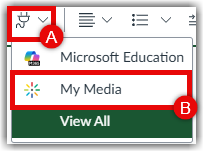
- Click the Text entry tab, move the insertion point to the desired location in the text box. Click on the Kaltura (A) icon to open a new window or use the plug-in dropdown menu. Click the My Media (B) option. Note: Depending on the resolution of your screen, you may have to click the vertical 3 dots at the far right of the toolbar in order to see the apps icon.

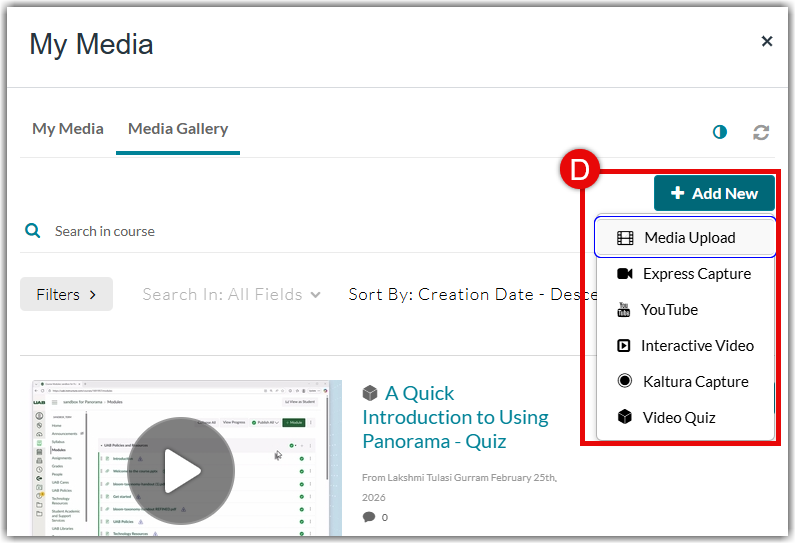
- A window will pop up and display all the videos in your Kaltura library (My Media). If your video is already showing in the list, skip to step five.
- Click the + Add New (D) button and select one of the following media options (for a detailed guide on these options, visit the Adding Media to My Media guide):
- Choose Media Upload if you have a file on your computer.
- Choose Express Capture to do a quick camera recording.
- Choose YouTube if you have a YouTube video URL.
- Choose Kaltura Capture to record your screen, webcam, and/or voice.
- Choose Video Quiz to make an interactive video quiz from a video.
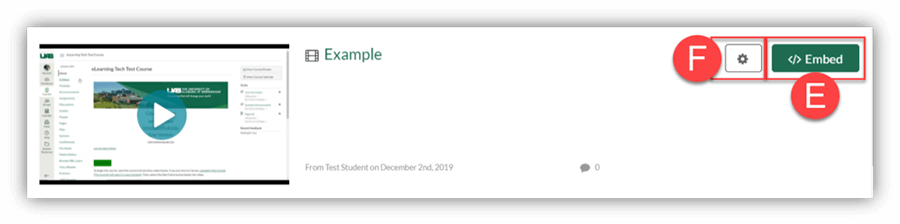
- Identify the video to be submitted and click Embed (E) or click the Gear (F) to choose further embed options.
- The selected video will be embedded (G) into the text box, click Submit Assignment (H).
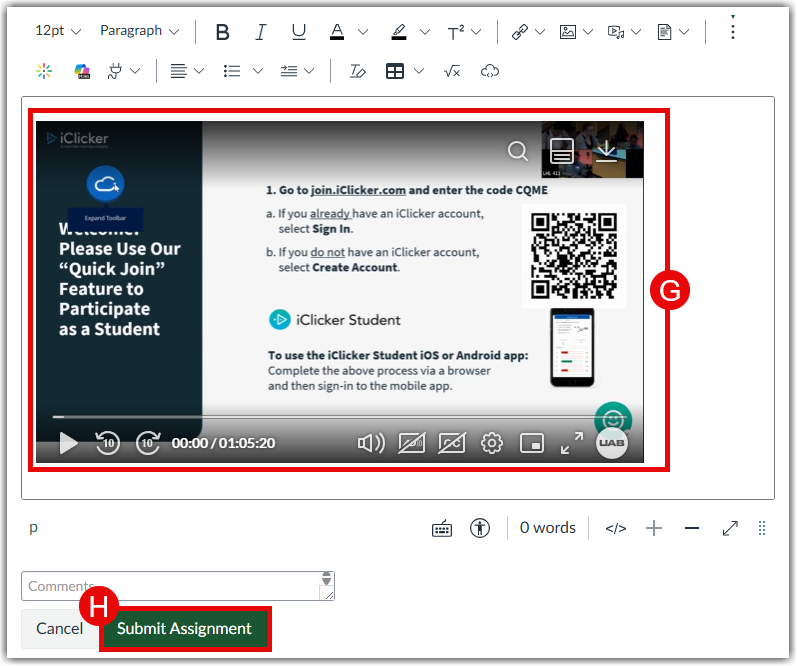
Note: If the video is embedded before it has finished processing, an error message will be displayed stating “No source video was found.” This message indicates the video playback is currently disabled. At this time, it’s safe to submit the assignment. When the video is finished processing, the playback feature will be enabled automatically and both you and the instructor will be able to play the video.
Embed into Discussion
Your instructor may want you to reply to a discussion board and include a video. You can embed and submit a video that is already stored in your video library (My Media) or record/upload a video directly into the discussion board. Follow the instructions below.
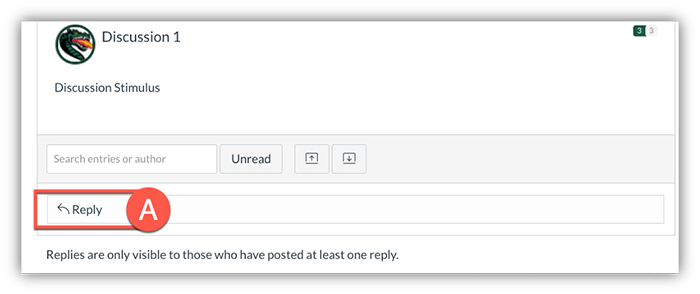
- Click Reply on the discussion page in Canvas.
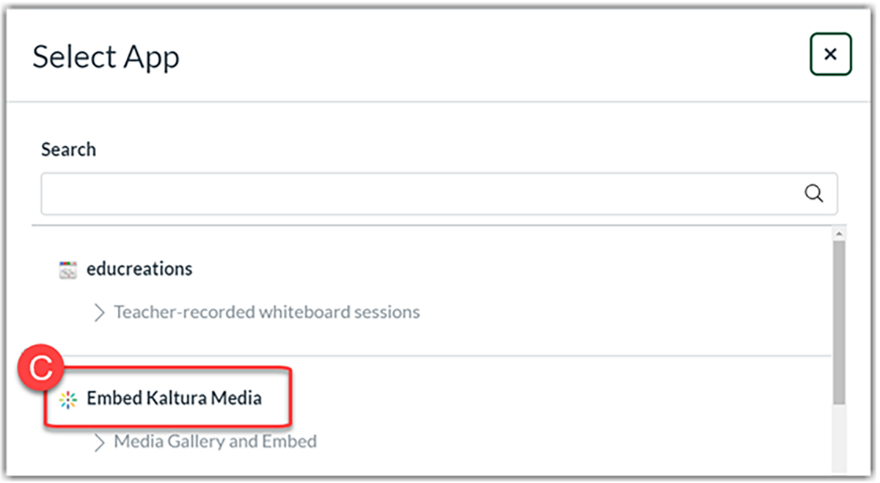
- Students click the Apps (B) icon at the end of the toolbar and then click the Embed Kaltura Media (C) text. Note: Depending on the resolution of your screen, you may have to click the vertical 3 dots at the far right of the toolbar in order to see the apps icon.
- A window will pop up and display all the videos in your Kaltura library (My Media). If your video is already showing in the list, skip to step five.
- Click the + Add New (D) button and select one of the following media options (for a detailed guide on these options, visit the Adding Media to My Media guide):
- Choose Media Upload if you have a file on your computer.
- Choose Express Capture to do a quick camera recording.
- Choose YouTube if you have a YouTube video URL.
- Choose Kaltura Capture to record your screen, webcam, and/or voice.
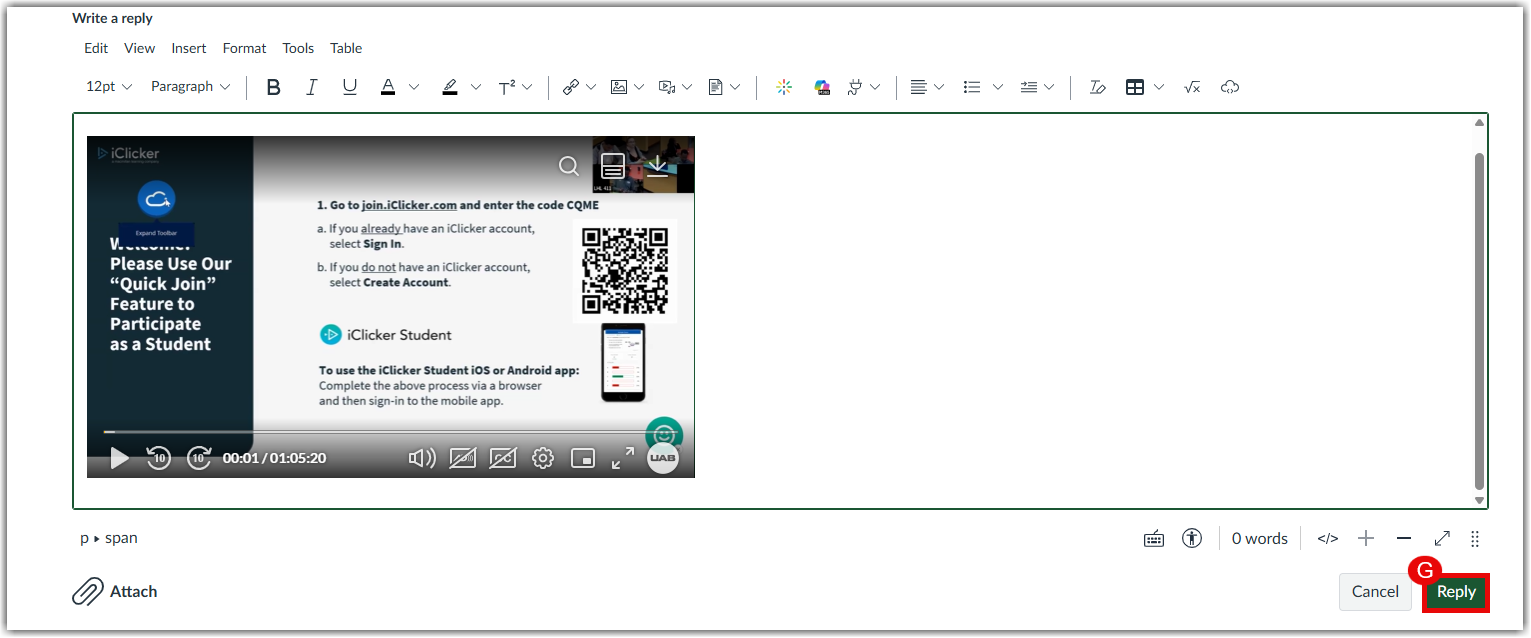
- Identify the video to be submitted and click Embed (E) or click the Gear (F) to choose further embed options.
- Click Post to submit your embedded video on the discussion.
Publish to Media Gallery
Your instructor may want you to submit a video to the Course Media Gallery so that the entire class can watch and comment. Follow the directions below.
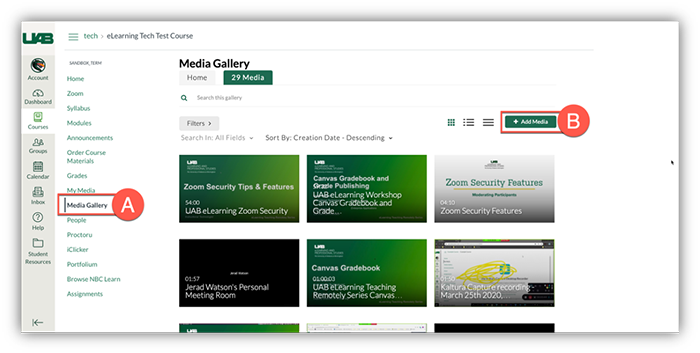
- Click Media Gallery (A) in the Canvas course navigation menu on the left.
- To add a video, click + Add Media (B) at the top right.
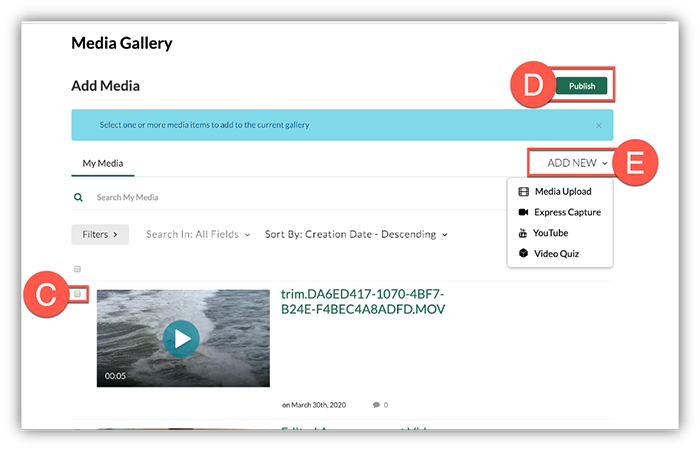
- If you already have the video uploaded into Kaltura, you can select the desired video by checking the box (C) beside it.
- Click Publish (D) to add this video to the course Media Gallery.
- Students can also upload files or record a quick webcam video. Click Add New (E) to get started with this process.
- Read more about how to add media to Kaltura.
- Students can also follow this guide on Kaltura Capture to record a presentation into Kaltura then come back to this guide to publish it to the Media Gallery.
- Once published, you should see a green success banner (F). Your video may need to be approved by your instructor before it displays in the Media Gallery.