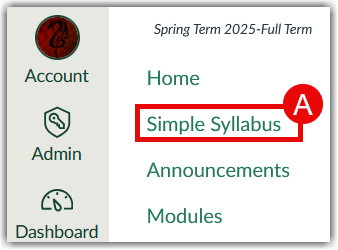
If Simple Syllabus is not visible in your left-hand course navigation, you will need to enable it via the course settings. Follow the instructions below to enable and make visible Simple Syllabus in your course.
Note for users of screen readers: Letters in parentheses in the instructions below refer to corresponding areas on example images. If you have any questions about these instructions, contact the Office of Learning Technologies for assistance opens a new website.
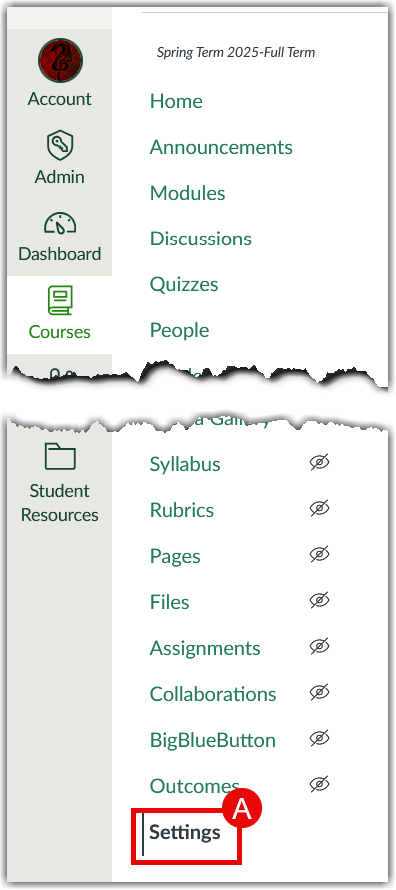
- Select Settings from the left-hand course navigation.
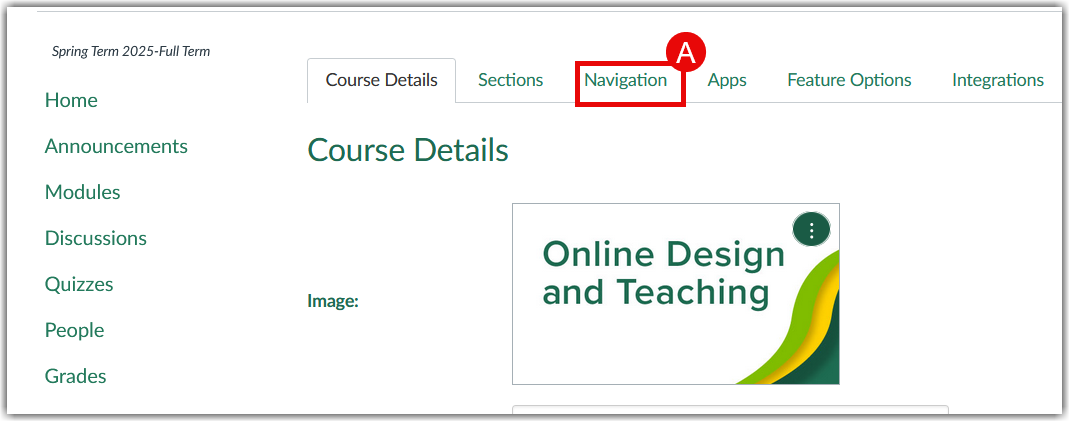
- Select Navigation (A) from the horizontal menu.
- Locate Simple Syllabus (A) from the second column of items.
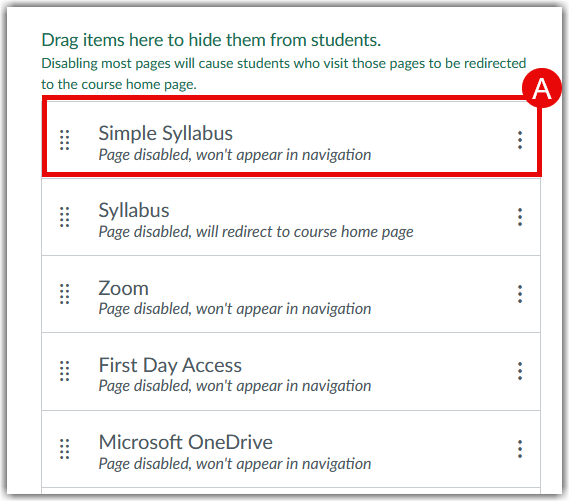
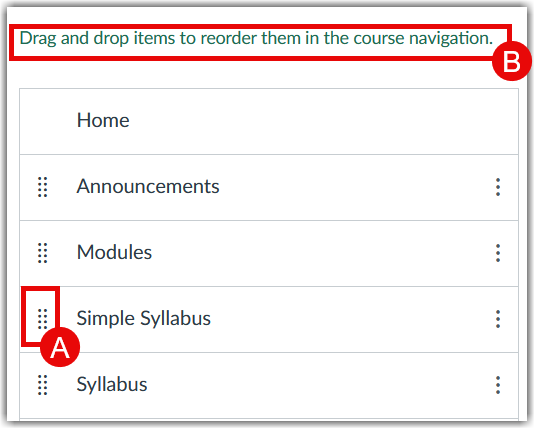
- Click the vertical, parallel sequence of dots next to Simple Syllabus (A), and drag the rectangle to the top column of items located under the text Drag and drop items to reorder them in the course navigation (B).
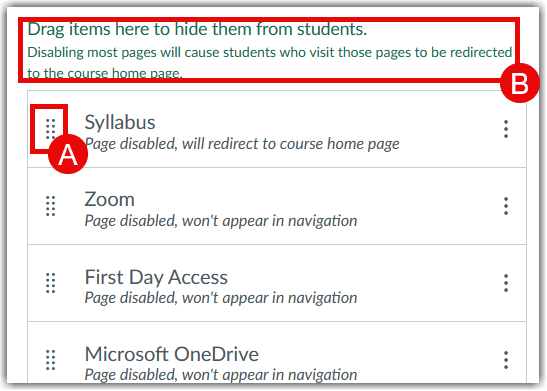
- If Syllabus is present in the top column, click and drag the Syllabus rectangle (A) to the bottom column of items located under the text Drag items here to hide them from students (B).
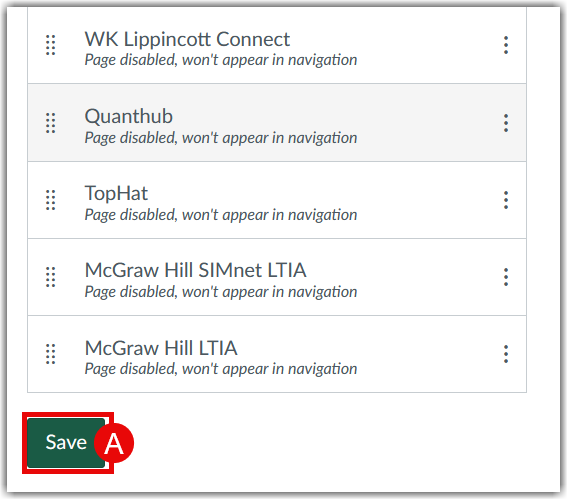
- Select Save (A) at the bottom of the page.
- Simple Syllabus (A) will now be visible and enabled in your left-hand course navigation.