Note for users of screen readers: Letters in parentheses in the instructions below refer to corresponding areas on example images. If you have any questions about these instructions, contact the Office of Learning Technologies for assistance opens a new website.
- Navigate to BlazerNET opens a new website. Enter your BlazerID and password.
- Click on “Enter BlazerNET.”
- Click on “UAB Menu”
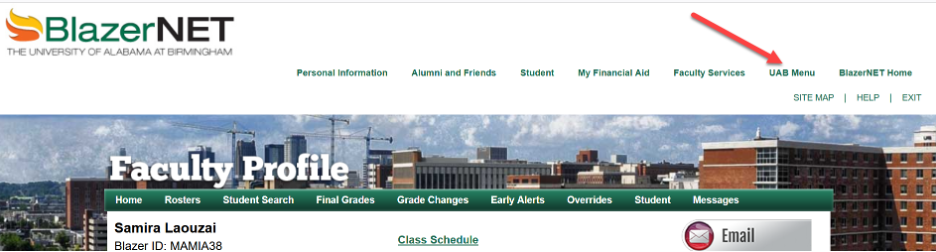
Depending on your role and permissions, the following screenshots may look slightly different. The steps are the same. For users of screen readers, all instructions are included in the page text.
- Select “Your UAB List.”
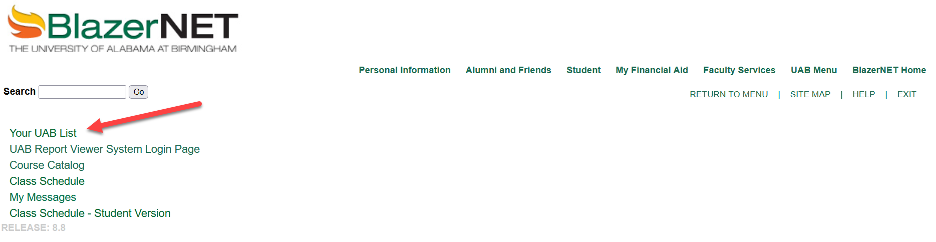
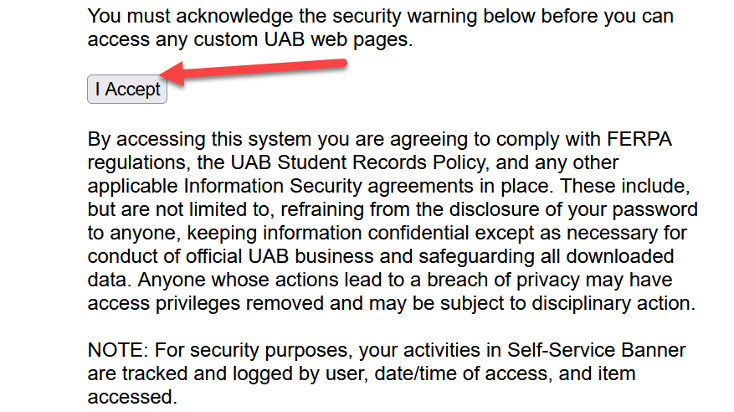
- If the security warning message appears (see screenshot below), click “I Accept” to comply with the terms.
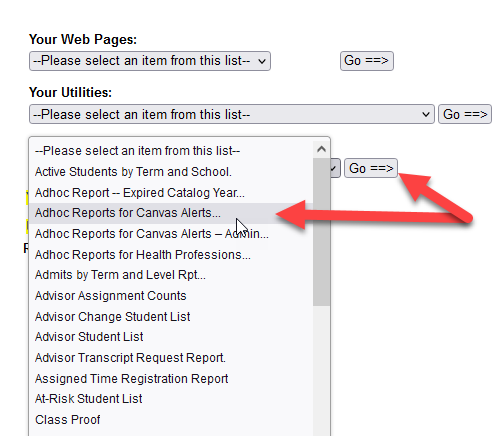
- Under Your On-Line Reports, select “Adhoc Reports for Canvas Alerts…” and click on “Go==>.”
- Click on “Canvas Alerts Comprehensive Report – Instructor” to display the report.

- Select the term for which you want to display the report. Click on “Show Results” to display the results on the page or click on “Export to Excel” to export the results to an Excel file.
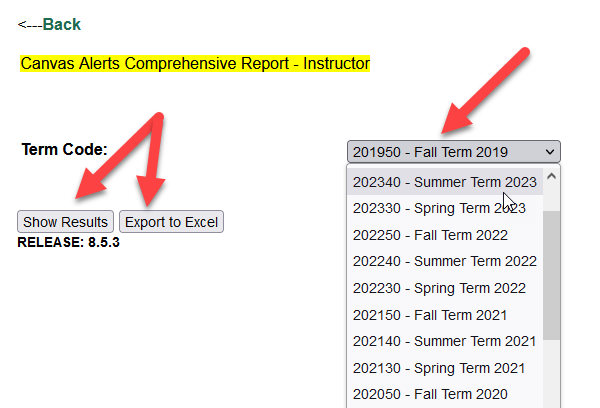
Note: If you select “Show Results,” once results are displayed on the page you can export to an Excel file.
Questions? Please contact OLT opens a new website.