Note for users of screen readers: Letters in parentheses in the instructions below refer to corresponding areas on example images. If you have any questions about these instructions, contact the Office of Learning Technologies for assistance opens a new website.
Before you can access Stukent in Canvas, you must first create a course in Stukent following the instructions below.
- Visit the Stukent website opens a new website and click “Login” at the top right of your screen.

- Log in with your Stukent-provided email and password. If you do not know your login information, email
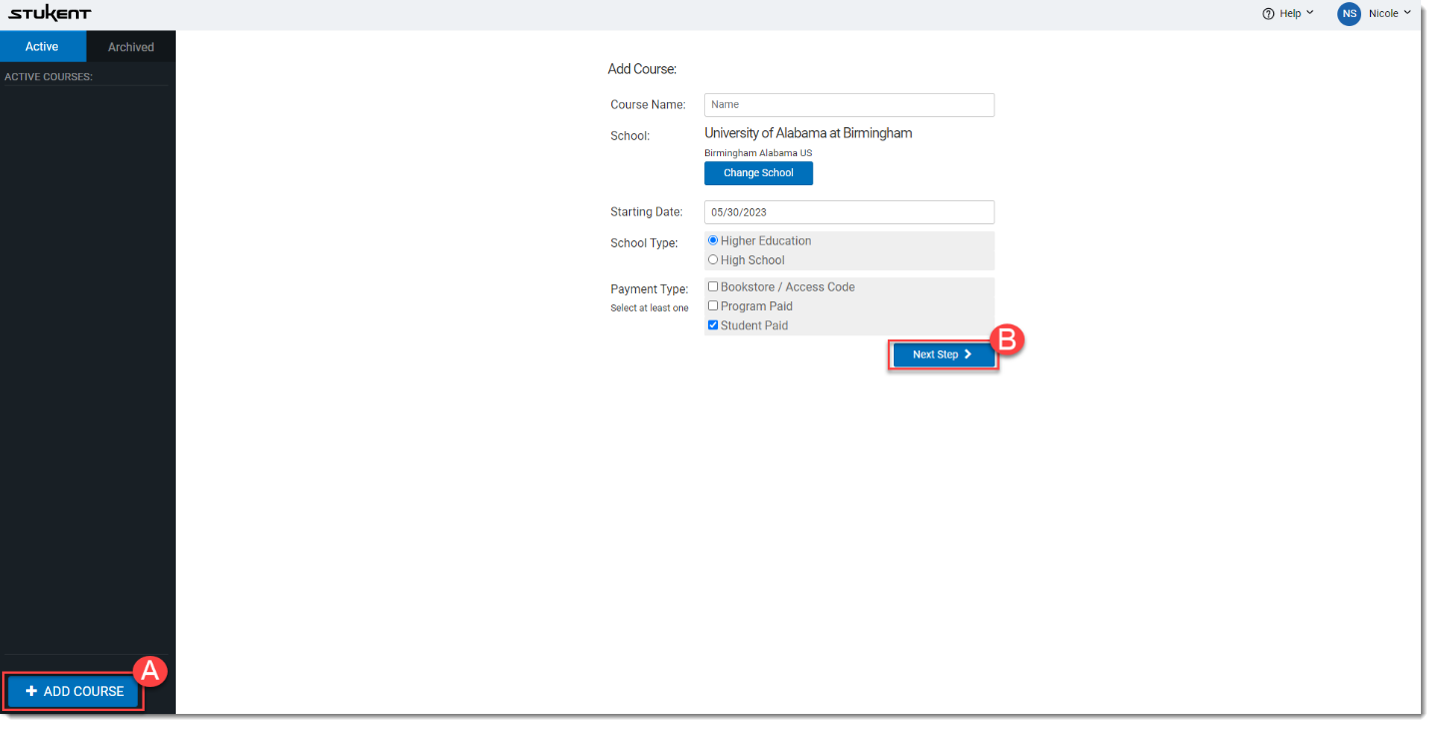
This email address is being protected from spambots. You need JavaScript enabled to view it. or call (855) 788-5368. - Once you log in, you will be taken to the instructor portal. Click the “+ Add Course” (A) button in the bottom left corner of your screen. Enter your course details and click “Next Step" (B)
- Once you’ve located the courseware and/or simulations you want to use, select “Add Bundle” (A). After you have added all the desired products for this course, select “Save and Continue” (B).
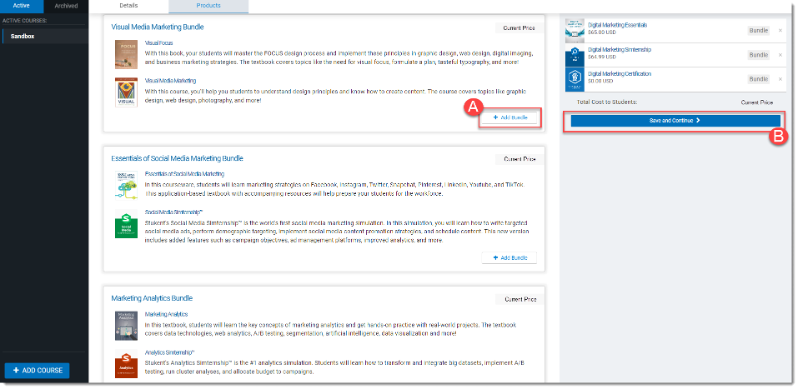
Note: Selected products cannot be changed after clicking “Save and Continue.” If you decide to switch products after clicking “Save and Continue,” you must add a new course and identify those products in the newly added course.
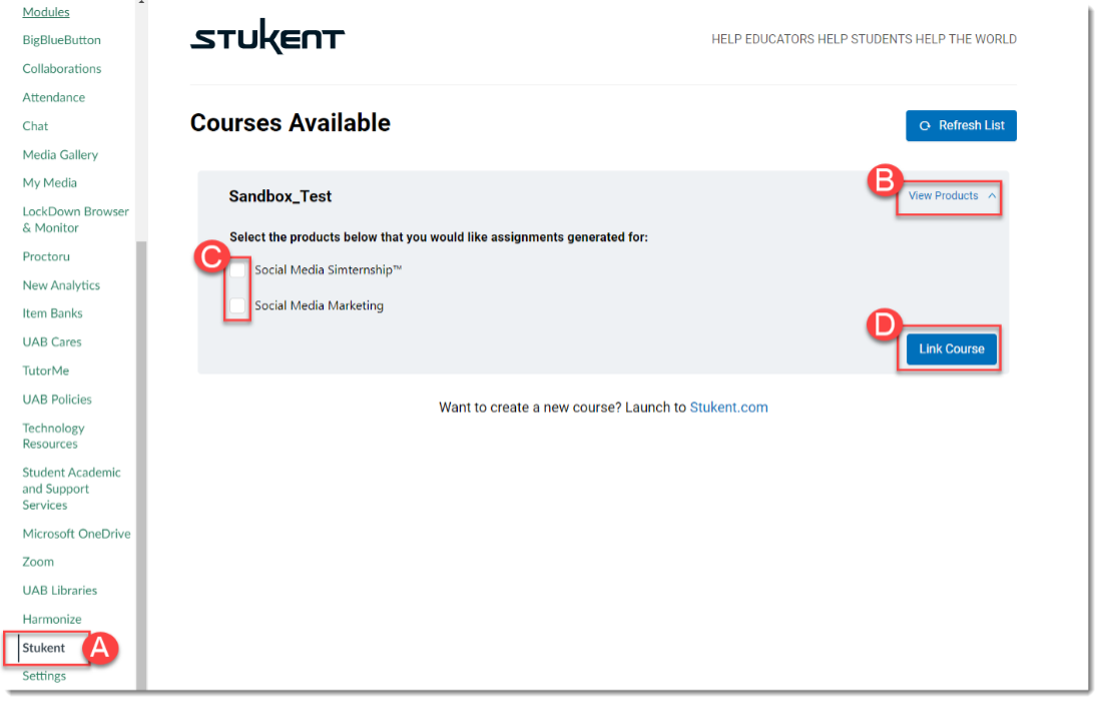
- Once you have completed the previous steps, navigate to your desired Canvas Course. Select Stukent (A) from the left-hand course navigation menu. You should see the Stukent course you created displayed. If you do not see your course, click the "Refresh List" button. Once you have located the course you would like to link, click the "View Products" (B) link to review any products that you would like to generate assignments for during the linking/associating process. Select the products you would like assignments generated for (C). Assignments and Canvas Gradebook columns will only be generated for the selected products. Once you have selected all products for assignment generation click the "Link Course" (D) button to complete the linking process.