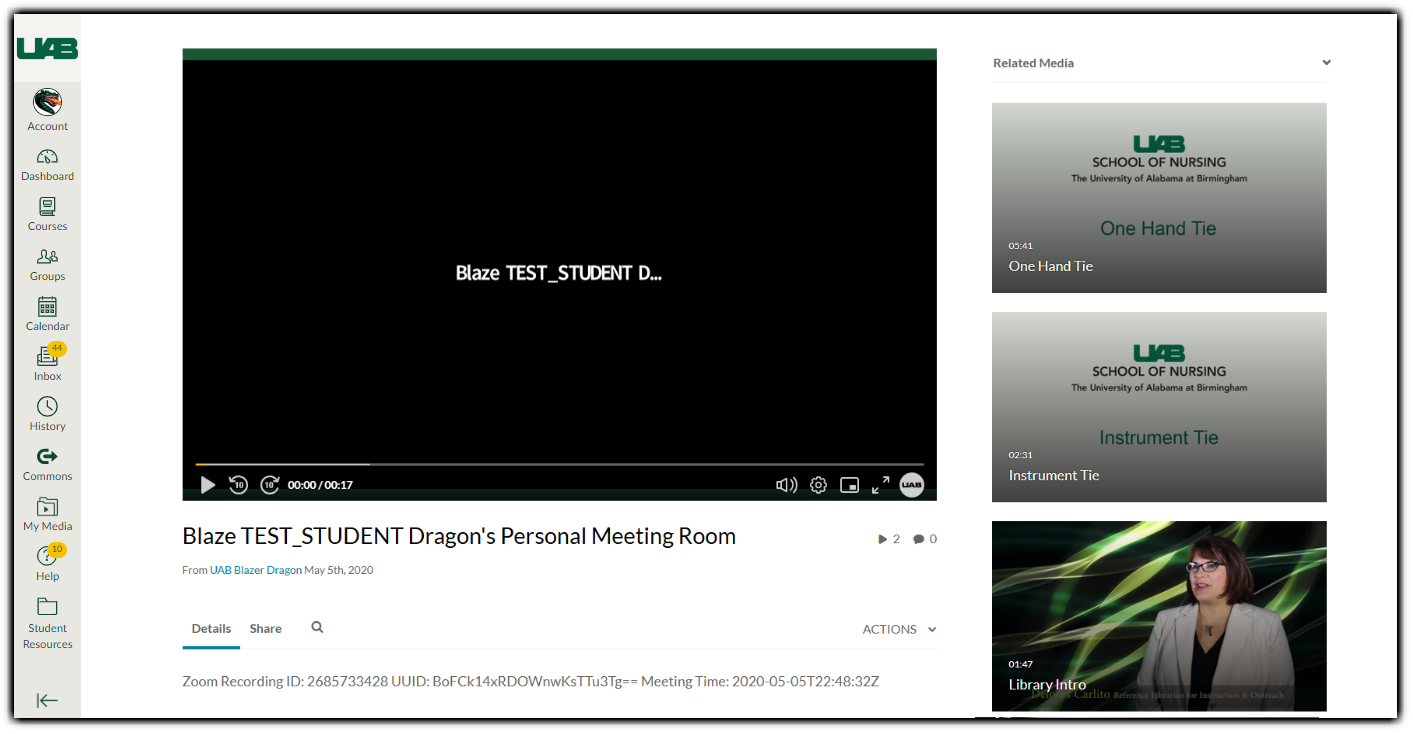
Media that sits unplayed for two years in Kaltura will be marked for ‘flavor’ removal. Kaltura flavors represent the required renditions of the source file with distinct codecs, frame sizes and bitrates. If your flavors have been removed, and you would like them reinstated, follow the steps below.
Note for users of screen readers: Letters in parentheses in the instructions below refer to corresponding areas on example images. If you have any questions about these instructions, contact the Office of Learning Technologies for assistance opens a new website.
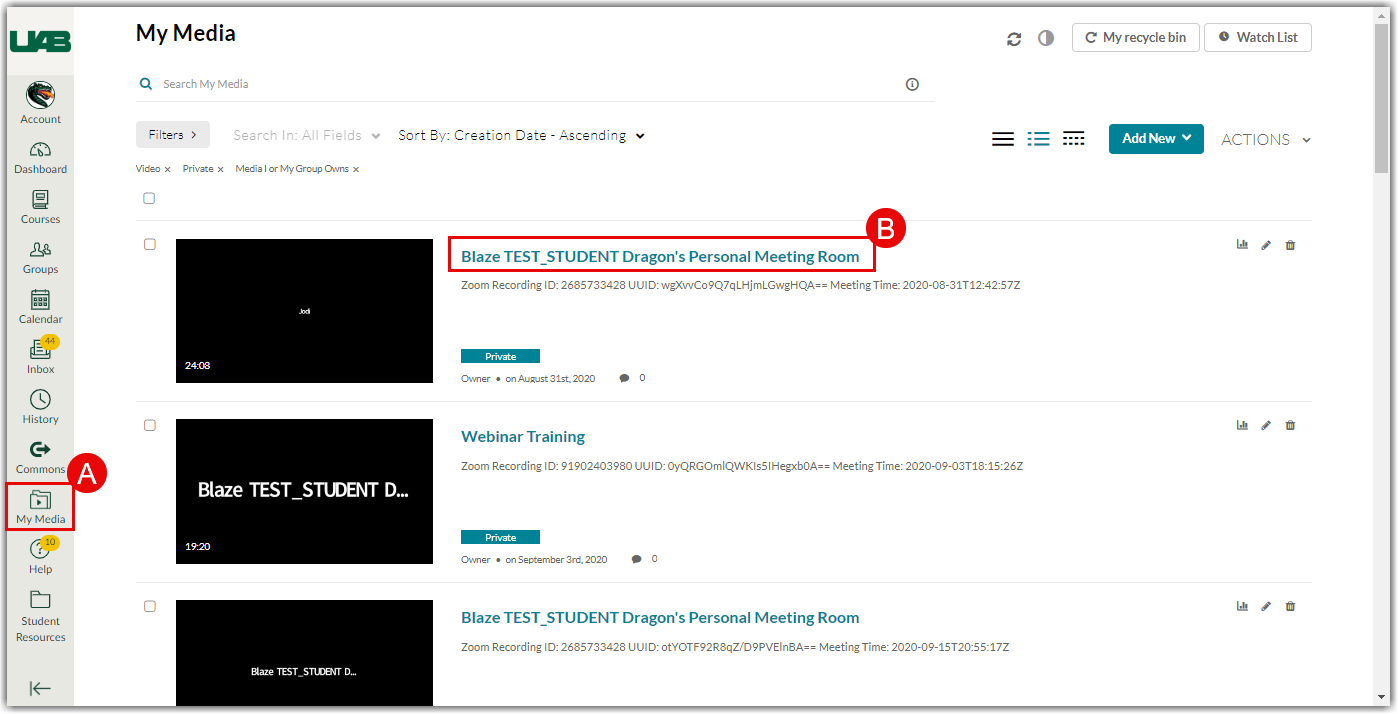
- Go to My Media (A) in the global navigation menu. From here, click on the desired Video Title (B).
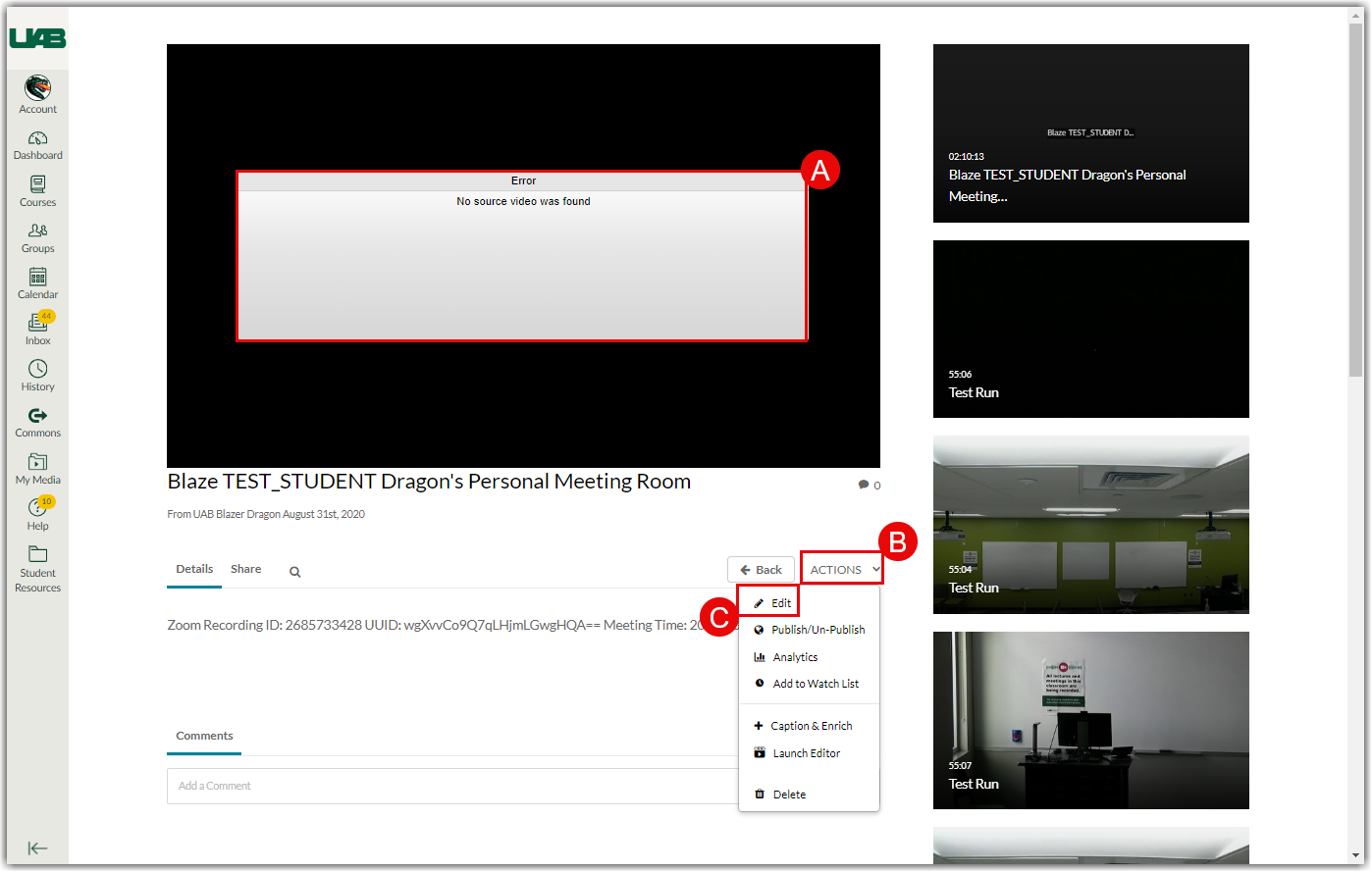
- Ensure that the Error “No source video was found” displays (A). Important: if this error is not displayed, there may be another issue with your video. Please contact Office of Learning Technologies for assistance. Then, click the Actions button (B) to bring up more options. Choose Edit (C) to open the editing menu for your video.
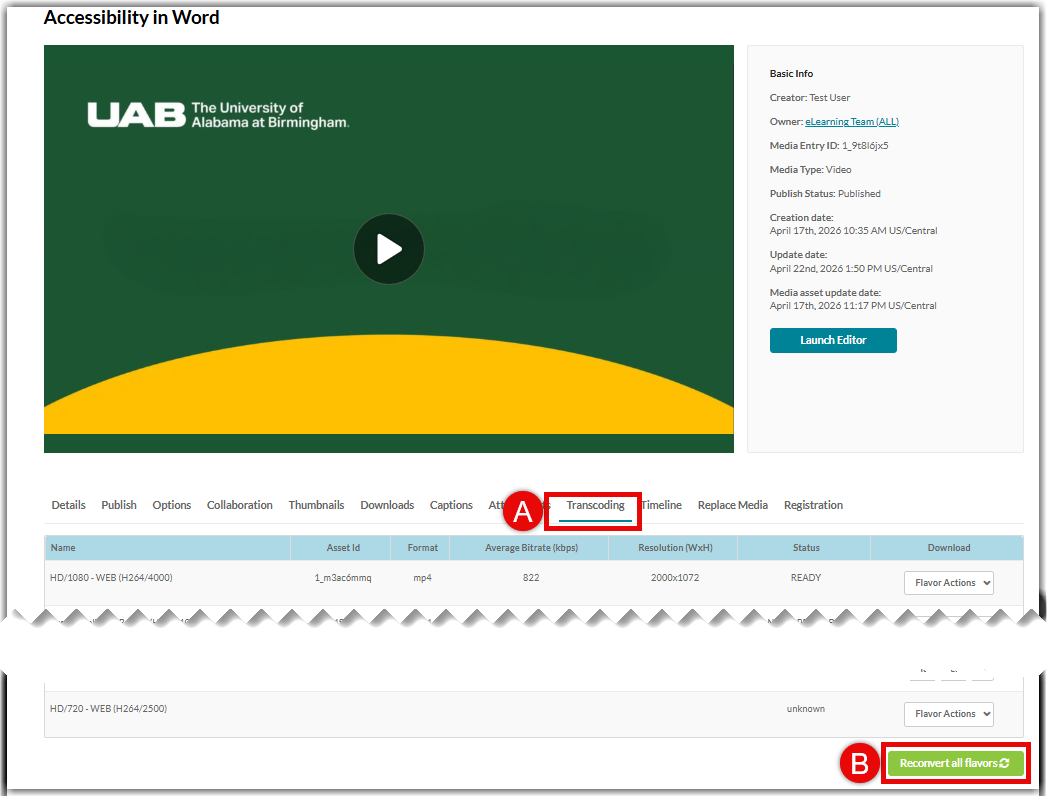
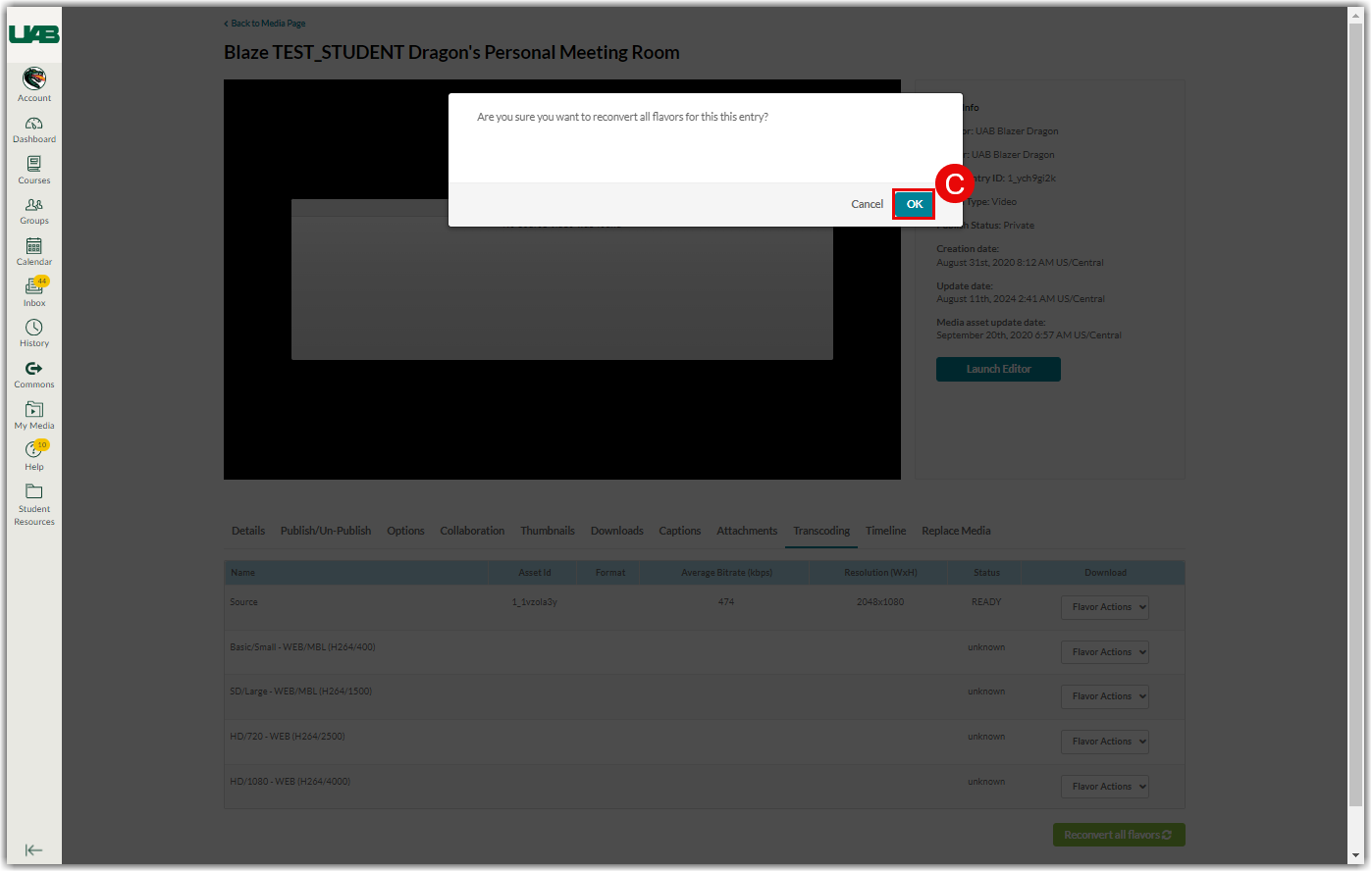
- Scroll down to the editing options tabs and select Transcoding (A). Click Reconvert all flavors (B). Click OK (C) in the pop-up window to begin the reconversion.
- A yellow warning will appear when reconversion has successfully begun.
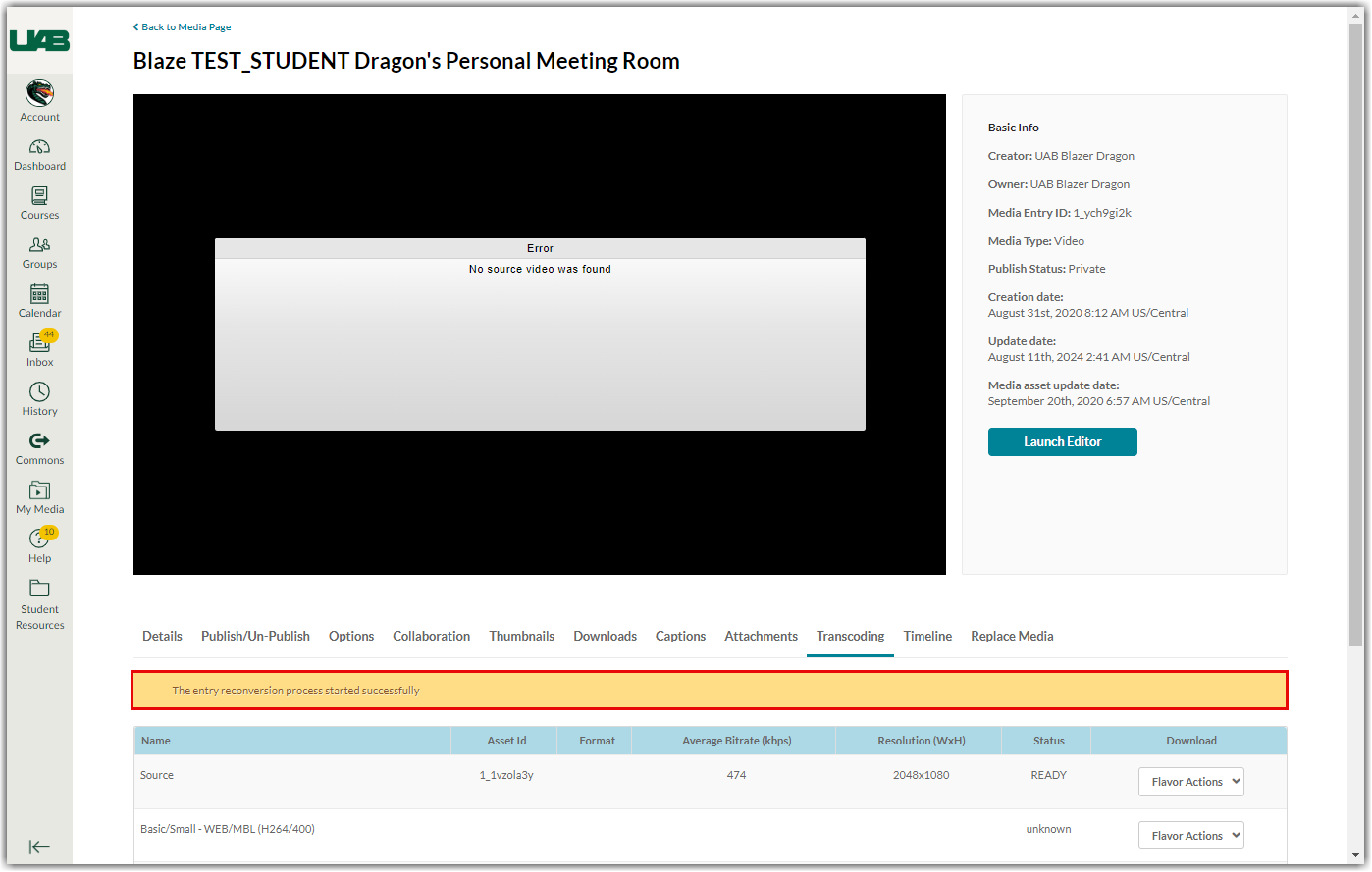
- When the reconversion has completed, the recording will preview correctly. Please note that reconversion may take up to a few hours depending on the video size and number of flavors.