Note for users of screen readers: Letters in parentheses in the instructions below refer to corresponding areas on example images. If you have any questions about these instructions, contact the Office of Learning Technologies for assistance opens a new website.
Follow the steps below to add WeVideo to your course and begin building a Bulb (interactive video).
- Login to Canvas and navigate to the course you would like to connect to WeVideo.
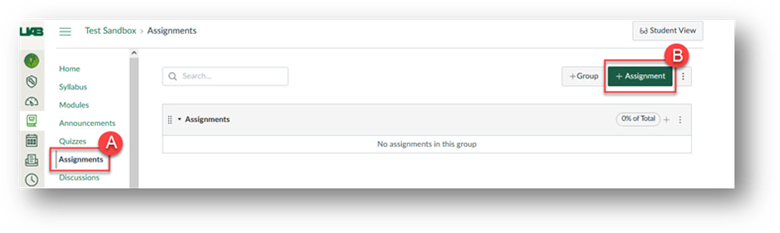
- Select Assignments (A) from the left column menu and click to add a new assignment (B).
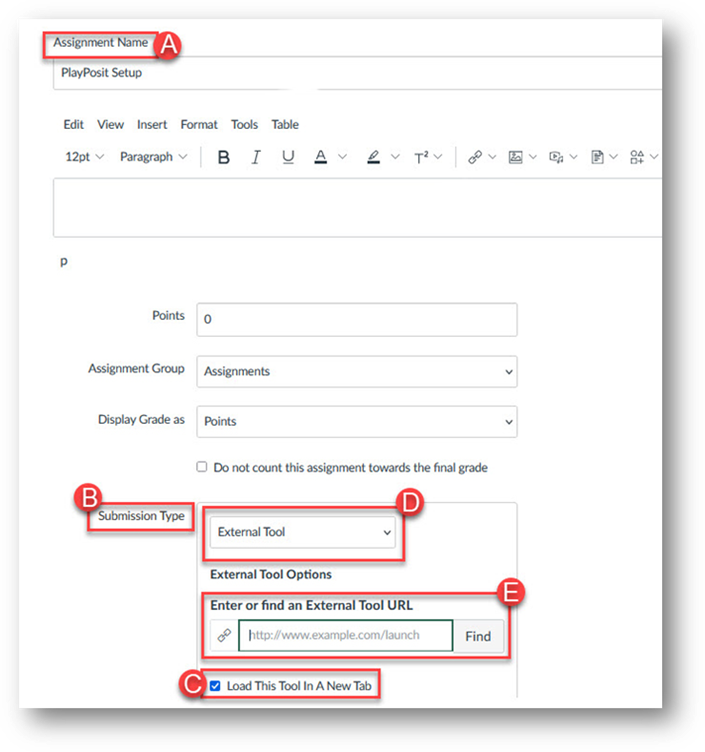
- Enter "WeVideoSetup" in the Assignment Name (A) field.
- Scroll down to Submission Type (B).
- Check the Load This Tool In a New Tab (C) box
- Select External Tool (D)
- Find and select WeVideofrom the pop-up menu (E)
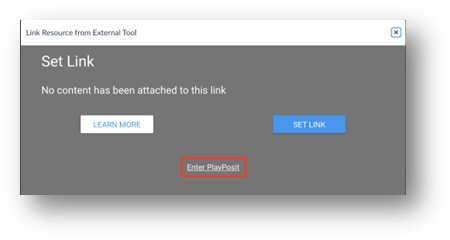
- A pop-up will appear. Click Enter WeVideo.
- You have now authenticated into your WeVideo account. You can now search through the premade Bulb library or begin building your own Bulbs with new or existing video.