Caution: Declining a meeting will remove the meeting from this dashboard!
Note for users of screen readers: Letters in parentheses in the instructions below refer to corresponding areas on example images. If you have any questions about these instructions, contact the Office of Learning Technologies for assistance opens a new website.
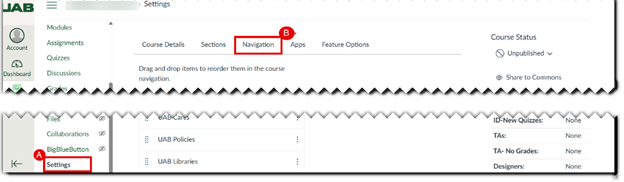
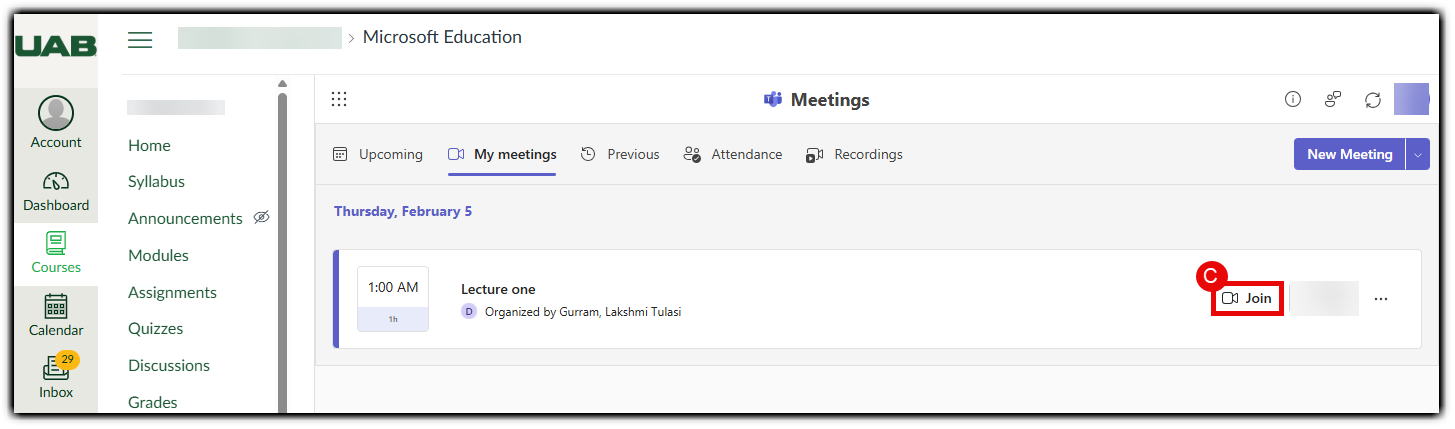
- Select Microsoft Education from the course Navigation menu (A). Select Meetings (B), then click Join for the meeting you wish to attend (C).
- You may be asked to sign in with your Microsoft account. If prompted, click Sign In, enter your UAB email address, and you will be redirected to the UAB sign-in page.
- The Teams App will open. (You may have to select or give permission for Teams to open).
Tip: If you do not have the Teams app installed, another browser window will open asking you if you would like to continue in the browser or download the app. UAB eLearning recommends downloading, installing and using the Teams app for the best possible experience.
- Once the Teams app is open, configure your meeting options and join the meeting.
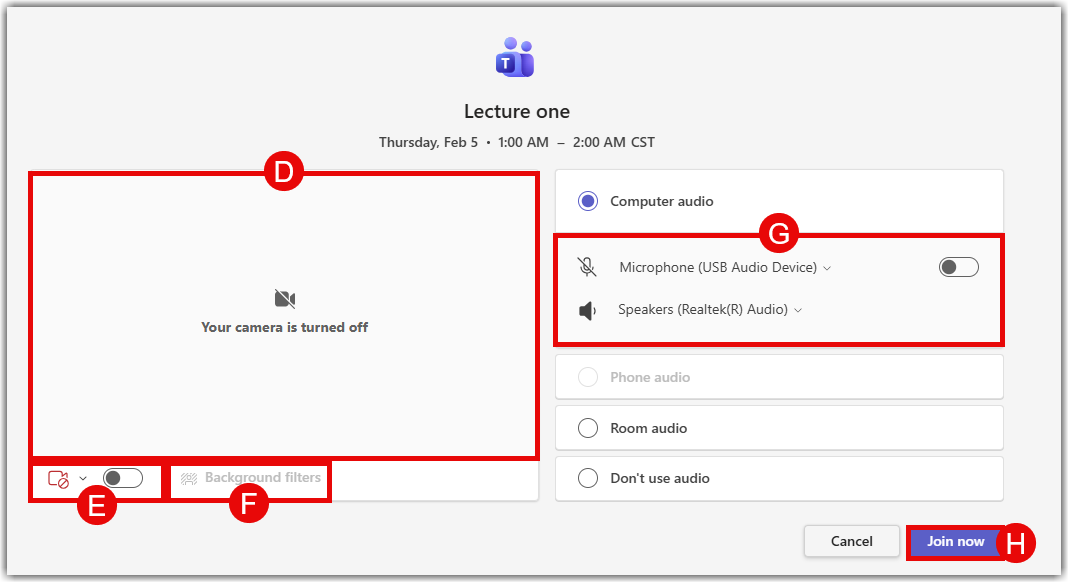
- Your picture as seen by the camera will appear (D).
- Toggle your camera on or off with (E).
- Choose a background filter (if desired) from the menu (F).
- Choose for your microphone to be on or off with (G).
- To join the meeting, press Join Now (H).
- For more information on Teams Meetings controls and features see Microsoft Support opens a new website.