Instructors can manually add library content in a Canvas course by embedding it in a module or page. This allows the instructor to choose a content type, guide, and which page of that guide desired to embed. See the instructional video and instructions below.
Note for users of screen readers: Letters in parentheses in the instructions below refer to corresponding areas on example images. If you have any questions about these instructions, contact the Office of Learning Technologies for assistance opens a new website.
Embedding in a Module
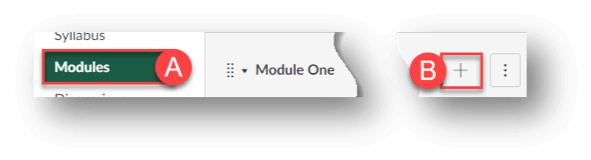
- Go to desired course and click Modules (A).
- Click the + (B) on the desired module.
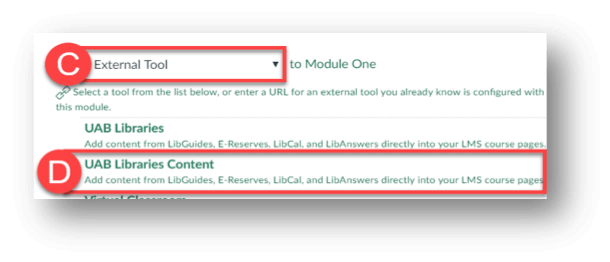
- Click the drop-down box and select External Tool (C).
- Scroll down, click UAB Libraries Content (D).
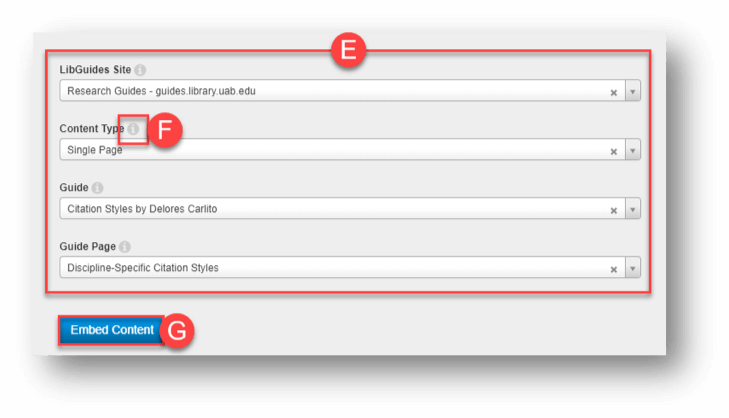
- Click each dropdown box (E) and make the desired selections. For more information, hover the cursor over the i (F).
- Click Embed Content (G).
- Click Add Item (H).
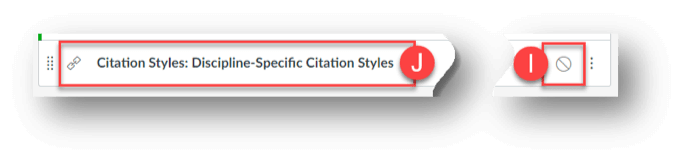
- Publish when desired by clicking the No Circle (I).
- Click the Link (J).
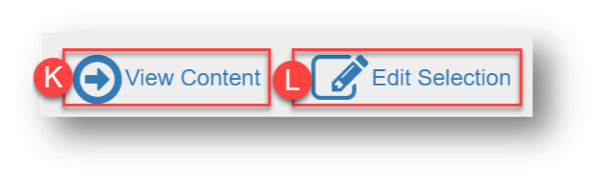
- Click See Content (K) to see the content students will have access to.
- Click Edit Selection (L) to change what library content it links to.
Embedding in a Page
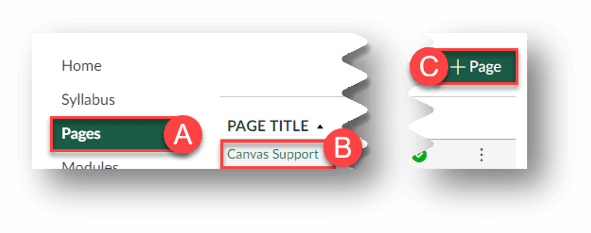
- Go to desired course and click Pages (A).
- Choose desired page (B) or click the + Page (C) button to add a new page.
- Move insertion point to desired location of embedded content.
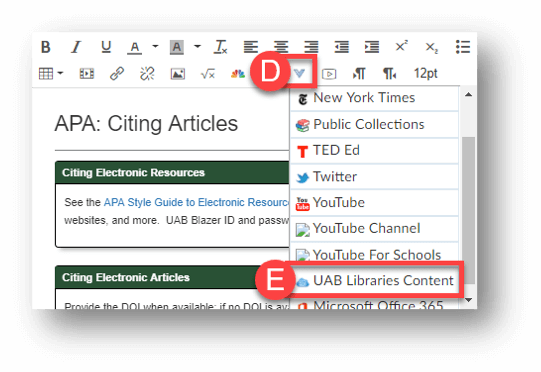
- Click the More External Tools (D) button.
- Scroll down and click UAB Libraries Content (E).
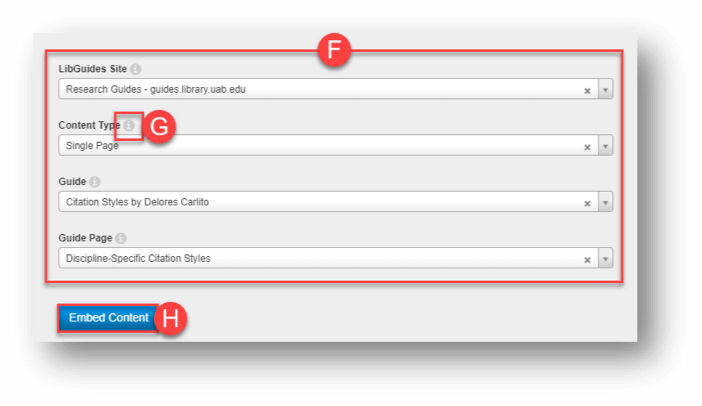
- Click each dropdown box (F) and make the desired selections.
- For more information, hover the cursor over the i (G).
- Click Embed Content (H).
- The content will embed in the page where the insertion point was located.