Image compression (optimization) helps you deliver high-quality images in the right format, dimensions, and resolution, while keeping the file size as small as possible — enhancing user experience. Images uploaded to UAB sites should be optimized. This can be done through the Digital Asset Library opens a new website (DAL) and through tools like Photoshop.
Image formats: Save most images as .jpg (saves at a smaller size). Reserve the .png format for logos and other images with words/letters.
Image sizes: Keep most images at 400 KB or smaller to ensure fast page loading. For very large images such as banners or hero images, exceed this limit only when absolutely necessary — but no image should ever be over 1 MB in size. Image size guidelines can be found on the Images page.
Optimizing Images Using the DAL (no cropping)
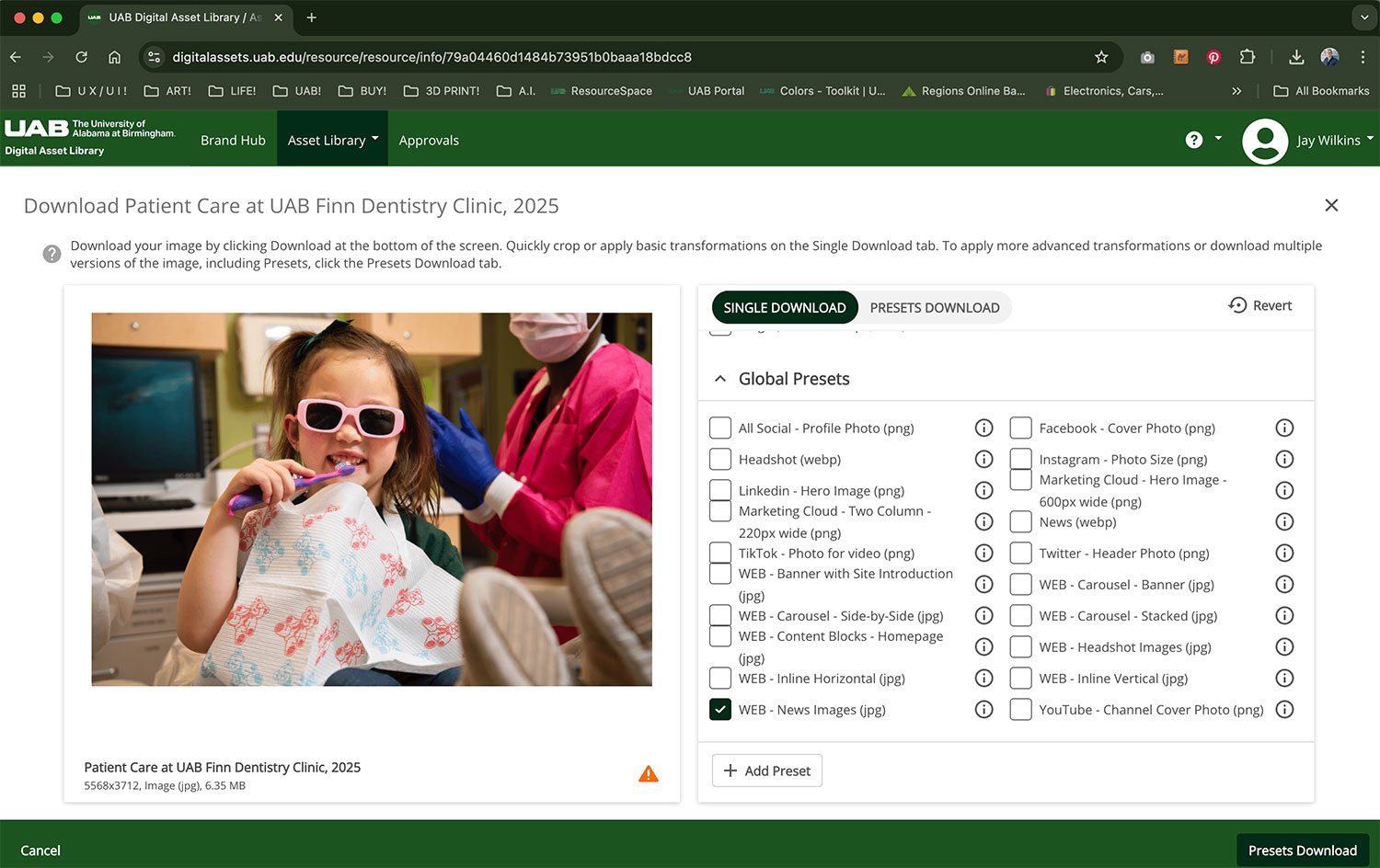
If you image is from the DAL you can download your image pre-optimized using their “run length encoding” at 60% through the Global Presets.
- Selecting your image and click download.
- Check the Global Preset: WEB - News Images (jpg) and uncheck Original in the File Format section above.
- Your graphic is complete and should be ready for use on the web.
Optimizing Using the DAL (with cropping)
- After selecting your image, stay on the Single Download tab at the top left. You will need to select the Global Preset under the tab and find your preset. We will use the WEB - News Images like before.
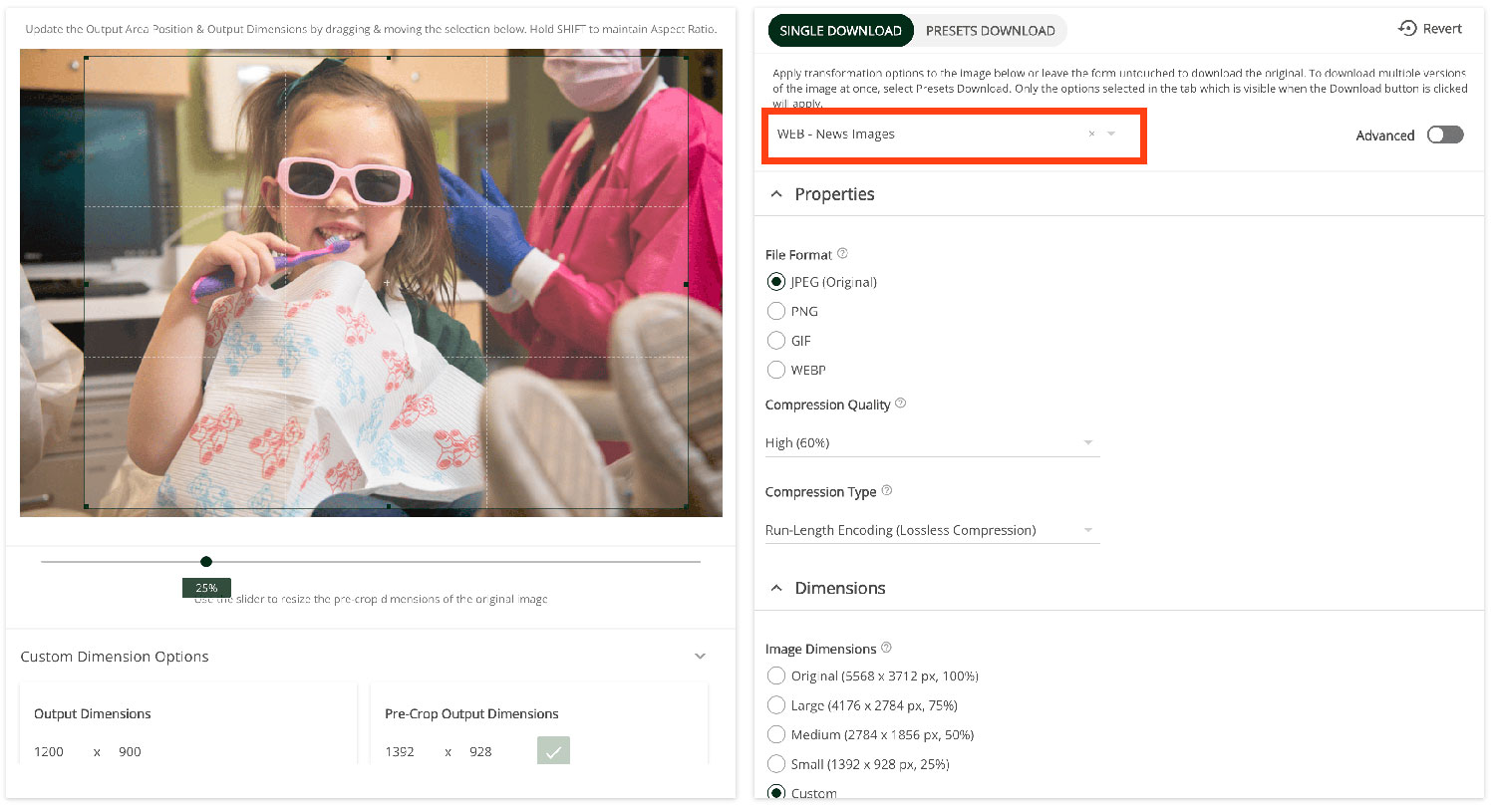
- Scroll down to Image Dimensions and select the Crop button. A new set of options will appear. You may need to scroll down on the left side under the image to see the Custom Dimension Options.
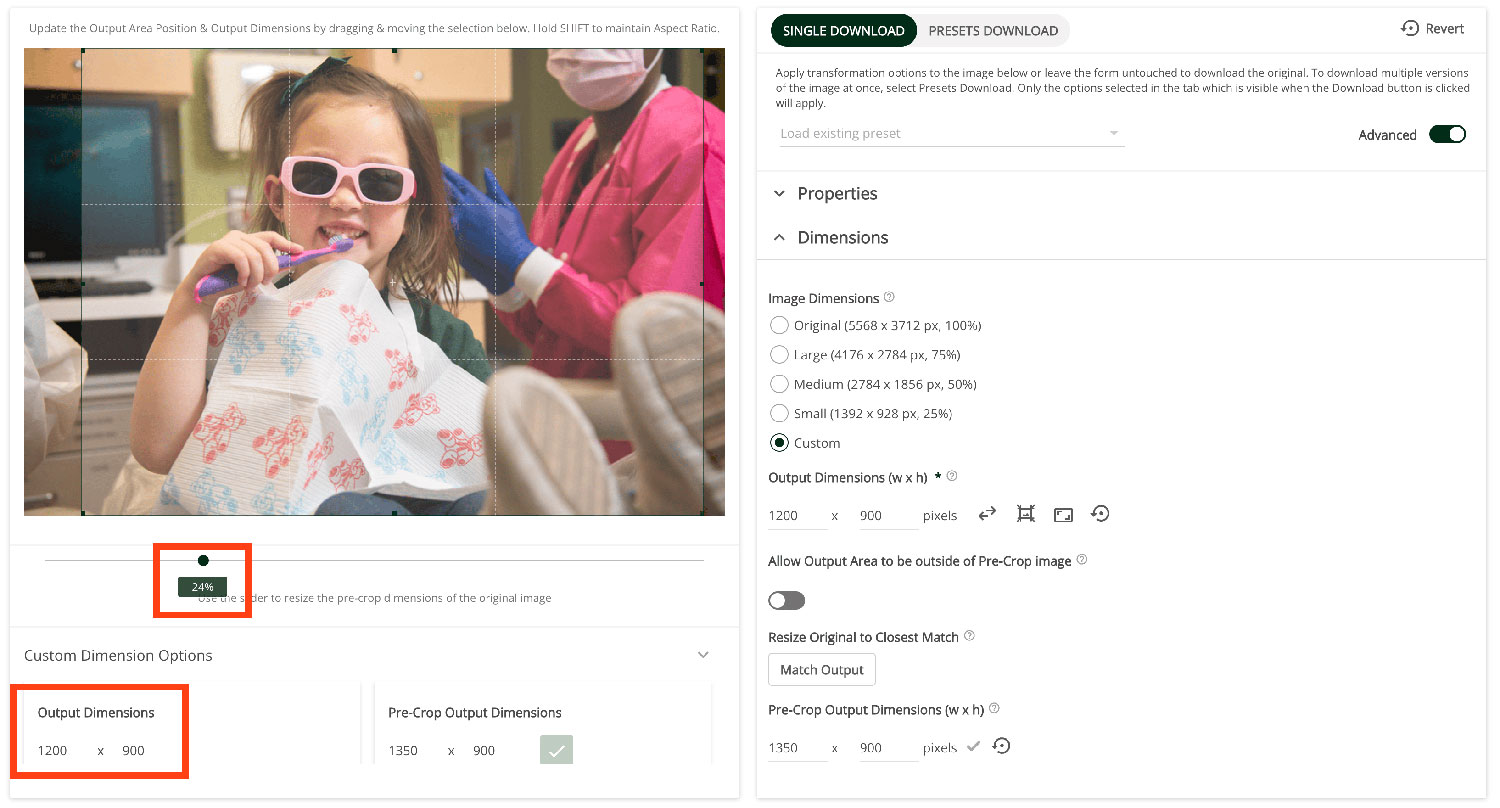
- Adjust the slider below to crop the graphic as needed.
- Make sure the Output Dimensions are correct before downloading. Important: The Output Dimensions will only change if the crop box touches the edge of the image. To maintain the correct Output Dimensions, make sure the crop box does not touch or extend to the edges of the image.
Optimizing a Non-DAL Image
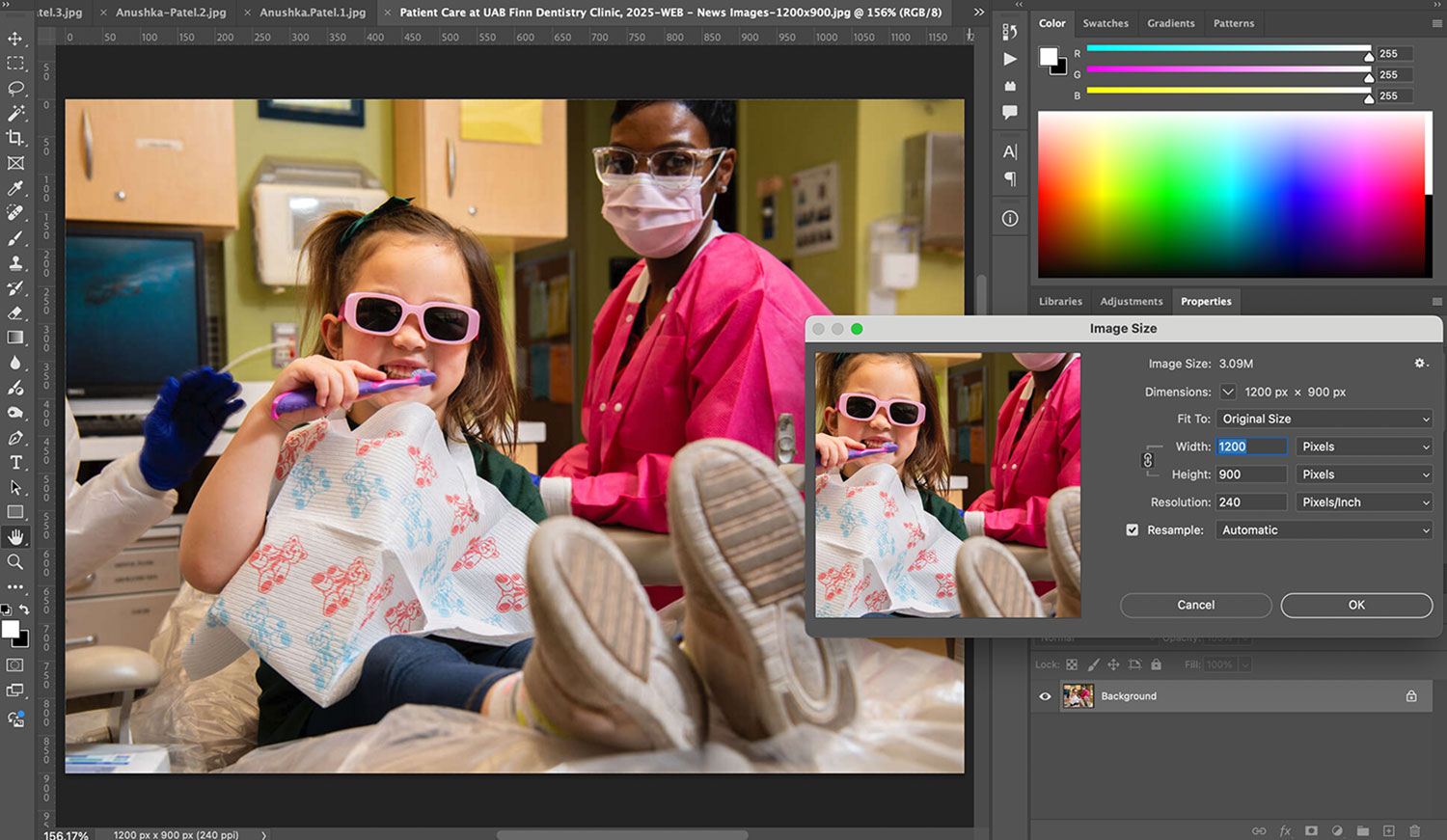
- Open your image in Photoshop and size/crop the graphic as needed.
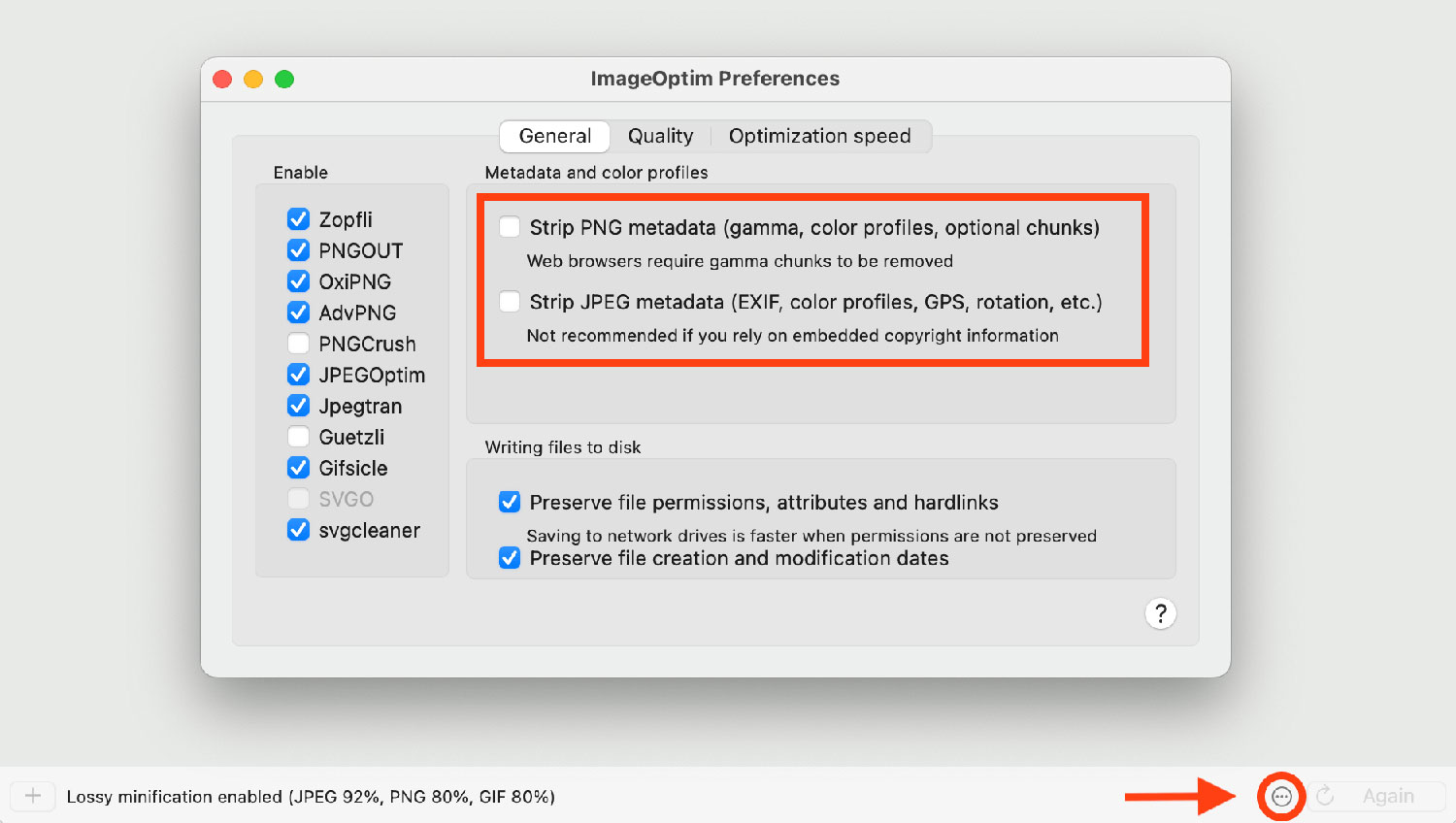
- Find and download the app ImageOptim on the UAB IT Self Service app opens a new website.
- Open ImageOptim and click the three dots at the bottom right. Uncheck stripping the metadata.
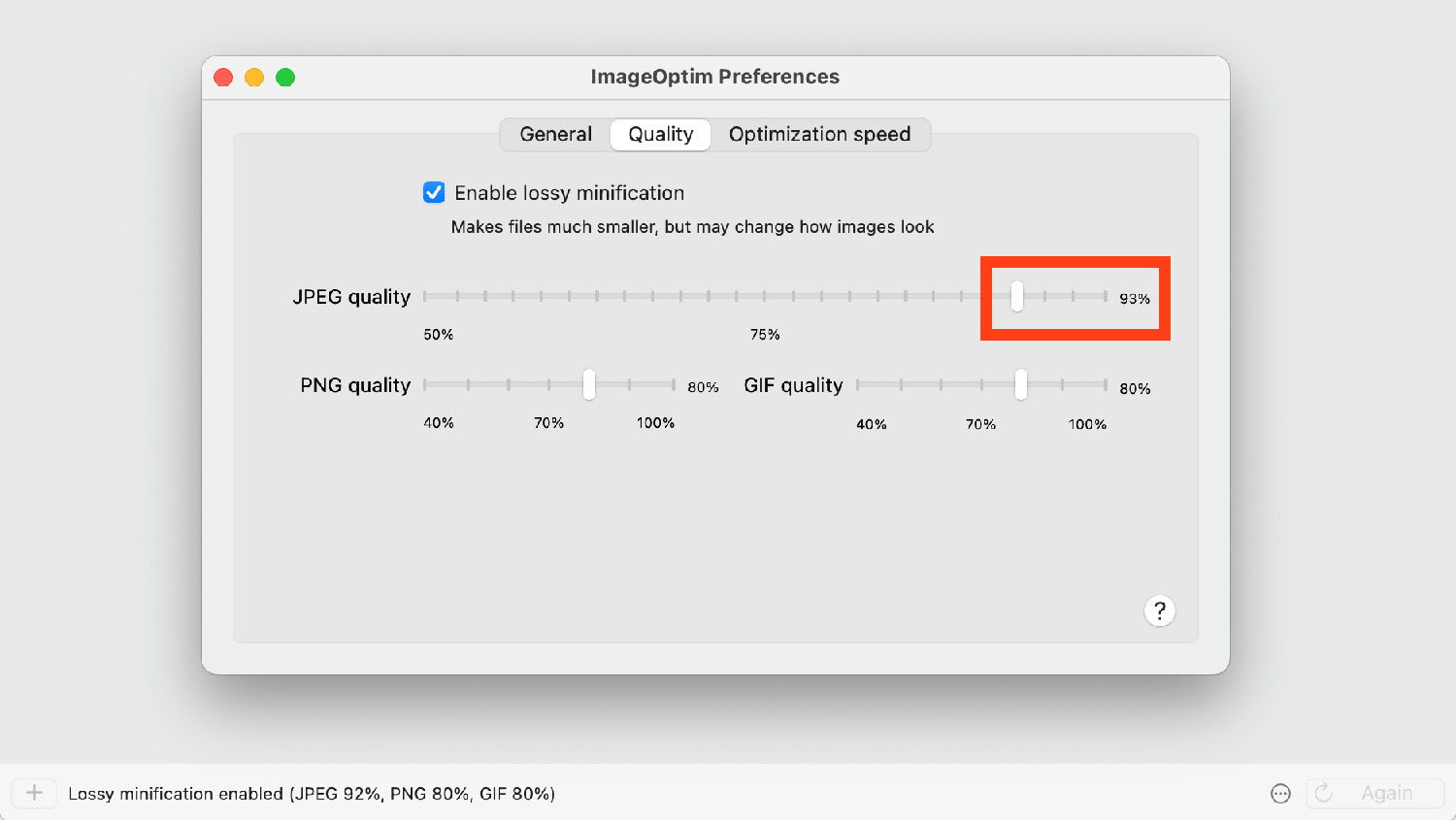
- Select the level of image quality as you like. Higher quality = higher file size. We recommend staying around mid 80s to low 90s. You can play with this if your file needs to be lower before going online.
- Drag and drop your image into the window and the percentages will appear.
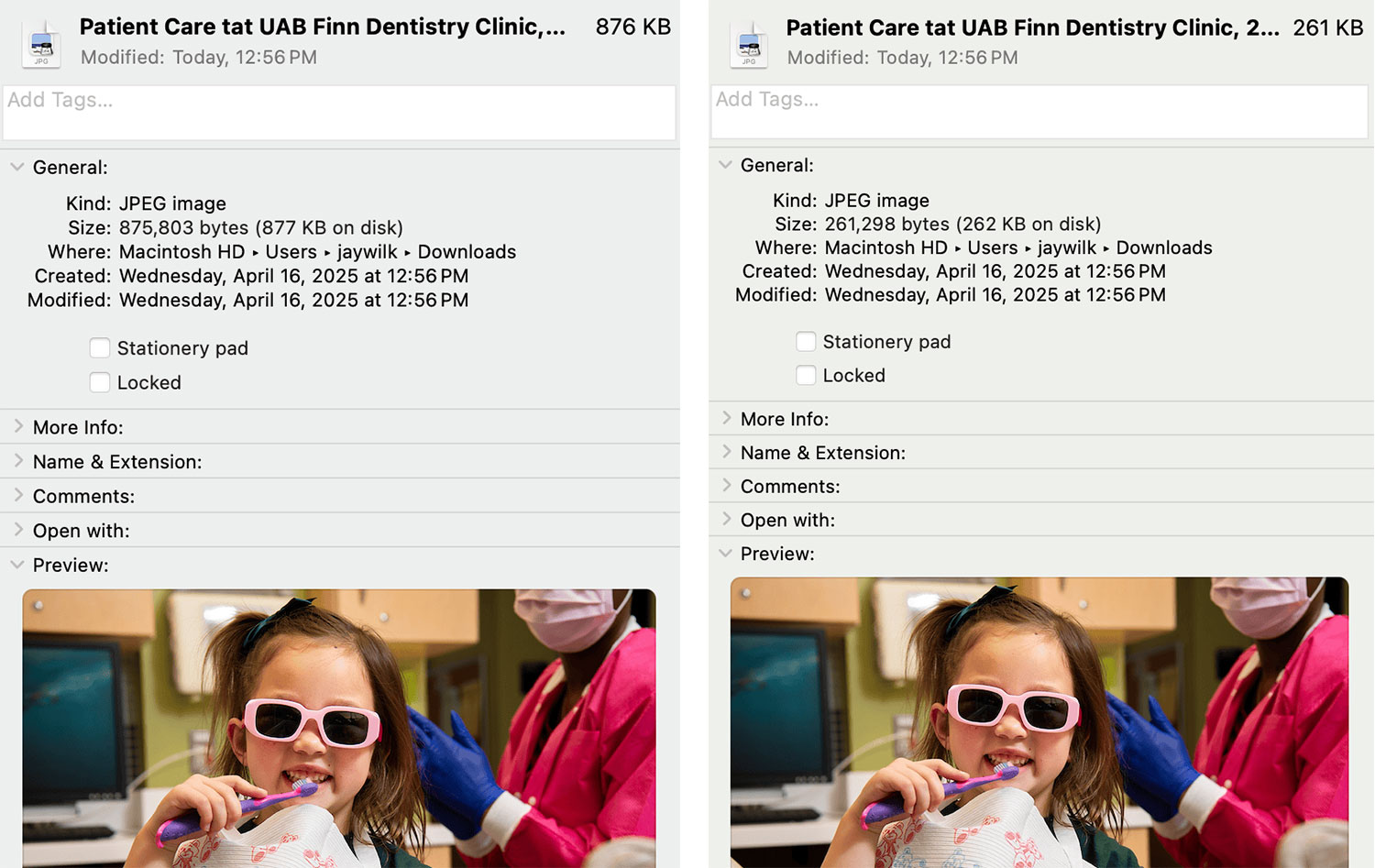
- The file size of the image went from 877KB to 262KB (savings of 70%) and ready for use on the web.