The Document Audit Dashboard helps you find documents on your site, see where they are used, track accessibility review status, and clean up unused files. It does not test or fix accessibility automatically. Each document must be reviewed manually.
How to access
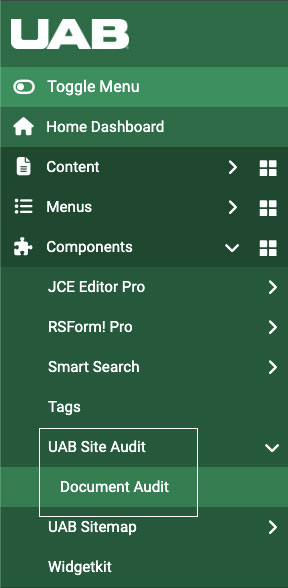
Login to your site as an administrator and go to Components > UAB Site Audit > Document Audit.
Run or re-run the audit
- Run the audit once to populate the dashboard.
- Re-run it any time documents are added, removed, or replaced.
- The Last scanned timestamp at the top of the page shows when the current results were generated.
Understand the dashboard
Summary cards
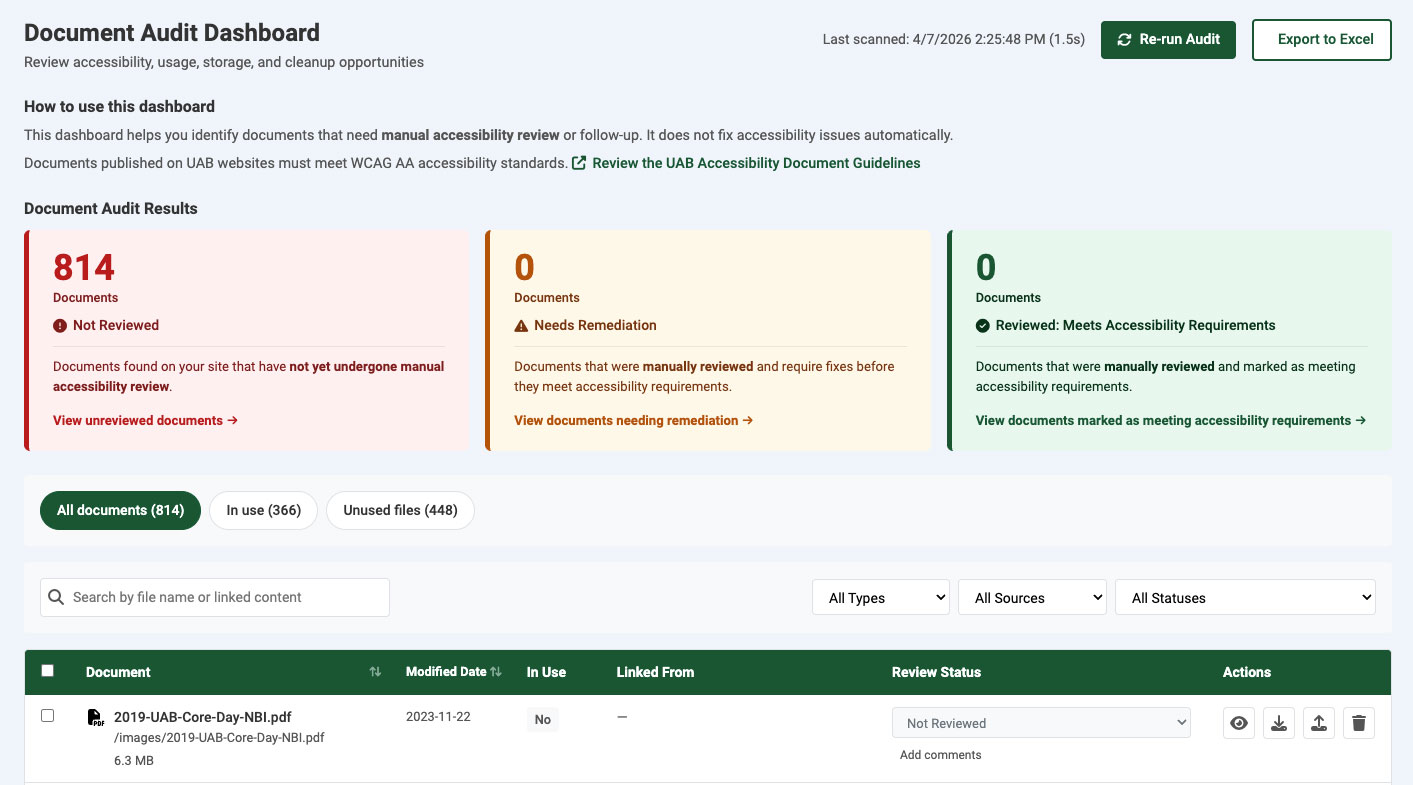
The summary cards group documents by review status and give you a quick way to jump into the files that need attention.
Views
- All documents shows every file found by the audit.
- In use shows files currently linked from site content.
- Unused files shows files not currently linked on the site and may help you identify easy cleanup opportunities.
Search, filters, and sorting
Use the search box to find a document by file name or linked content title. Use the filters to narrow the list by file type, source, or review status. Click sortable column headings such as Document or Modified Date to change the sort order.
Review a document
- Open the file with the View action.
- Check the Linked From column to see where the document is being used.
- Select the appropriate option in the Review Status dropdown.
- Add comments (200 character count max) to record issues, remediation notes, or follow-up details.
Review statuses
- Not Reviewed means the document has not been manually checked yet.
- Needs Remediation means the document was reviewed and still needs accessibility work.
- Reviewed: Meets Accessibility Requirements means the document was reviewed and marked as acceptable for publication.
What the table shows
- Document
- File name, file path, and file size.
- Modified Date
- The date the article containing the file was last edited.
- In Use
- Whether the file is currently linked somewhere on this site.
- Linked From
- The article, module, widgetkit item, or other source that links to the file. Click a linked item name to open that source for editing. A document can appear in more than one source.
- Review Status
- The manual accessibility status for the document, plus any comments you add.
File actions
- View opens the document so you can inspect it.
- Download saves a copy of the file.
- Replace File uploads a new version of the document without changing the existing file path. Use the same file type when replacing a file.
- Delete permanently removes a file. This is intended for unused files and is disabled for files that are still in use.
Note: If a file is currently linked on the site, the delete action is disabled. Remove all links to the file before deleting it.
Bulk Actions
Use the checkboxes to select one or more files to delete or download in bulk.
Export to Excel
Use the Export to Excel button in the top right corner to download the audit data for reporting or follow-up. The exported file contains three sheets:
- In Use Documents — Lists all documents referenced in site content. Documents linked from multiple sources appear on one row per source; use the Relative Path column to identify the same document across multiple rows.
- Unused Documents — Lists all documents found on the server that are not linked from any content.
- Summary — Overview counts (total documents, in use, unused, age, multiple locations), a breakdown by file type and source type, and a note explaining any row count differences in the In Use sheet.