Academic for credit courses, except for those taught in the School of Medicine, have a Canvas course shell. Teaching faculty are automatically assigned a “sandbox” in Canvas. A sandbox is a course shell that does not have students enrolled and is used to practice and test Canvas features. Additional sandboxes and resource courses may be requested. Contact your Canvas administrator for more information.
Lecture Capture
- Blended/Web Enhanced Courses: Classrooms across UAB are equipped with Classroom technology including cameras, microphones, and recording equipment. Class recordings are available to instructors to publish or embed in Canvas courses for students to view. Details including how to access lecture capture technology are available on the Lecture Capture webpage.
- Online Courses: A variety of solutions are available for recording videos for online courses. Please review the Video Solutions webpage to learn more about videos solutions for your online courses.
UAB Approved Learning Technologies
UAB is committed to promoting innovative teaching and student engagement while protecting student privacy and maintaining system security. A list of approved learning technologies is available on the UAB Learning Technologies webpage.
To request additional technologies, please review the process and submit a request.
Step 1: Navigate to BlazerNET. Enter your BlazerID and password.
Step 2: Click on “Enter BlazerNET.”

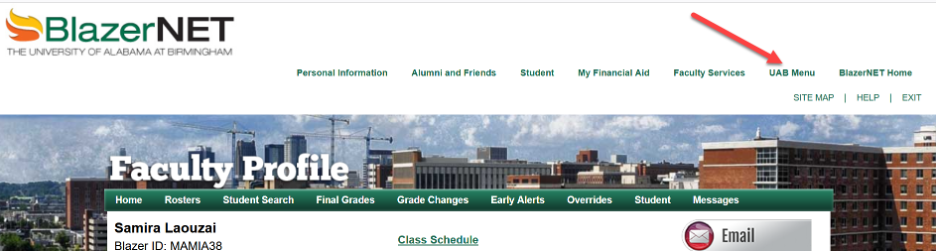
Step 3: Click on “UAB Menu”
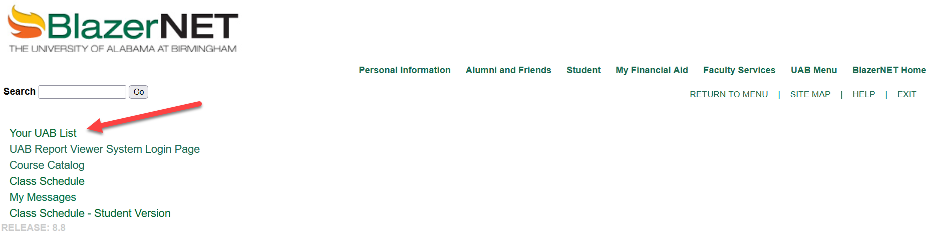
Step 4: Select “Your UAB List.”
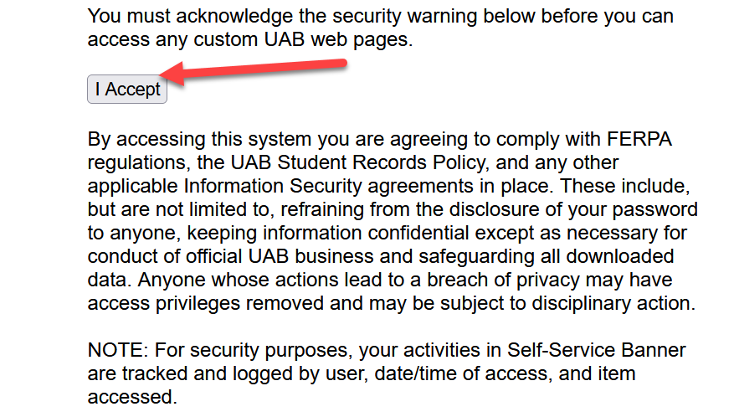
Step 5: If the security warning message appears (see screenshot below), click “I Accept” to comply with the terms.
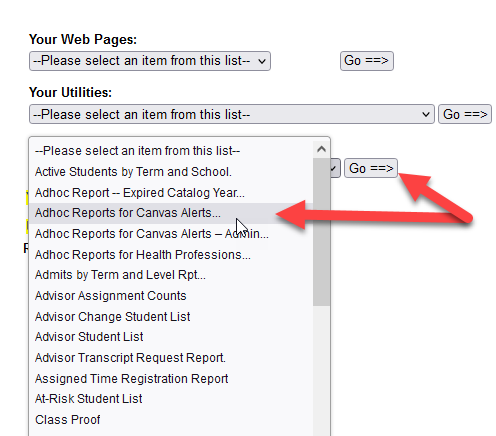
Step 6: Under Your On-Line Reports, select “Adhoc Reports for Canvas Alerts…” and click on “Go==>.”
Step 7: Click on “Canvas Alerts Comprehensive Report – Instructor” to display the report.

Step 8: Select the term for which you want to display the report. Click on “Show Results” to display the results on the page or click on “Export to Excel” to export the results to an Excel file.

Please contact OLT for questions.
Step 1: Navigate to BlazerNET. Enter your BlazerID and password.
Step 2: Click on “Enter BlazerNET.”
Step 3: Click on “UAB Menu”
Step 4: Select “Your UAB List.”
Step 5: If the security warning message appears (see screenshot below), click “I Accept” to comply with the terms.
Step 6: Under Your On-Line Reports, select “Adhoc Reports for Canvas Alerts…” and click on “Go==>.”
Step 7: Click on “Canvas Alerts Comprehensive Report – Advisor” to display the report.
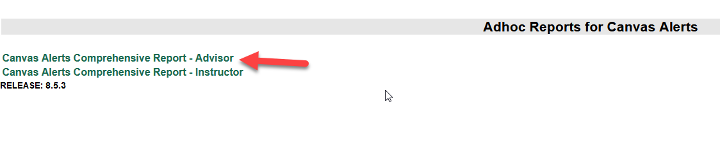
Step 8: Select the term for which you want to display the report. Click on “Show Results” to display the results on the page or click on “Export to Excel” to export the results to an Excel file.
Please contact OLT for questions.
Step 1: Navigate to BlazerNET. Enter your BlazerID and password.
Step 2: Click on “Enter BlazerNET.”
Step 3: Click on “UAB Menu”
Step 4: Select “Your UAB List.”
Step 5: Navigate to “Your On-Line Reports” and select “eLearning Reports” from the dropdown menu.
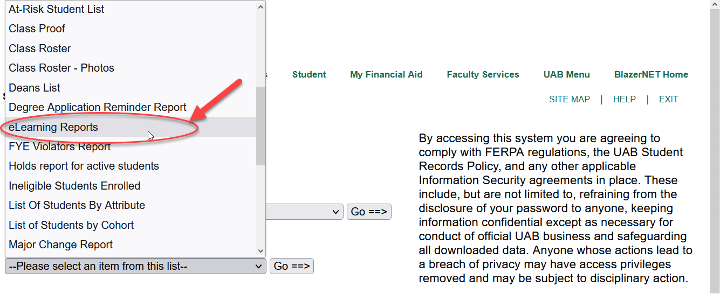
Step 6: Click “Go==>”
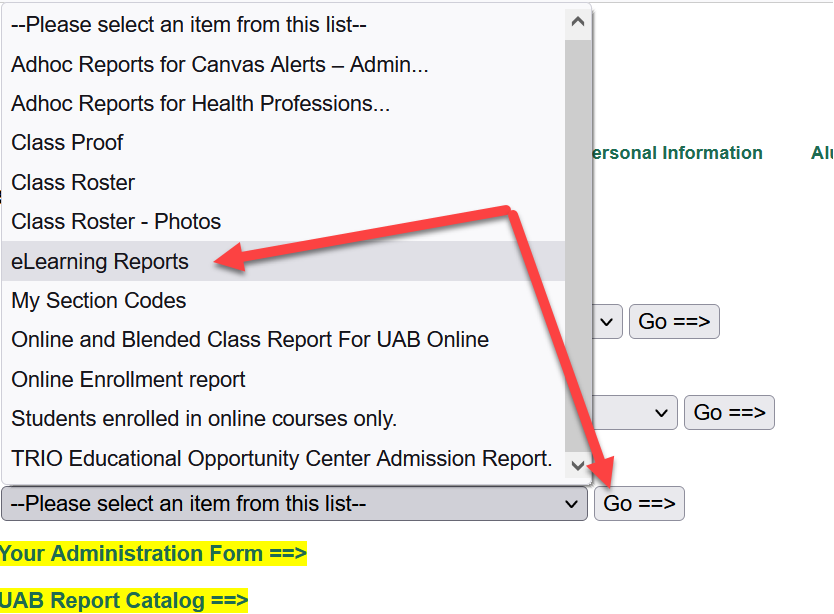
Step 7: Click on “Canvas Alerts.”
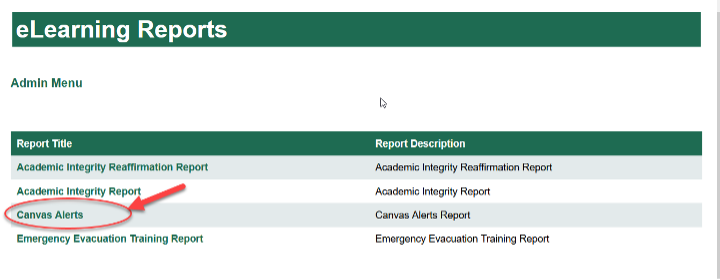
Step 8: Select a term for the report.

Step 9: Select a school/unit for the report. Allow a moment for processing time and for the report to display.


Step 10: Use filters to display data by department, degree, etc. Click on “Download To Excel” to download a copy of the report.

Please contact Will Hampton with the Office of Learning Technologies for questions/feedback.
Step 1: Navigate to BlazerNET. Enter your BlazerID and password.
Step 2: Click on “Enter BlazerNET.”
Step 3: On the “Student View” landing page, enter the BannerID or the BlazerID for the student, if known. Click “Enter.”

If the BannerID and the BlazerID are unknown, click “Search” to look up a student by name.

On the “Student Search” page, enter the student last and first name. Click “SEARCH.”

Step 4: On the search results page, click the BannerID to view student details/fact sheet.

Step 5: Click on “Early Alerts” to view alerts sent to the student.

Step 6: On the “Early Alerts” page, you may view a list of the discontinued “Faculty Early Alerts” as well as a listing of the “Canvas Alerts” sent to the student.

Please contact OLT for questions.