Image Audit helps site administrators find images that need accessibility fixes, performance improvements, or cleanup. It checks for likely alternative-text problems and oversized images, shows where images are used, and identifies files that may no longer be needed. Automated checks cannot determine whether alternative text is accurate for its context, so findings still require review.
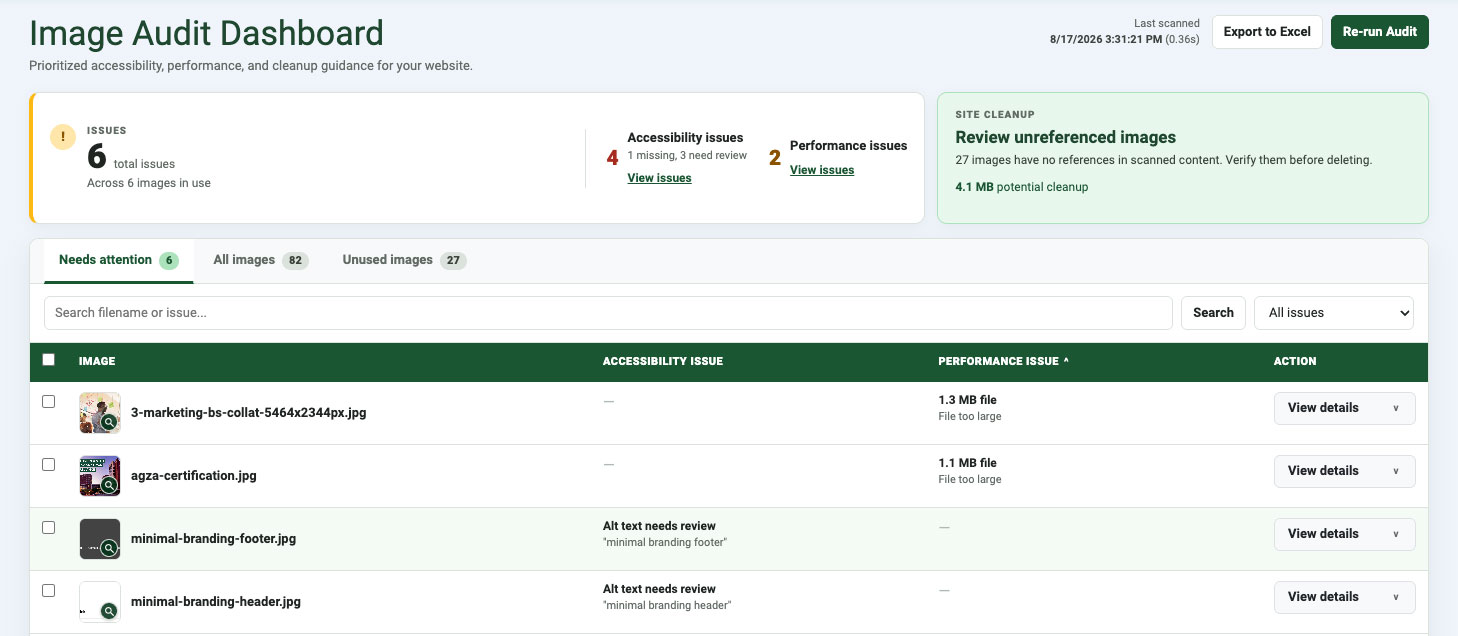
How to access
Log in to your site as an administrator and go to Components > UAB Site Audit > Image Audit.
Run or re-run the audit
- Make sure important content changes have been saved and published.
- Select Run image audit the first time you use the dashboard.
- Select Re-run Audit after changing alternative text, replacing or uploading an image, or making other image-related content changes.
- The Last scanned timestamp shows when the current results were generated.
Understand the dashboard
Summary cards
The summary cards show the number of accessibility and performance issues, the number of images affected, and the amount of storage that may be recovered by reviewing unreferenced images. One image can have both an accessibility issue and a performance issue, so the number of issues may be greater than the number of affected images.
Views
- Needs Attention shows images in use with an active accessibility issue, performance issue, or both. Select View details to see the finding and the actions available to address it.
- All Images is a reference table of every scanned image. It shows alternative text, file size, usage, and detected Joomla locations. You can select and download images from this view, but images cannot be replaced here.
- Unused Images shows files for which Image Audit found no reference in Joomla content. You can download or delete files individually or in bulk. Treat these as cleanup candidates, not as confirmed safe-to-delete files.
Search, filters, and sorting
Use search to find an image by filename, file path, alternative text, or linked content title. In Needs Attention, use the issue filter to show all findings, accessibility findings, or performance findings.
What the tables show
Needs Attention
- Image
- A thumbnail and filename. Select the thumbnail to open a larger preview.
- Accessibility issue
- Whether an image has missing alternative text or alternative text that needs review.
- Performance issue
- Whether the image file is larger than 1 MB. Image dimensions are shown for reference but do not create a performance finding.
- Action
- View details opens the finding, detected Joomla locations, and the appropriate remediation actions.
All Images and Unused Images
- Image
- A thumbnail, filename, and dimensions. Select the thumbnail to open a larger preview.
- Alt text
- A summary of alternative text across detected usages. If the text differs by location, the table indicates that it varies or has multiple values.
- File size
- The image's file size and last-modified date.
- Usage
- Whether the image is in use and, when available, the Joomla sources and public pages where it appears.
- Actions
- Downloads the image. In Unused Images, it also provides the individual delete action.
Accessibility issues
In Needs Attention, select View details and review each Joomla location listed for the image. Select Edit article, Edit module, or the corresponding edit action to update the alternative text in that Joomla item.
| Result | Meaning | What to do |
|---|---|---|
| Missing alt text | No alt attribute or corresponding alternative-text value was found for at least one usage. |
Add concise alternative text that communicates the image's purpose in that context. If the image is truly decorative, use an intentionally empty alternative value instead. |
| Alt text needs review | The value is blank spaces, matches the filename, is short generic text such as “image” or “photo,” or is 150 characters or longer. | Rewrite the value so it is specific, useful, and concise. Do not begin with “image of” or repeat nearby text unnecessarily. |
| Decorative | The usage has an explicit empty alternative value (alt=""). This is accepted and is not reported as an issue. |
Confirm that the image adds no information or function. If it is meaningful, replace the empty value with appropriate alternative text. |
Dismiss an accessibility finding
If the current alternative text is intentional or the image does not require alternative text, select Dismiss from Needs Attention. This removes the accessibility alert from Needs Attention without changing the image or its alternative text.
A dismissed finding remains visible in All Images. Select Restore finding to return it to Needs Attention. Dismissing an accessibility finding does not dismiss a performance finding on the same image. If the image's alternative-text state later changes, the finding may appear again for review.
Performance issues
An image is reported as a performance issue only when the file is larger than 1 MB.
Recommended workflow
- Select View details.
- Review the current file size and dimensions.
- Download the original if you need a working copy.
- Optimize the image. Learn about how to optimize images.
- Select Replace image to upload the optimized file in place.
- Re-run Image Audit and confirm that the performance finding is resolved.
Replacement requirements: The replacement must have the same file extension as the original, must be a valid image, and must be no larger than 1 MB. Replacing a file preserves its filename and location, so existing references continue to work.
Unused images
The Unused Images tab contains files for which no reference was found in the content sources scanned by Image Audit. These files are not evaluated for accessibility or performance because they are not part of the detected in-use workflow.
Note: Do not delete an image solely because Image Audit labels it unused. The tool cannot see every possible reference. Review the file carefully and download a backup first.
Cleanup workflow
- Select the thumbnail to inspect a larger preview, then review the filename, dimensions, file size, and usage status.
- Select Download to keep a backup copy.
- Select only files you have verified are safe to remove.
- Use Delete for one image or select several images and choose Delete Selected.
- Review the confirmation dialog before permanently deleting the files.
Deletion permanently removes the files from the server and cannot be undone in Image Audit. Only images classified as unused can be deleted through this tool. If any selected file is identified as in use, the bulk deletion is blocked.
Unused images are not included in the Drupal migration. Download any file you want to keep before cleanup.
Image actions
- Select a thumbnail in any view to open a larger image preview.
- View details in Needs Attention opens the image's accessibility and performance information.
- Edit article, Edit module, and similar edit actions open the corresponding Joomla item. These actions appear inside the accessibility details.
- Download saves a copy of the original image. It is available from the inventory tables and inside performance details.
- Replace image uploads an optimized file without changing its filename or path. It appears only inside a performance finding in Needs Attention; replacement is not available from All Images.
- Dismiss from Needs Attention removes an accessibility alert without changing the website. Restore finding reverses that decision.
- Delete permanently removes one file from Unused Images. Images detected as in use cannot be deleted.
Bulk actions
Use the checkboxes to select one or more images. Selected images can be downloaded together from any view. In Unused Images, verified files can also be deleted together. Review the confirmation dialog before a bulk deletion. The select-all checkbox applies to the images on the current results page.
Export to Excel
Use the Export to Excel button to download the complete audit as an .xlsx workbook for reporting or follow-up. The workbook contains four sheets:
- Linked Images lists images referenced in supported Joomla content, along with alternative-text, file, and source information.
- Missing Alt Text lists linked images with at least one detected missing alternative-text value.
- Unused Images lists files found on the server for which no supported content reference was detected.
- Summary provides overview counts, storage totals, alternative-text results, and a breakdown by image format.
Limitations and important notes
- Accessibility checks are automated. The tool can flag missing, generic, filename-like, whitespace-only, and very long alternative text, but a person must judge whether the wording is accurate and useful.
- Widgetkit alternative text is not evaluated. Image Audit can detect that a file is used in Widgetkit, but it does not assess the alternative text for that usage. Performance checks still apply to the image, and any uses of the same file in articles or other supported sources are evaluated separately.
- Image Audit may not detect every image use. Verify that a file is no longer needed and download a backup copy before deleting it in case it is needed later.