Migration Readiness helps site administrators prepare their Joomla site for migration to Drupal. It brings together user-role planning, content decisions, accessibility review, custom-code review, and optional cleanup. Complete the required steps and certify the site when the recorded information is accurate and ready for the migration team.
How to access
Log in to your site as an administrator and go to Components > UAB Site Audit > Migration Readiness.
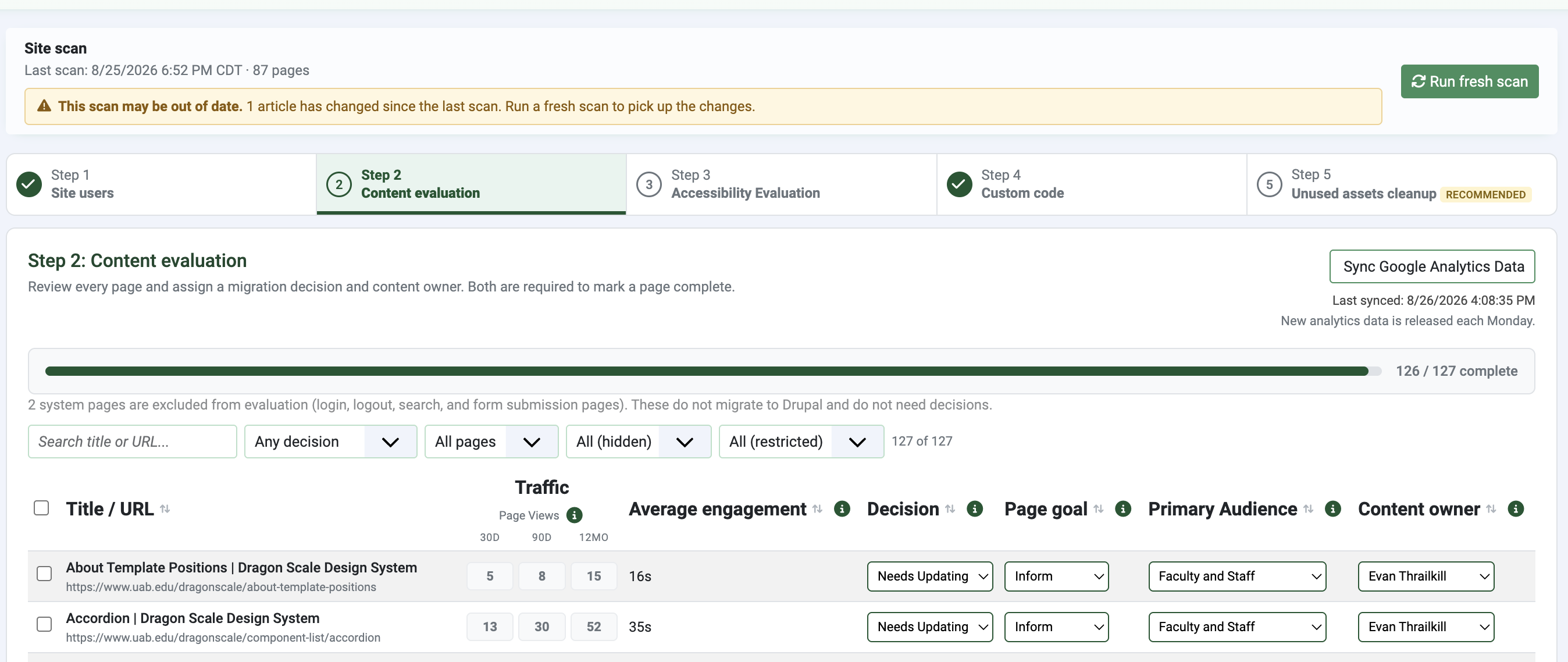
Run or re-run the site scan
- Make sure important content changes have been saved and published.
- Keep the page open until the scan finishes.
- Run another fresh scan after making significant changes to pages, menus, images, documents, modules, or custom code.
- The Last scan information shows when the current results were generated and how many pages were scanned.
- If the dashboard warns that the scan may be out of date, run a fresh scan.
Select Sync GA4 data to update the traffic information shown in content evaluation. Analytics data may help inform decisions, but it does not replace a content review.
Understand the readiness steps
Migration Readiness contains five steps. Site users, content evaluation, accessibility evaluation, and custom-code review are required. Unused-assets cleanup is recommended but does not prevent certification.
- Site users identifies who should receive access to the Drupal site.
- Content evaluation records what should happen to every page and who is responsible for it.
- Accessibility evaluation records alternative text for images and review statuses for documents.
- Custom code identifies CSS and JavaScript that needs to be removed before the migration to Drupal.
- Unused assets cleanup identifies unpublished and trashed items that may be removed before migration.
Step 1: Site users
Review each eligible Joomla administrator and select the Drupal role the person should receive. If the person should not receive a Drupal account, select Don't migrate.
| Role | When to use it |
|---|---|
| Content Admin | Use for top-level site ownership. This is typically the person accountable for the unit or school's overall web presence. |
| Editor | Use for a person who should have full publishing rights and can publish content without additional approval. |
| Author | Use for a person who can draft and edit content but whose changes must be approved by an Editor or Content Admin. |
| Don't migrate | Use when the person does not need a Drupal account. |
Manually add a person
Use Manually add a person when someone needs a Drupal account but does not have Joomla administrator access. Enter the person's name and Drupal role. Add a BlazerID or email address when available. Adding a person here does not create a Joomla account.
Step 1 is complete when: Every eligible user has a Drupal role or is marked Don't migrate.
Step 2: Content evaluation
Review every page and record what should happen to it during migration.
Page decisions
| Decision | Meaning | Migration action |
|---|---|---|
| Not Reviewed | No decision has been recorded. | The page is not ready for migration planning. |
| Needs Updating | The content requires editing, cleanup, or restructuring before it is ready. | Complete the required content work, then change the decision to Migrate. |
| Migrate | The page is accurate, current, and ready to move. | Include the page in the migration. |
| Delete | The page is outdated, redundant, or no longer needed. | Do not migrate the page. |
Migration information
Pages marked Migrate or Needs Updating also require the following information:
- Page goal
- The most important outcome the page should produce. Available goals include Inform, Engage, Convert, Support, and Promote.
- Audience
- The primary group whose needs should determine the page's content, language, organization, and calls to action.
- Content owner
- The person responsible for keeping the content accurate, current, and useful after migration.
A page marked Delete requires only the decision. It does not require a page goal, audience, or content owner.
Search, filters, and bulk changes
- Use search to find a page by title or URL.
- Use the decision filter to find pages that have not been reviewed.
- Use the other filters to find pages that are unlinked, hidden, or restricted.
- Select multiple pages to apply the same decision, page goal, audience, or content owner in bulk.
- Review selected pages carefully before applying a bulk change.
Step 2 is complete when: Every page has a decision, and every page marked Migrate or Needs Updating has a page goal, audience, and content owner.
Step 3: Accessibility evaluation
Images
If image audit is not already complete, select "Open Image Audit" to add alt text to images.
Documents
If document audit is not already complete, select "Open Document Audit" to finish addressing document accessibilty.
Step 3 is complete when: both image and document audit have been fully completed.
Step 4: Custom code
Review custom CSS and JavaScript found in articles and modules. Custom code does not migrate to Drupal automatically.
- Expand each item to review its source and the pages where it appears.
- Select Don't migrate when the code is obsolete or is not needed on the Drupal site.
- Select Yes we need it when the behavior or presentation must be recreated in Drupal.
- If the code is needed, explain what it does and why the site cannot work without it. This information is sent to the web team for review.
Step 4 is complete when: Every custom-code item has a decision. Items marked Yes we need it must also include a justification.
Step 5: Unused assets cleanup
Review unpublished and trashed content that will not migrate to Drupal automatically. This step can include articles, modules, menu items, categories, tags, and Widgetkit items.
Note: Cleanup is recommended but is not required. Confirm that an item is no longer needed before deleting it. Consider records-retention and operational requirements, and keep a backup when appropriate.
Cleanup workflow
- Expand each cleanup category and review the listed items.
- Open or inspect an item when you need more context.
- Confirm that the item is unpublished or trashed and is safe to remove.
- Delete only items you have verified are no longer needed.
- Run a fresh scan after significant cleanup so the readiness results reflect the current site.
Certify the site
The certification option becomes available after the required readiness work is complete. Before certifying, confirm that:
- The latest scan reflects the current site.
- Every eligible user has a Drupal role decision.
- Every page has a migration decision and all required migration information.
- Every in-use image and document has been reviewed.
- Every custom-code item has been reviewed.
- The site owner agrees that the recorded information is ready for the Drupal team.
Select Certify this site is ready for migration and confirm the action. Certification records the date and generates the migration export for the Drupal team.
If site content changes after certification, Migration Readiness tracks changes made since certification. Reopen the certification, run a fresh scan, review the affected information, and certify again when the record is current.
Troubleshooting
- No pages, images, documents, or custom code appear
- Run a fresh scan and keep the page open until it finishes.
- The scan is marked out of date
- Run another fresh scan after recent site changes.
- A step will not reach 100%
- Use search and filters to find unreviewed items. Check that all fields required for the item have been completed.
- A person is missing from Site users
- Use Manually add a person to add someone who needs Drupal access but does not have Joomla administrator access.
Important notes
- Run a fresh scan after significant site changes and before final certification.
- Custom code requires review by the web team when equivalent behavior is needed in Drupal.
- Confirm that cleanup items are no longer needed before permanently deleting them.