

UAB employees recently leaned into growth and flexibility through the Learn to Win Challenge.
Centered on the theme “Adaptability: Thrive Through Change," the challenge encouraged participants to strengthen skills that support communication, resilience, and continued professional development in the LinkedIn Learning platform.
The design of the challenge made learning easy to fit into even the busiest schedules. Courses were broken into concise, bite-sized modules, allowing participants to engage without feeling overwhelmed. Progress tracking added an element of motivation, reinforcing learning as an active and rewarding experience rather than an obligation.
Two participants, Amy Raynor and Carin Mayo, were recognized as winners of the Learn to Win Challenge for their engagement and completion of the coursework within the required framework.
For Carin Mayo, the challenge stood out for its practicality and relevance, especially in a workplace navigating constant change. She often completed the 5 - 10 minute modules during her lunch breaks, appreciating how the short segments made it easier to stay focused and consistent.
“I found the training extremely timely,” Carin shared. “So much of what we encounter at work today requires us to be adaptable rather than resistant.”
One of Carin’s most meaningful takeaways was a deeper awareness of communication across generations. Working in a multigenerational environment at UAB, she reflected on how communication styles can differ widely and how easy it is to make assumptions about shared knowledge or experiences. The challenge helped her see the importance of adjusting her approach to better connect with colleagues of different ages, and she identified effective communication as the key skill she gained from the experience, and one she plans to continue developing.
Amy Raynor also found the challenge motivating and approachable. After completing the challenge, she described the experience as engaging and empowering, particularly noting how progress tracking and short courses helped maintain momentum.
“The Learn to Win Challenge was a fun and engaging experience,” Amy shared. “Being able to check the courses off created a sense of accomplishment. The standout aspect was how practical and relevant the material felt, and how manageable the bite-sized courses were. This challenge helped transform learning from what we ‘should do’ into something we were excited to do.”
As winners of the challenge, Carin Mayo won a one-month free membership to the UAB Campus Recreation Center, while Amy Raynor received two tickets to a performance at the UAB Alys Stephens Center.
The Learn to Win Challenge reflects UAB L&D’s ongoing commitment to making learning meaningful, accessible, and energizing. By focusing on adaptability and delivering content in a way that respects employees’ time and attention, the challenge encouraged participants not only to build new skills, but to rediscover the value of continuous learning in a changing workplace.
To learn more or get started with LinkedIn Learning, please visit UAB's LinkedIn Learning page.
Written by: Hammond Lake, Communications Specialist
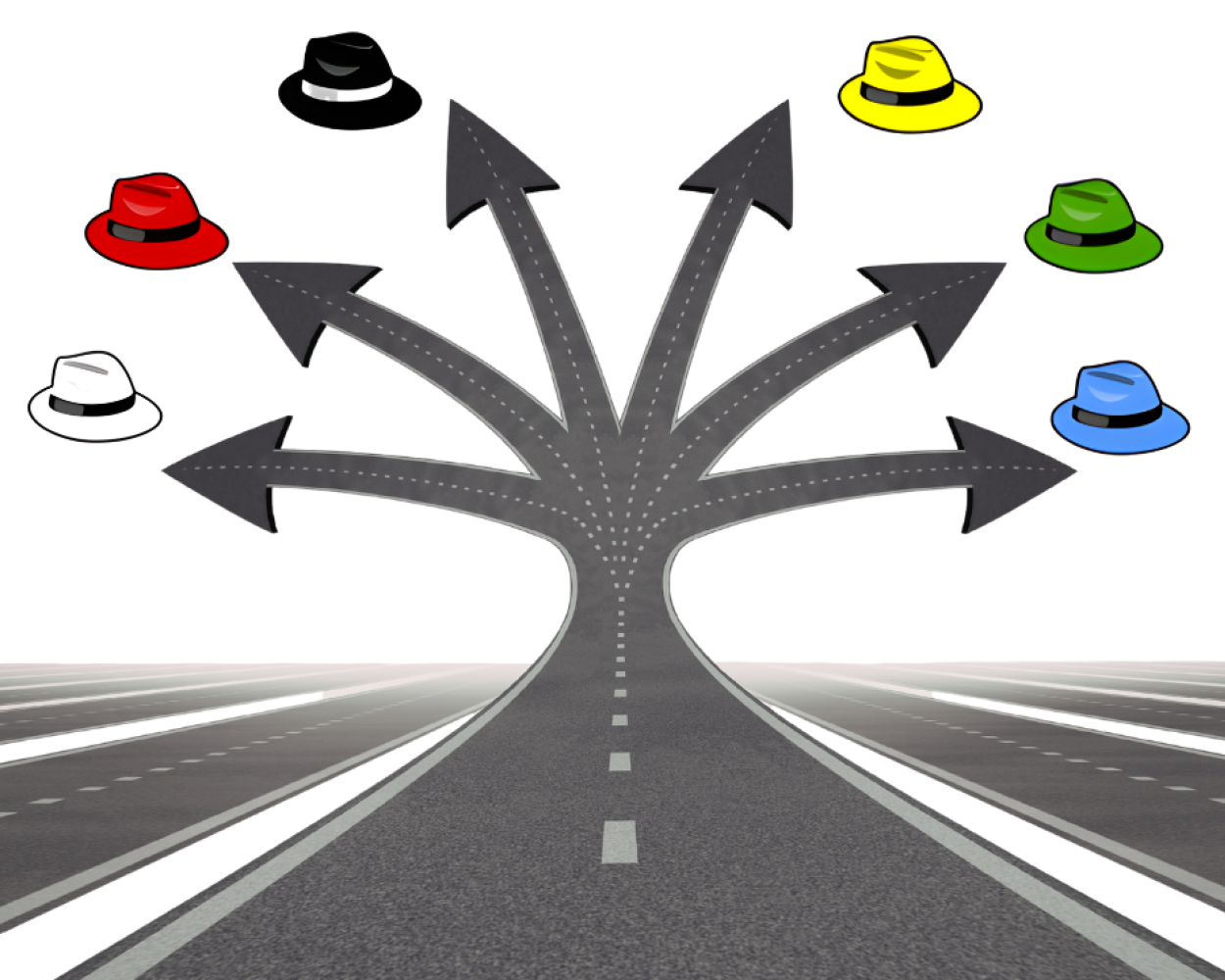
If we want different outcomes, we need to think differently. One proven and practical approach is Edward de Bono’s Six Thinking Hats.
Most say they want innovation. New ideas. Better solutions. Smarter ways of working.
Yet when a challenge shows up, we often rely on the same thinking patterns that created the problem in the first place. We brainstorm quickly, default to opinions, or jump straight to solutions. The result is the same old ideas dressed up as innovation.
What’s wrong with the way we think?
Most team discussions are a mix of facts, opinions, emotions, risks, and ideas all at once. This creates noise, confusion, and complexity. Strong personalities dominate. Cautious voices hold back. Creative ideas get shut down too early.
Enter The Six Thinking Hats from Edward de Bono.
The Six Thinking Hats method solves this by separating thinking into clear modes. Everyone looks at the same problem from the same angle at the same time. This creates focus, balance, and better decisions. Then you progress to another angle or mode.
The Six Hats at a Glance
You can use the hats individually or as a team. Each hat represents a specific way of thinking.
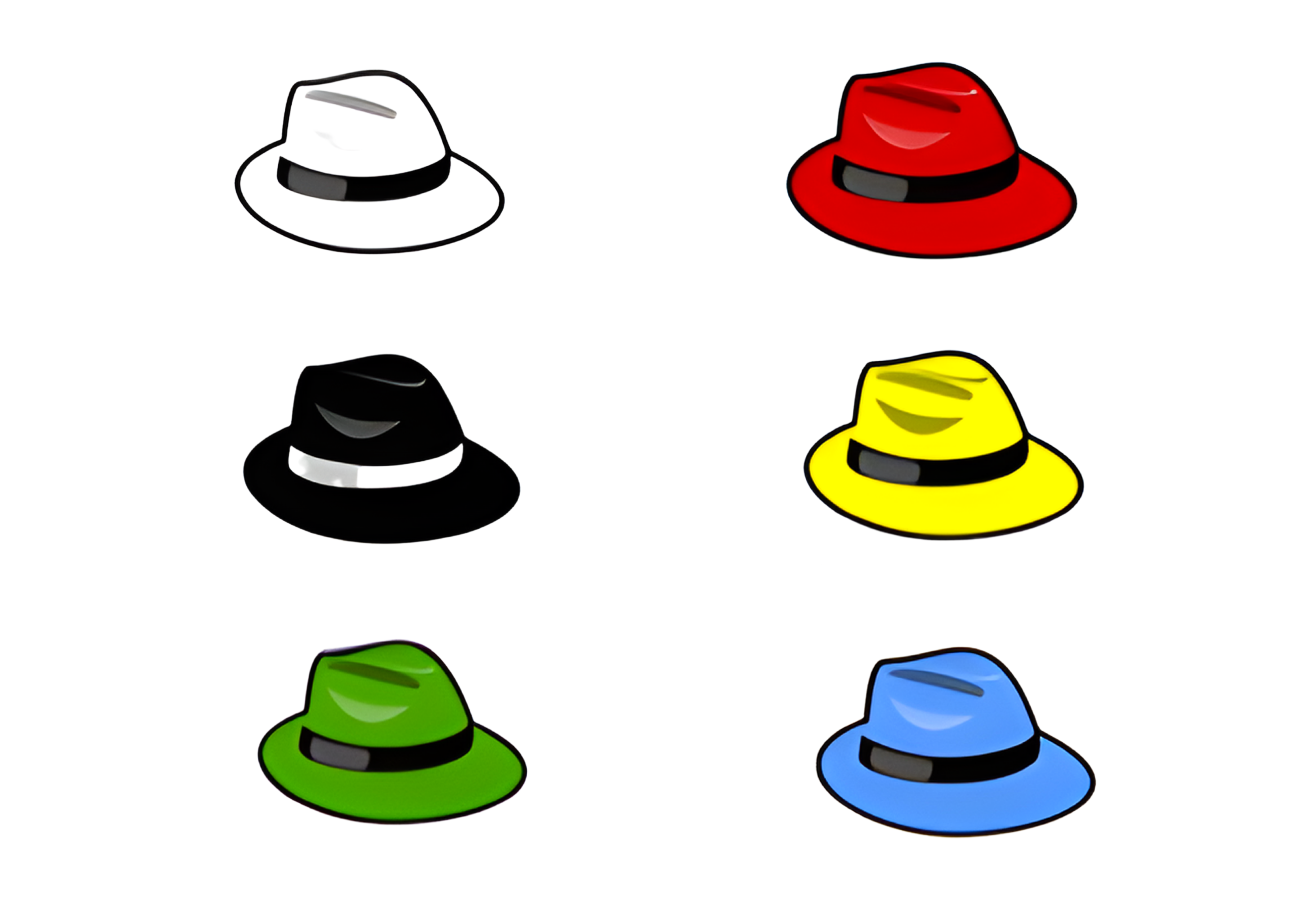
White Hat = Facts and data.
What do we know? What is missing? What information do we need?
Red Hat = Feelings and intuition.
What does this feel like? What are the gut reactions, without justification?
Black Hat = Risks and cautions.
What could go wrong? Where might this fail?
Yellow Hat = Benefits and value.
What could go right? What are the potential gains?
Green Hat = Creativity and possibilities.
What are new ideas? What alternatives exist? What have we not tried?
Blue Hat = Process and focus.
What is our goal? Which hat do we need next? How will we decide
How to get started
Try this in your next meeting or even on your own:
- Clearly define the problem or opportunity.
- Spend two to three minutes per hat.
- Capture insights without debating.
- Decide after all hats have been used.
For teams, the rule is simple. Everyone wears the same hat at the same time. This removes argument and encourages participation.
Why It works
The Six Thinking Hats method slows thinking just enough to make it better. It creates space for creativity without losing structure. It values emotion without letting it dominate. It allows risk without fear.
Most importantly, it helps teams move from reactive thinking to intentional thinking.
Innovation is not about having smarter people. It is about using smarter thinking.
Resources
Use this job aid to try the 6 Thinking Hats with your next problem
Citations
de Bono, E. (1985). Six thinking hats. Little, Brown and Company.
Written by: Jerad Watson, Manager | UAB Learning and Development
We tend to think of learning as something that happens in the mind, a mental exercise of reading, practicing, and remembering. But the truth is far more visceral.
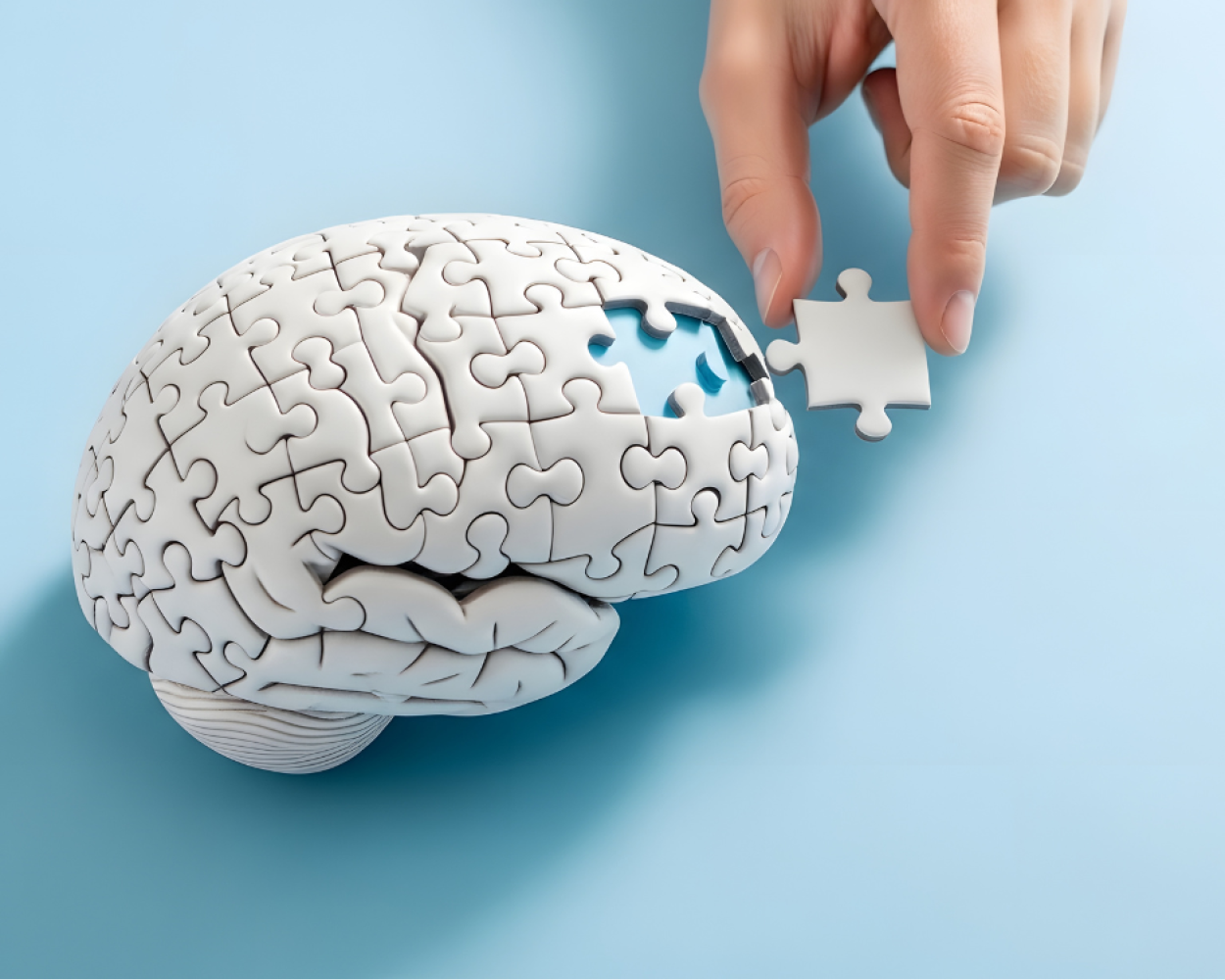
Every time you learn something new, your brain physically reshapes itself. How you feel about what you’re learning, whether you love it, tolerate it, or resent it, directly affects how well that reshaping occurs and how long those changes last. This neuroscience has profound implications for how we approach education, professional development, and lifelong learning.
1. Your Brain Physically Rewires Itself When You Learn
The brain’s remarkable ability to reorganize itself, known as neuroplasticity, means that every new skill or piece of knowledge triggers actual structural changes in your neural wiring. Your brain is never static; it’s constantly being sculpted by your experiences throughout your entire life (Cunnington, n.d.).
Key structural changes that happen during learning:
- Synaptic strengthening, connections between neurons become stronger
- Structural remodeling, the physical architecture of neural pathways changes
- Functional reorganization, brain regions adapt how they work together (Brain Research Review, 2025)
Brain imaging studies show that when you’re learning something new, specific regions light up initially. But as you become more skilled, those localized activity patterns give way to broader, more efficient network connections across the brain (Bertolero et al., 2018). It’s the difference between a beginner laboriously thinking through every step and an expert operating on instinct.
Dopamine’s critical role:
- Dopamine doesn’t just make you feel good, it regulates neural plasticity and motivation by signaling reward and influencing how much effort you’re willing to invest (Neuroscience News, 2015).
- Research on motor learning shows that when dopamine levels are restored, people can reorganize their neural networks and resume learning new physical skills, evidence of its central importance in forming new abilities (Technology Networks, 2025).
2. Why Your Feelings About Learning Actually Matter
Once you understand that learning involves physical changes in the brain, it becomes clear why emotion plays such a decisive role.
What happens when you’re intrinsically motivated:
- Your brain responds differently to feedback and engages memory systems more effectively (Murayama et al., 2015).
- Highly motivated learners show sharper distinctions between positive and negative feedback, helping them learn from both success and failure more efficiently.
- Curiosity activates reward circuits in the brain and strengthens memory formation.
What about external incentives?
- Even external incentives, like the promise of money, can enhance learning, primarily by sharpening attention and filtering out distractions (Gruber & Ranganath, 2020).
- Internal passion and external rewards reinforce learning simultaneously, just through different neural routes.
Dopamine also supports both reinforcement learning and behavioral activation based on anticipated rewards (Neuroscience News, 2023). When you enjoy what you’re learning, your brain releases more dopamine, which improves attention and strengthens the neural connections involved in memory consolidation (Leming, n.d.).
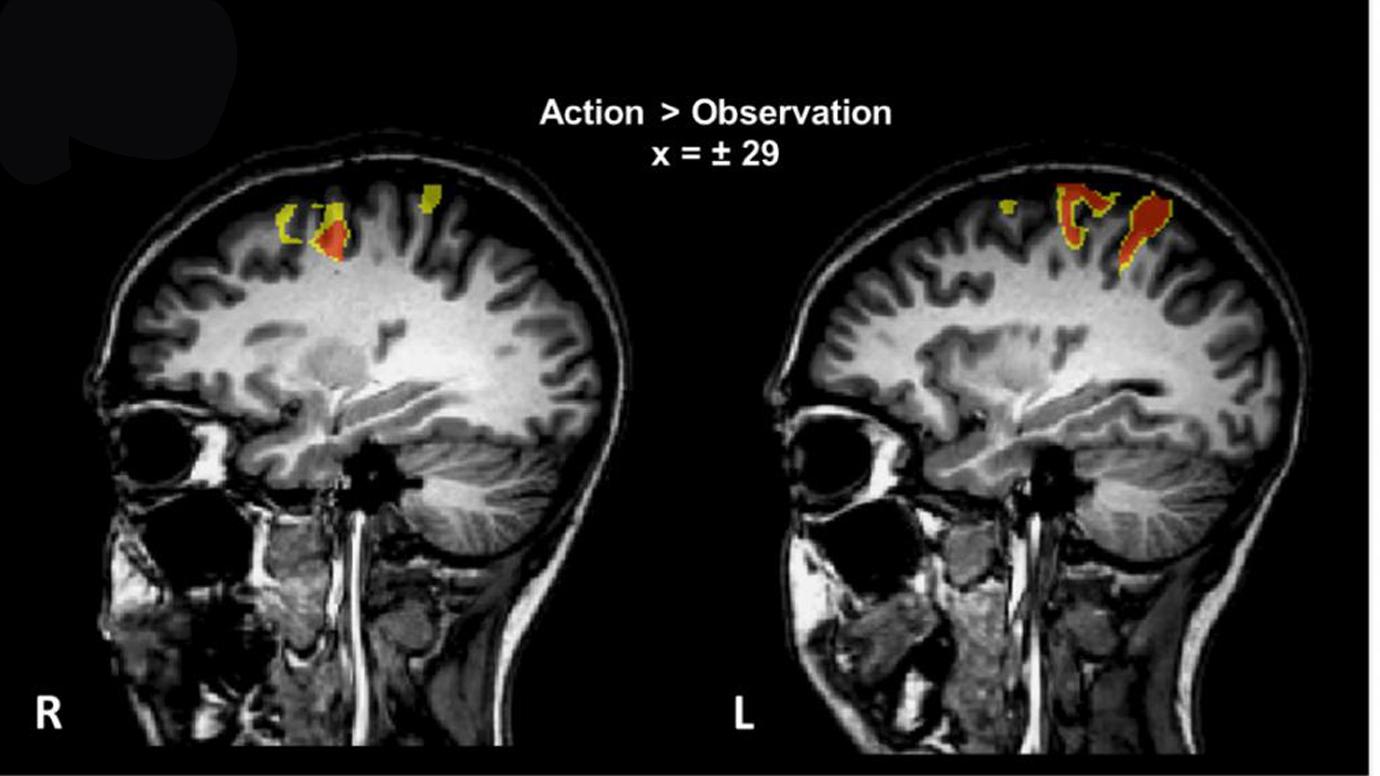
Above: "Brain scans showed that students who took a hands-on approach to learning had activation in sensory and motor-related parts of the brain when they later thought about concepts such as angular momentum and torque." (Ingmire, 2015)
3. The Difference Between Loving and Hating What You Learn
When you love what you’re learning:
- You focus better and for longer periods, which improves how much you absorb and retain (Leming, n.d.).
- Positive emotional states strengthen both encoding (the process of forming memories) and recall, making it easier to retrieve information later (Leming, n.d.).
- Interest naturally drives you to explore beyond the minimum, building richer, more interconnected knowledge networks (Leming, n.d.).
- Both immediate performance and long-term retention improve significantly compared to traditional methods when learning is enjoyable (BMC Medical Education, 2025).
When you dislike what you’re learning:
- Motivation drops.
- Feedback processing weakens.
- Attention becomes inefficient.
- Learning still happens, it just requires more effort and typically produces weaker retention because engagement and reward signaling are diminished (Murayama et al., 2015).
That said, neutral or unpleasant learning isn’t worthless. With sustained effort, you can reach flow states, those moments when engagement increases as competence builds, reinforcing cognitive control and improving how you process feedback (Lu et al., 2024). But reaching that state usually demands deliberate persistence rather than happening naturally from intrinsic attraction.
4. What This Means Over the Long Haul
The emotional relationship you have with your subject matter doesn’t just affect immediate performance, it shapes your entire learning trajectory.
The long-term impact in a nutshell:
- Loving what you learn: You engage with it repeatedly. That repetition strengthens neural connectivity patterns that persist even when you’re not actively studying (Bertolero et al., 2018). Accelerates adaptation and improves retention.
- Disliking what you learn: Disengagement reduces repetition and cognitive investment, limiting opportunities for deep consolidation. Slows things down but doesn’t make learning impossible.
- Neutral engagement: Produces functional results, but they’re often suboptimal.
The brain is designed to learn under almost any circumstances. It’s just exceptionally good at learning when reward circuits, emotional state, and cognitive effort all point in the same direction.
Final Thoughts
Learning isn’t only a mental activity, it’s a biological transformation. Neuroplasticity, synaptic modification, and network reorganization physically reshape your brain whenever you acquire new knowledge or skills. And these changes are profoundly influenced by emotion.
The Key Takeaways:
- Motivation, curiosity, and enjoyment modulate how your brain processes feedback, releases dopamine, directs attention, and consolidates memories.
- Together, they determine how effectively learning becomes durable knowledge.
- Loving what you learn doesn’t simply make the process more pleasant,it measurably improves your brain’s capacity to retain and apply that knowledge over time.
So, when people say you should be passionate about what you learn, they’re not just offering feel-good advice. They’re describing neurological leverage.
Citations
Bertolero, M. A., Bassett, D. S., & D’Esposito, M. (2018). Learning differentially reorganizes brain activity and connectivity. arXiv. https://arxiv.org/abs/1810.08840
Brain Research Review. (2025). The neuroplastic brain: Current breakthroughs and emerging frontiers. ScienceDirect. https://www.sciencedirect.com/science/article/pii/S0006899325002021
BMC Medical Education. (2025). Impact of game-based teaching on learning and retention. https://bmcmededuc.biomedcentral.com/articles/10.1186/s12909-025-07630-9
Cunnington, R. (n.d.). Neuroplasticity: How the brain changes with learning. UNESCO/IBRO Science of Learning Portal. https://www.scribd.com/document/780599237/Neuroplasticity-How-the-Brain-Changes-With-Learning
Gruber, M. J., & Ranganath, C. (2020). How curiosity enhances hippocampus-dependent memory: The intersection of motivation and cognition. Brain Structure and Function. https://link.springer.com/article/10.1007/s00429-020-02074-x
Leming, M. (n.d.). The impact of enjoyment on learning retention. The Hun School of Princeton. https://www.hunschool.org/resources/the-impact-of-enjoyment-on-learning-retention
Lu, H., van der Linden, D., & Bakker, A. (2024). The neuroscientific basis of flow. arXiv. https://arxiv.org/abs/2409.06592
Murayama, K., et al. (2015). Neural basis of intrinsic motivation and feedback processing. NeuroImage. https://www.sciencedirect.com/science/article/pii/S1053811915005510
Neuroscience News. (2015). The role of dopamine in learning and reward. https://neurosciencenews.com/dopamine-learning-reward-3157/
Neuroscience News. (2023). Dopamine plays double duty in learning and motivation. https://neurosciencenews.com/dopamine-motivation-learning-23403/
Technology Networks. (2025). Dopamine’s role in learning new motor skills revealed. https://www.technologynetworks.com/neuroscience/news/dopamines-role-in-learning-new-motor-skills-revealed-398033
Written by: Hammond Lake, Communications Specialist

Build the skills to navigate change with confidence. Here are a few strategies to help you respond quickly, think flexibly, and lead effectively in today’s evolving work environment.
In today’s rapidly changing work environment, adaptability and agility have become core capabilities for leaders and employees at every level. Adaptability refers to an individual’s ability to adjust thoughts, behaviors, and actions in response to new conditions. Agility expands this by emphasizing the capacity to anticipate change, pivot quickly, and take effective action in uncertain or complex situations.
Organizations that cultivate adaptability and agility benefit from improved problem-solving, stronger collaboration, and greater resilience during transitions. Research shows that adaptable employees demonstrate higher levels of learning engagement and performance, especially during periods of change (Pulakos et al., 2000). Similarly, agile teams are more innovative and better positioned to respond to evolving customer and organizational needs (Rigby, Sutherland & Takeuchi, 2016).
eveloping these skills requires a combination of self-awareness, a growth mindset, and ongoing practice. Leaders play a key role by encouraging experimentation, modeling flexibility, and creating environments where teams can learn, adjust, and move forward with confidence.
Resources to Learn More
- External Article: Adaptability in the workplace: Development of a taxonomy of adaptive performance
- Embracing Agile: How to master the process that’s transforming management (Harvard Business Review)
- Video: The Power of Believing You Can Improve with Carol Dweck (TED Talk)
- Tools & Activities:
Written by Amber Anderson Grant, OD Specialist
HR Updates
-
Use or lose personal holidays
Under UAB policy, personal holidays for non-essential employees are awarded July of each year and must be used by the end of June the following calendar year. UAB biweekly paid full-time regular employees in non-essential services must take any...
-
UAB HR closed Friday, May 15 for annual team meeting
UAB Human Resources will be closed on Friday, May 15, from 8 a.m. to 4 p.m., for the annual in-person HR Team Meeting. Topics of discussion will include strategies for renewal within HR, digital accessibility standards, and updates on the UAB...
-
Deadlines and information on vacation accrual rollover for exempt monthly employee
Any vacation accrual balances in excess of the total maximum accrual for exempt monthly employees will rollover to sick accruals on January 1, 2026, in accordance with HR Policy 301: Vacation. The rollover will reflect approved time off requests...
-
Updates announced for Educational Assistance, Holidays and Severance Pay policies
An update to HR Policy 319: Educational Assistance Program expanding the program’s eligibly went into effect this month, and two more HR policies will soon be updated in the UAB Policies and Procedures Library. HR Policy 319: Educational Assistance...