
Optimal Video Solution-Kaltura
The recommended solution for storing and sharing videos with students is through Kaltura (My Media & Media Gallery). UAB has unlimited space with Kaltura, though videos that are not watched for over four years will be remvoed. See the following guides for how to use Kaltura:
- Add Media to My Media
- Kaltura Capture Guide
- Search and Edit in My Media
- Add Captions to Media
- Embed/Publish Media in Canvas
Find more information about Kaltura on our Kaltura webpage.
Alternative Solutions
If Kaltura is having issues preventing you from using that solution or you desire to use another system there are alternative methods of storing and sharing videos with students. Please note that there are limitations with each of these methods. See the different options below.

Zoom Meetings
Instructors can use Zoom to produce recordings and share them within the course if the meeting was scheduled using the Zoom tab in Canvas. Instructors can also share the Zoom recording link in Canvas by adding the link as an external URL to a module or pasting the link in a Canvas Announcement, Page, or email.
For more information about Zoom, please visit the Zoom webpage.
Note: Zoom recordings are deleted after 30 days. Instructors or students can download the files before the link expires if they want to keep them longer than 30 days.
Other software for Recording
Instructors can use other software that is available to them to record their screen, audio, and/or webcam.
Some free options available online are:
- Screencast-o-matic
- Screencast.com
- QuickTime (Mac-Screen Only)
Some options available for purchase are:
Other software for Editing
Some free basic options are:
- Microsoft Windows Movie Maker (Windows Computers Only)
- iMovie (Mac or iOS devices only)
Some free advanced options are:
- Adobe Premiere (Mac & Windows) All students have access, Faculty/Staff licenses available by request through UAB IT
Other Options for Sharing Video files with Students
UAB Box
Canvas Media Upload
- Upload the file into a Canvas Module
- Embed the video into Canvas Page, Discussion, Announcement, etc.
Please Note: Canvas courses have a limit on the course storage amount that cannot be changed. Canvas media uploads is not an optimal solution if you plan on having a large amount of videos.
Learning Technologies is happy to meet with instructors to assist them in finding a solution that works for them. Schedule a meeting.
UAB offers different solutions for instructors to poll their students. Use the information below to select which solutions work best for your class.
Compare Polling Software
|
Software: |
Zoom Polls |
iClicker |
Poll Everywhere |
|---|---|---|---|
|
Types of Polls |
Multiple Choice, Single Choice |
Multiple Choice, Short Answer, Numeric, Target Questions, Multiple Answer, Word Cloud |
Multiple Choice, Word Cloud, Clickable Image, Open Response, Q&A, Ranking, Competition |
|
Supported Presentation Devices |
Windows, Mac, or Linux Computers |
Windows & Mac Computers, iPad (iClicker Cloud System Requirements) |
Any web enabled device iOS and Android Mobile Devices |
|
Instructor Experience |
|
|
|
|
Supported Response Devices |
Any device Zoom is supported on: |
|
|
|
Additional Features |
Polling reports |
Asynchronous assignments, GPS attendance, instant study guides, Canvas integration, reports, quizzing, exit polling, iClicker Instructor mobile app |
Asynchronous response through link, game based competitions, survey tool, Canvas integration, integration with presentation software (PowerPoint, Keynote, Google Slides), reports |
|
Student Cost |
None |
None |
None |
|
Learn More |
Ownership and use of intellectual property created by UAB employees, including faculty (which includes Credentialed Course Instructors), are governed by the University's Patent Policy and Copyright Policy. In addition, use of intellectual property may raise issues under the UAB Enterprise Conflict of Interest and Conflict of Commitment Policy, which applies to all faculty and staff. The list of frequently asked questions below are designed to address some commonly occurring concerns of faculty members as well as other paid teaching instructors. The following are provided as guidance but the actual policy remains the definitive source for guidance.
-
Who owns the copyright in materials created by faculty?
The copyright in materials created by an employee depends upon the nature of the employee’s efforts relative to UAB, specifically the extent of university resources used, whether the materials were assigned to be prepared by UAB, and whether the materials were developed with support from an outside sponsor, all as described in the Copyright Policy and in the questions and answers below.
-
Does the term “materials” include distance learning materials?
Yes.
-
Are there any circumstances under which I can require UAB not to use materials that I have created?
Yes, but not where you have been assigned or directed to create the materials by UAB. See “University assigned efforts” in the Copyright Policy. You also may not be able to stop UAB from using materials you created when you developed the materials during work supported partially or in full by an outside sponsor through a contract or grant with UAB. See “Sponsor supported efforts” in the Copyright Policy.
-
What if I was not specifically assigned or directed to create the materials, but I used some UAB resources?
If your use of UAB resources was “substantial,” then you may not stop UAB from using the materials, and UAB would have “shop rights” to use them as described in the Copyright Policy. “Substantial use” is defined in the Copyright Policy to include the commitment of staff, faculty or material support in the creation of the materials, but does not include the ordinary use of the University’s libraries, faculty time, faculty offices, departmental office equipment, routine secretarial support or University owned personal computers.
-
If I must share my rights in materials with UAB, what is the extent of UAB’s rights?
As described above, UAB has the right to use materials created by you where you were assigned or directed by UAB to create them, you created them as part of a grant or contract between UAB and an outside sponsor, or where you used substantial UAB resources. UAB’s rights here are called “shop rights.” As defined in the Copyright Policy, “shop rights” means a non-exclusive, non-transferable, royalty-free license to reproduce, distribute, publicly perform, publicly display, or make derivative works of your materials, for educational or research purposes only. See “Shop Rights” in the Copyright Policy.
-
What if I created materials in which UAB would not have shop rights, but used them in a UAB course?
UAB would have “shop rights” in the materials as described above.
-
May I use materials I have created at another institution while still employed or otherwise engaged or teaching at UAB?
Generally, no, except for scholarly presentations. Consult with your supervisor.
-
What about after I leave UAB?
Once a faculty-creator is no longer employed by UAB, he or she may make use of lectures that he or she created while employed at UAB for his or her own scholarly, non-profit, non-competing purposes.
-
What are some examples of materials in distance learning in which UAB would have” shop rights” and be permitted to use as described above?
- Digital productions or reproductions of course lectures.
- Other course content (such as digital slides, digital presentations, class assignments).
- Materials prepared with significant assistance from eLearning or from UAB videographers.
-
What are examples of course materials created by faculty that are likely to violate UAB’s conflict of interest or conflict of commitment policies?
- Accepting employment outside of UAB, for the purpose of creating online or other teaching materials without written approval of your chair or other supervisor.
- Creating online teaching materials (for example, course lectures) for a course intended to be taught outside of UAB that the faculty member might reasonably be expected to teach while at UAB, without written approval of the appropriate chair or other supervisor.
-
Can faculty use the UAB brand on courses and/or course materials they own and, as permitted, teach elsewhere?
No. Faculty may not use UAB trademarks or other identifying designations without the prior written consent of the University on courses or course materials they teach elsewhere.
-
When should faculty and the University sign an agreement or contract indicating ownership rights of a course, course module, or course materials intended to be distributed online?
Whenever there is any ambiguity regarding the ownership of intellectual property in which University resources are being used, a written agreement designating who will own the intellectual property must be entered into before the creation and/or development of the material in question.
Instructors have the ability to set up automated alerts to send to students based on Canvas data. Canvas alerts may be sent for current grade in class, online attendance (login records), assignment reminders, and assignment scores. The Canvas alert is sent as a customizable email to the student’s UAB email. Click the green buttons below to view guides, videos tutorials, and learn how to access reports for Canvas alerts.
Features
- Alert students who have not logged in to Canvas for a period of time define by the instructor
- Alert students when their grades fall into a range defined by the instructor
- Provide positive reinforcement to students who are doing well in a course
- Remind students of upcoming assignment due dates
- Alert students if they make a specific grade on a specific assignment
- Provide multiple grade intervals and email options for faculty to customize
Note for users of screen readers: letters in parentheses in the instructions below refer to corresponding areas on example images. If you have any questions about these instructions, contact Learning Technologies for assistance.
Accessing Canvas Alerts
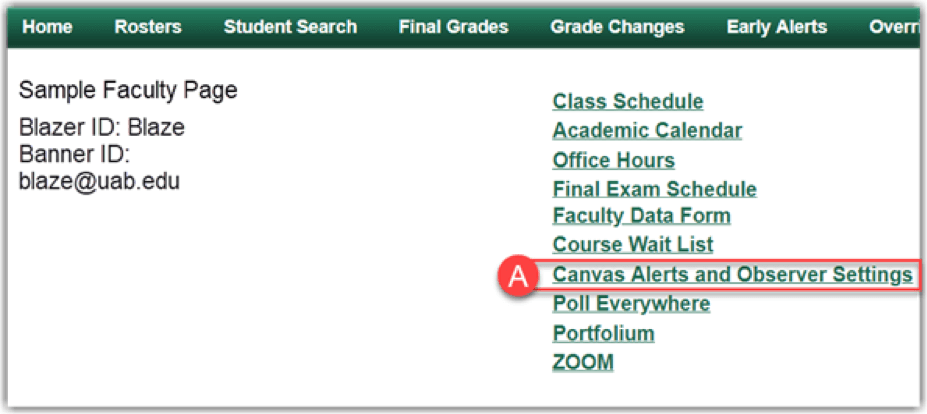
1. To access Canvas Alerts, click on Canvas Alerts and Observer Settings (A) from the BlazerNET Faculty Homepage.
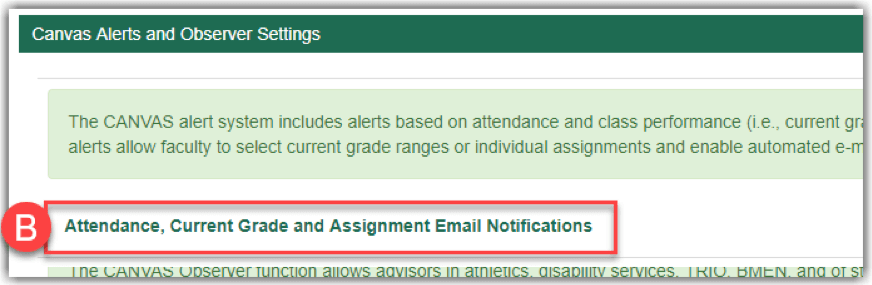
2. Select Attendance, Current Grade and Assignment Email Notifications (B).
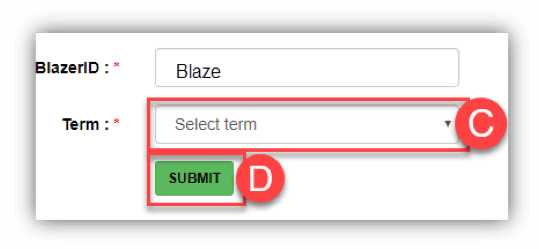
3. Select the desired Term (C) from the drop-down list. Then, click the Submit (D) button.
Online Attendance Alert
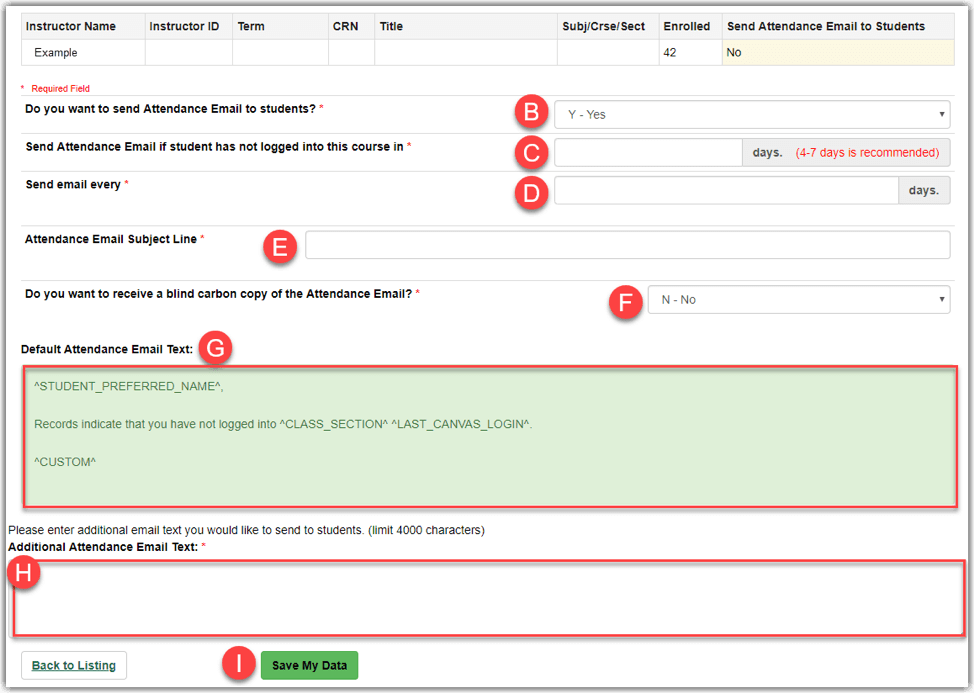
Attendance alerts monitor the login records and send customized messages to students who have not logged in to Canvas for the amount of days selected in the settings. Watch the tutorial video (Duration 4:01) above or follow the directions below to enable.
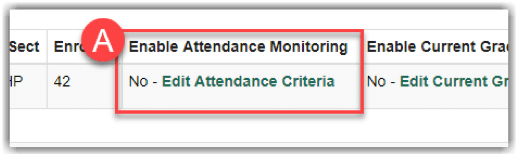
1. Click on Edit Attendance Criteria (A) for desired course.
2. Select Y – Yes from the drop-down list to enable Attendance Monitoring emails (B).
3. Type the desired number of days of Canvas Inactivity (C) until they receive the alert email.
4. Specify How Often (D) the student should receive attendance emails. This is how often students will receive an email until they log in.
5. Type the desired Subject Line (E) for Attendance Email to display.
6. If you would like to receive a blind carbon copy (F) of the Attendance Email, select Y – Yes from the drop-down menu.
7. The Default Email Text (G) will alert the student to which course they have not logged into, accompanied by the text entered (^custom^) into the Additional Attendance Email Text (H) field.
8. In the Additional Attendance Email Text (H) field, specify the message you would like the students to receive about their attendance in the course.
9. Click Save My Data (I) to save your preferences for that course.
Current Grade Alert
Current Grade alerts monitor students current grade in your course and send a customize message to students when their grades fall into a range that you specify. There are three different ranges (emails) that can be enabled and customized so that faculty can use this tool for a variety of purposes. Watch the tutorial video (Duration 3:57) above or follow the directions below to enable.
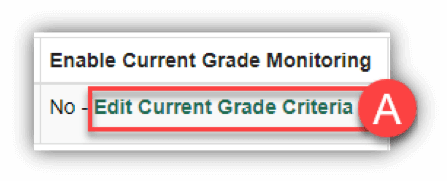
1. Click on Edit Current Grade Criteria (A).
2. Select Y – Yes from the drop-down list to enable Current Grade Alert (B) emails.
3. Specify the Grade Range (C) to be included in the email (ex. 0 and 70).
4. Select the Start (D) and End Dates (E) you would like for the Grade Monitoring Email to take place.
5. Type in the desired Subject Line (F) for the emails that will be sent.
6. If you would like to receive a blind carbon copy (G) of the emails, select Y-Yes.
7. The Default Current Grade Alert Email Text 1 (H) refers to the email the students will receive. The field ^student_preferred_name^ will become the student’s name in the email and ^custom^ will become the text that is added to the Additional Current Grade Alert Email Text 1 (I) field.
8. In the Additional Current Grade Alert Email Text 1 (I), type the desired message that will replace the word ^custom^ in the email that is sent to students. NOTE: students will not be able to reply.

Assignment Reminder Alert
Due Date Reminders pull the assignment due date in Canvas and will send a customized message to students "X" number of days before it is due. This tool can be used to proactively remind students about key assessments in your course. Watch the tutorial video (Duration 3:20) above or follow the directions below to enable.
Access Assignment
1. To Enable Assignment monitoring, click on the Load/Refresh Assignments (A) button. This will populate a list of assignments from the course in Canvas. The list is updated daily, but can be updated immediately by clicking on the Load/Refresh Assignments (A) button again.
Once the list has populated, select the desired Assignment (B).

Enable Due Date Reminders
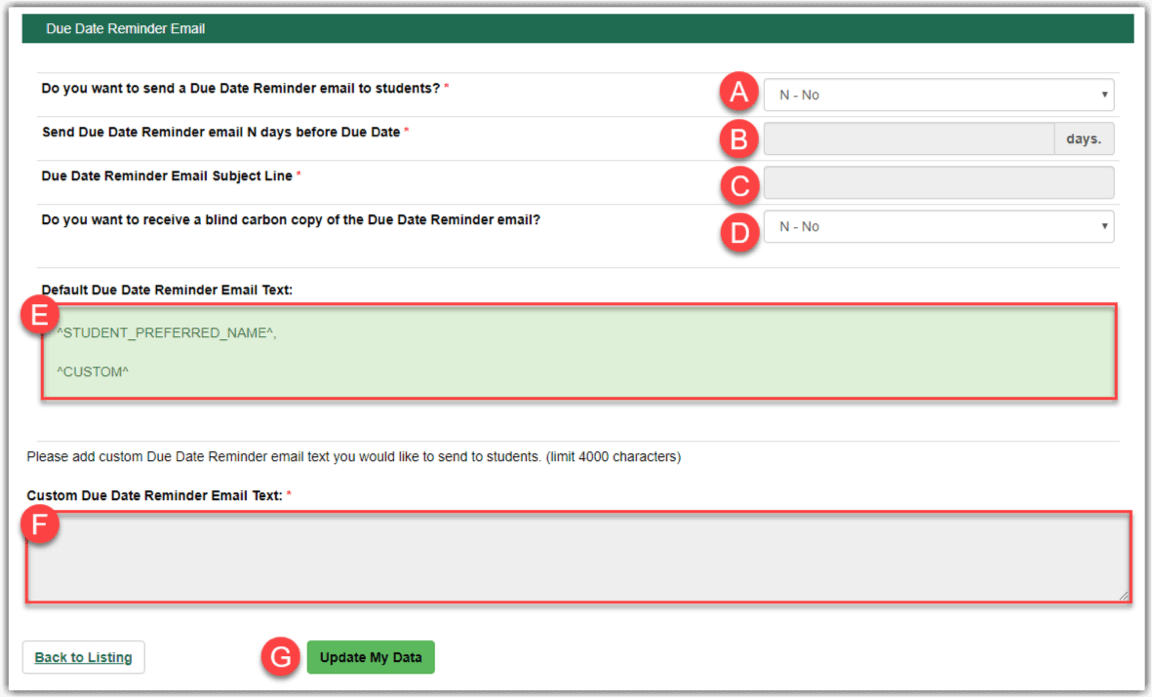
1. Select Y –Yes from the drop-down menu to enable the Due Date Reminder (A).
2. Specify the number of days (B) you would like the email to be sent prior to the due date of the assignment.
3. Type the desired Subject Line (C) for the Due Date Reminder email students will receive.
4. If you would like to receive a blind carbon copy (D) of the emails, select Y-Yes.
5. The Default Text (E) refers to the email the students will receive. The field ^student_preferred_name^ will become the student’s name in the email and ^custom^ will become the text that is added to the Custom Due Date Reminder Email Text (F) field.
6. Type the desired Custom text (F) you would like students to receive in email and click Update My Data (G) button to save your preferences for that assignment.
Assignment Grade Alert
Assignment Grade Alerts monitor grades on specific assignments and send students a customized message when their grades fall into a range you specify. There are two different ranges (emails) that can be set up per assignment. Watch the tutorial video (Duration 4:07) above or follow the directions below to enable.
Access Assignment
1. To Enable Assignment monitoring, click on the Load/Refresh Assignments (A) button. This will populate a list of assignments from the course in Canvas. The list is updated daily, but can be updated immediately by clicking on the Load/Refresh Assignments (A) button again.
2. Once the list has populated, select the desired Assignment (B).
Enable Assignment Grade Monitoring Emails
1. Click the title of the desired Assignment (A).
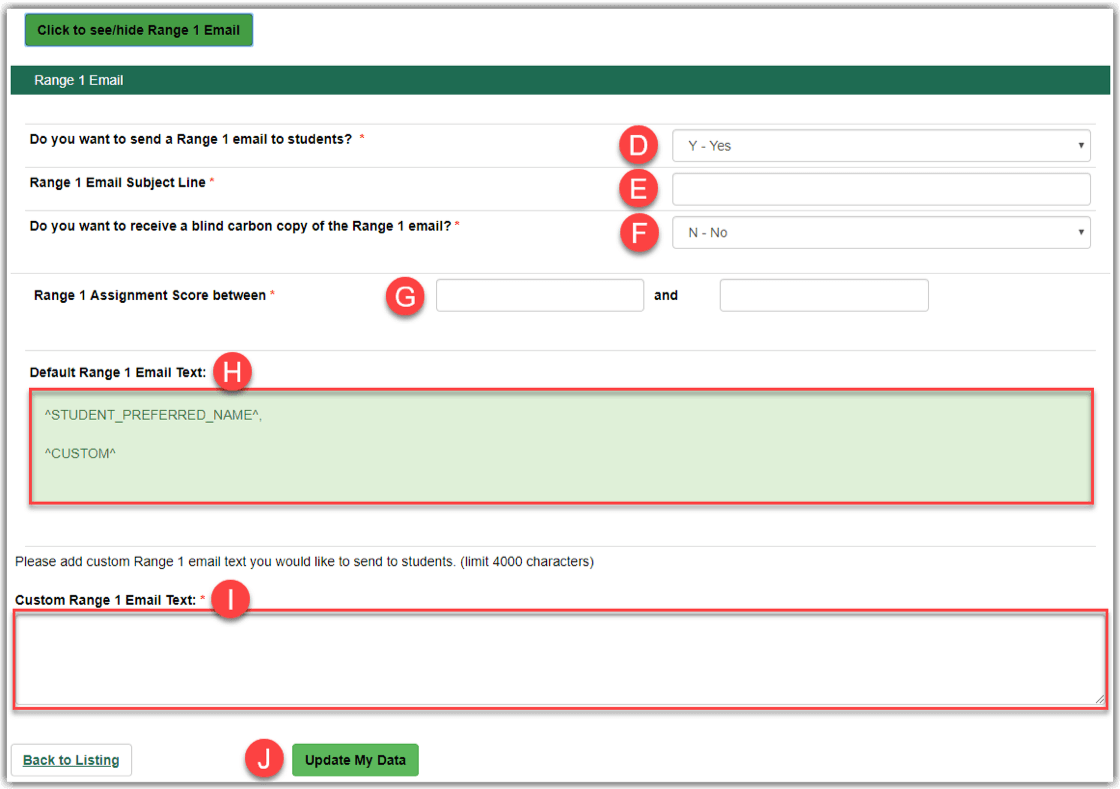
2.  Scroll down and click on the Click to see/hide Range 1 Email (B) button, or the Click to see/hide Range 2 Email (C) button. This will expand the email option for editing.
3. Select Y – Yes from the drop-down menu to Enable the Email (D).
4. Type the subject line (E) you would like the email to display.
5. If you would like to receive a blind carbon copy (F) of the emails, select Y-Yes.
6. Specify the Grade Range (G) to be included in the email (ex. 0 and 70).
7. The Default Range 1 Email Text (H) represents the format of the email the students will receive. The ^student_preferred_name^ will be the students name and the ^custom^ section will reflect your personalized message.
8. Type the desired Custom Message (I) you would like for students to receive in the email.
9. Click the Update My Data (J) button to save your preferences for that assignment.
Canvas Alerts Reports
A variety of reports for Canvas alerts are available for school/college leadership, advisors, and instructors. Please note that access to these reports is based on individuals’ role(s) or is subject to pre-approval. Please follow the below instructions to access available reports.
UAB offers different solutions to increase academic integrity for online exams. Use the information below to select which solutions work best for your class.
Compare Proctoring Software
|
Software: |
Respondus LockDown Browser |
Respondus LDB + Monitor |
ProctorU |
|---|---|---|---|
|
Short Description |
Secure Internet Browser |
Auto-Proctoring Service |
Live + AI Proctoring Service |
|
Testing Experience |
Prevents students from visiting other websites or applications during exam session. |
Requires students to take exam with LockDown browser AND use a webcam to check their ID and record their exam session. |
Requires students to take exam with an online proctor that is monitoring and intervening when needed. Sessions are also recorded and available for review. |
|
Supported OS & Browsers |
Windows/Mac |
Windows/Mac |
Windows/Mac |
|
Cost to Student |
Free, unlimited exams |
Free, unlimited exams |
|
|
Scheduling/ |
On-demand. Does not require scheduling. |
On-demand. Does not require scheduling. |
|
|
Possible Test-Taking Environments |
Classroom or computer lab |
Home or quiet place with no distractions or movement in the background. |
Home or quiet place with no distractions or movement in the background. |
|
Key Features |
|
|
|
|
Learn More |