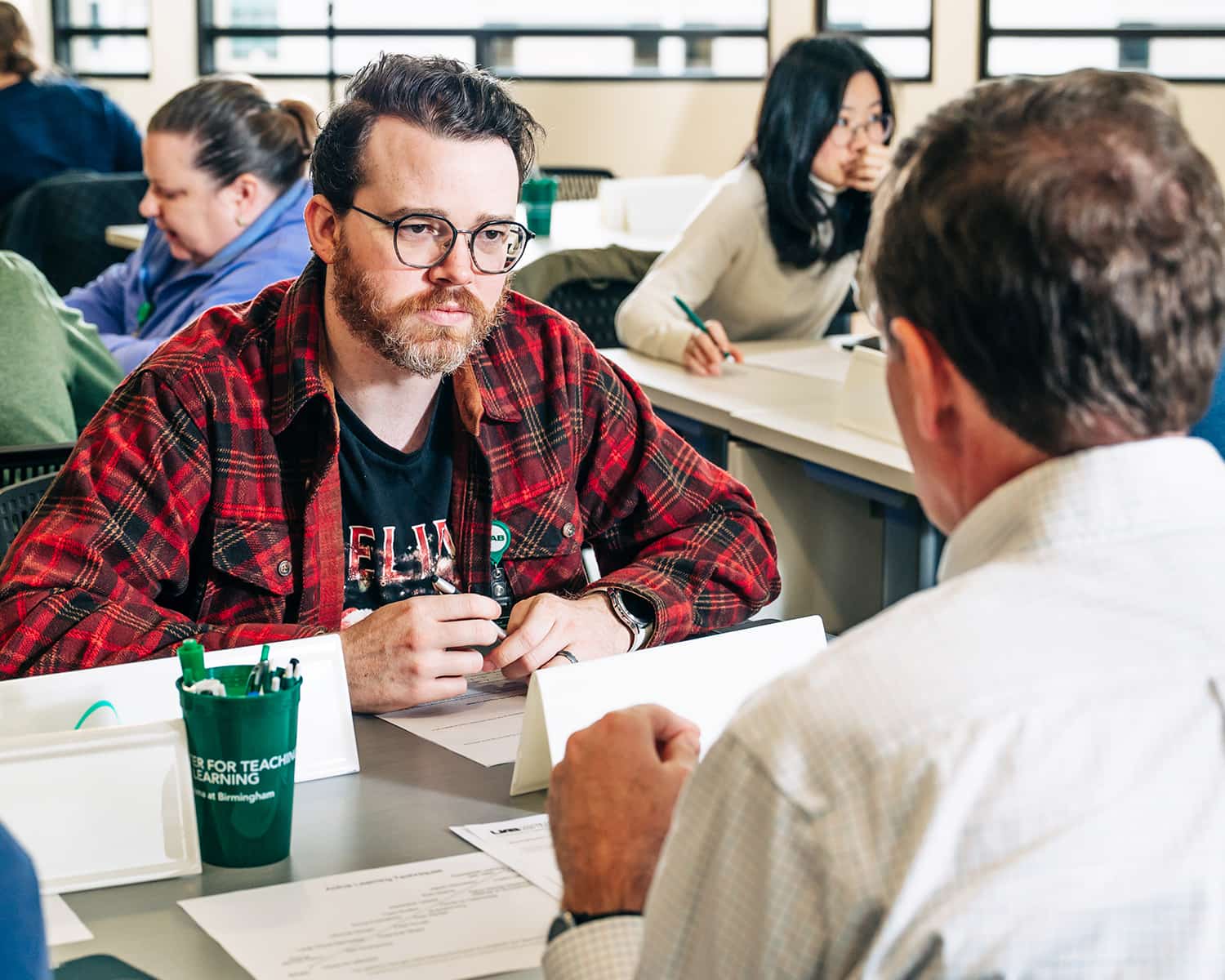
Workshops & Certificates
The CTL inspires educators towards effective and innovative teaching through workshops on a myriad of topics related to teaching and learning, in both classroom and online environments.
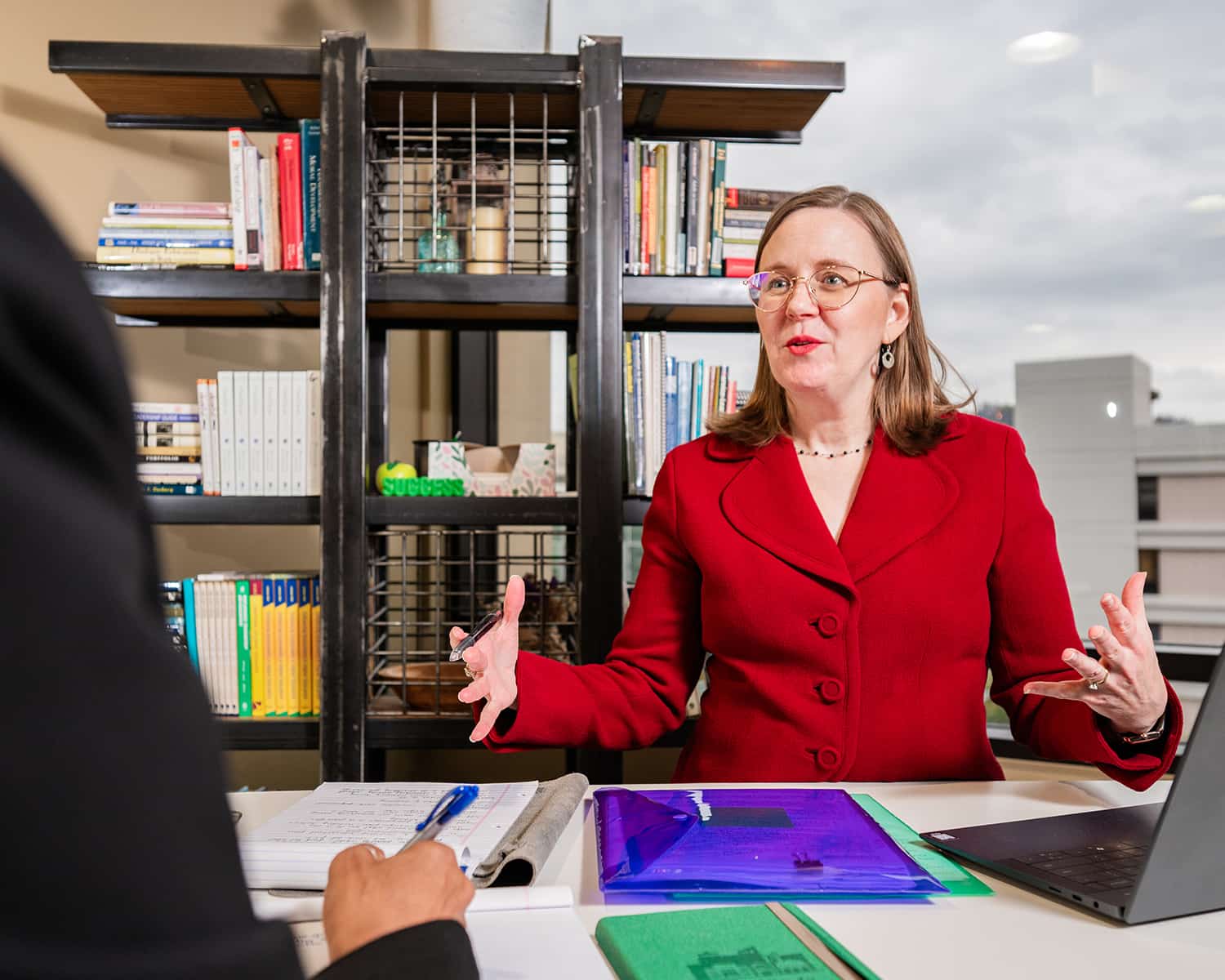
One-on-One Consultations
Personalized, one-on-one consultations designed to support instructors at every stage of their teaching journey.
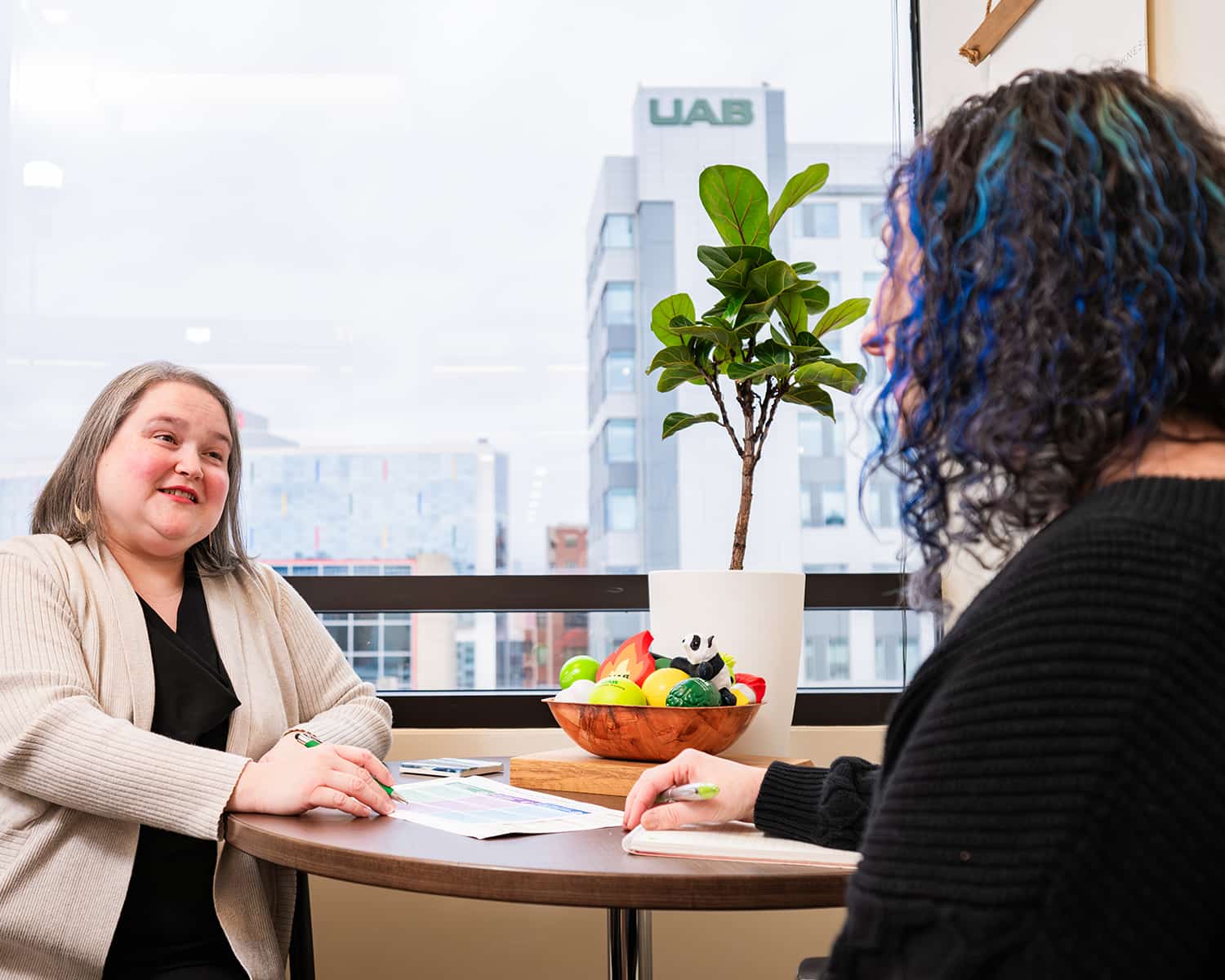
Instructional Design
Work with an instructional designer to build or improve face-to-face, hybrid, and online courses.
Recent News
More news


Upcoming Workshops
More workshops-
SEP2
Teaching with Technology: What's New with Turnitin?
Wed, Sep 2 · 10:00 AM – 12:00 PM -
SEP2
Global Awareness: Civility at UAB (OAE)
Wed, Sep 2 · 2:00 PM – 3:00 PM -
SEP8
Word Accessibility
Tue, Sep 8 · 10:00 AM – 11:15 AM -
SEP9
Mental Health Matters: Course Design with Mental Health in Mind
Wed, Sep 9 · 9:00 AM – 10:00 AM -
SEP9
Teaching with Technology: GoReact Basics
Wed, Sep 9 · 10:00 AM – 11:00 AM -
SEP9
Accessibility Fundamentals: Learning Core Accessibility Principles
Wed, Sep 9 · 12:00 PM – 1:15 PM -
SEP9
CTL-LIFT - Principles of Good Teaching
Wed, Sep 9 · 12:30 PM – 2:00 PM -
SEP9
Teaching with Technology: Advanced Tools in GoReact
Wed, Sep 9 · 1:00 PM – 2:00 PM -
SEP10
Teaching with Technology: Providing Effective Feedback to your Online Students
Thu, Sep 10 · 11:00 AM – 12:00 PM -
SEP10
Content Accessibility Basics: Understanding Documents Requiring Accessibility
Thu, Sep 10 · 2:00 PM – 3:15 PM -
SEP11
Teaching in 3D: Incorporating Museum Tours into Course Curriculum
Fri, Sep 11 · 10:00 AM – 12:30 PM -
SEP15
Content Accessibility Basics: Understanding Documents Requiring Accessibility
Tue, Sep 15 · 10:00 AM – 11:15 AM -
SEP16
Design Your Course: Course Design Essentials Day 1
Wed, Sep 16 · 10:00 AM – 2:00 PM -
SEP16
Word Accessibility
Wed, Sep 16 · 12:00 PM – 1:15 PM -
SEP17
Mental Health Matters: QPR Suicide Prevention Gatekeeper Workshop
Thu, Sep 17 · 1:00 PM – 2:30 PM -
SEP17
Accessibility Fundamentals: Learning Core Accessibility Principles
Thu, Sep 17 · 2:00 PM – 3:15 PM -
SEP18
Design Your Course: Course Design Essentials Day 2
Fri, Sep 18 · 10:00 AM – 2:00 PM -
SEP18
Using AI in the Classroom: Academic Integrity
Fri, Sep 18 · 10:00 AM – 11:30 AM -
SEP22
Accessibility Fundamentals: Learning Core Accessibility Principles
Tue, Sep 22 · 10:00 AM – 11:15 AM -
SEP23
Teaching with Technology: Active Learning Strategies in Your Online Courses
Wed, Sep 23 · 11:00 AM – 12:00 PM -
SEP23
Content Accessibility Basics: Understanding Documents Requiring Accessibility
Wed, Sep 23 · 12:00 PM – 1:15 PM -
SEP23
CTL LIFT – Creating and Aligning Course Assessments
Wed, Sep 23 · 12:30 PM – 2:00 PM -
SEP23
Teaching with Technology: Harmonize Discussions
Wed, Sep 23 · 1:00 PM – 2:00 PM -
SEP24
Word Accessibility
Thu, Sep 24 · 2:00 PM – 3:15 PM -
SEP25
Accessibility: Earn Your Accessibility Certificate in a Day
Fri, Sep 25 · 8:30 AM – 4:30 PM -
SEP28
Teaching Effectiveness: Active Learning
Mon, Sep 28 · 10:00 AM – 11:30 AM -
SEP28
Using AI in the Classroom: Considering and Navigating GenAI in Online Classes
Mon, Sep 28 · 11:30 AM – 1:00 PM -
SEP29
Mental Health Matters: Responding to Students in Distress
Tue, Sep 29 · 2:00 PM – 3:00 PM -
SEP30
Teaching with Technology: Teaching with Rubrics in your Online Courses
Wed, Sep 30 · 11:00 AM – 12:00 PM -
SEP30
Advancing Global Learning at UAB - CTL Building Block
Wed, Sep 30 · 11:30 AM – 1:00 PM -
OCT1
Accessibility: Earn Your Accessibility Certificate in a Day
Thu, Oct 1 · 8:30 AM – 4:30 PM -
OCT1
Interprofessional Teams in Healthcare One Day Intensive, level I
Thu, Oct 1 · 8:30 AM – 4:00 PM -
OCT1
PowerPoint Accessibility
Thu, Oct 1 · 10:00 AM – 11:15 AM -
OCT1
Teaching with Technology: Harmonize Accessibility
Thu, Oct 1 · 1:00 PM – 2:00 PM -
OCT2
Faculty Well-Being: Art Therapy: Strength Shield
Fri, Oct 2 · 2:00 PM – 3:00 PM -
OCT6
PowerPoint Accessibility
Tue, Oct 6 · 12:00 PM – 1:15 PM -
OCT7
Advancing Global Learning at UAB - CTL Building Block
Wed, Oct 7 · 11:30 AM – 1:00 PM -
OCT7
Teaching with Technology: Attendance and Polling with iClicker
Wed, Oct 7 · 1:00 PM – 2:00 PM -
OCT7
Panorama: Understanding Issues and How to Fix Them
Wed, Oct 7 · 2:00 PM – 3:15 PM -
OCT8
Panorama: Understanding Issues and How to Fix Them
Thu, Oct 8 · 10:00 AM – 11:15 AM -
OCT8
Mental Health Matters: Course Design with MH In Mind
Thu, Oct 8 · 11:00 AM – 12:00 PM -
OCT9
CTL LIFT: Rubrics, What are They and Why Should You Use Them?
Fri, Oct 9 · 12:30 PM – 2:00 PM -
OCT13
Panorama: Understanding Issues and How to Fix Them
Tue, Oct 13 · 12:00 PM – 1:15 PM -
OCT13
Teaching Effectiveness: Integrating Career Readiness into Your Course
Tue, Oct 13 · 12:00 PM – 1:30 PM -
OCT14
Advancing Global Learning at UAB - CTL Building Block
Wed, Oct 14 · 11:30 AM – 1:00 PM -
OCT14
Principles of Good Teaching - CTL Building Block
Wed, Oct 14 · 1:30 PM – 3:00 PM -
OCT14
PowerPoint Accessibility
Wed, Oct 14 · 2:00 PM – 3:15 PM -
OCT15
Panorama: Understanding Issues and How to Fix Them
Thu, Oct 15 · 10:00 AM – 11:15 AM -
OCT15
Global Awareness: Bystander Intervention (OAE)
Thu, Oct 15 · 2:00 PM – 3:30 PM -
OCT16
Advancing Your Teaching Career - CTL Building Block
Fri, Oct 16 · 9:00 AM – 1:30 PM -
OCT20
Panorama: Understanding Issues and How to Fix Them
Tue, Oct 20 · 12:00 PM – 1:15 PM -
OCT21
Faculty Well-Being: VitalCog, Suicide Prevention in the Workplace
Wed, Oct 21 · 9:00 AM – 11:00 AM -
OCT21
The Basics of AI for UAB Teachers - CTL Building Block
Wed, Oct 21 · 11:30 AM – 1:00 PM -
OCT21
CTL LIFT - Classroom Communication
Wed, Oct 21 · 12:30 PM – 2:00 PM -
OCT21
Principles of Good Teaching - CTL Building Block
Wed, Oct 21 · 1:30 PM – 3:00 PM -
OCT21
Panorama: Understanding Issues and How to Fix Them
Wed, Oct 21 · 2:00 PM – 3:15 PM -
OCT22
PowerPoint Accessibility
Thu, Oct 22 · 10:00 AM – 11:15 AM -
OCT23
Global Awareness: Navigating Global Differences with Intercultural Intelligence
Fri, Oct 23 · 9:00 AM – 1:30 PM -
OCT27
PowerPoint Accessibility
Tue, Oct 27 · 12:00 PM – 1:15 PM -
OCT28
Teaching with Technology: Facilitating Group Activities Online
Wed, Oct 28 · 11:00 AM – 12:00 PM -
OCT28
The Basics of AI for UAB Teachers - CTL Building Block
Wed, Oct 28 · 11:30 AM – 1:00 PM -
OCT28
Principles of Good Teaching - CTL Building Block
Wed, Oct 28 · 1:30 PM – 3:00 PM -
OCT28
Panorama: Understanding Issues and How to Fix Them
Wed, Oct 28 · 2:00 PM – 3:15 PM -
OCT29
Panorama: Understanding Issues and How to Fix Them
Thu, Oct 29 · 10:00 AM – 11:15 AM -
OCT30
Teaching Effectiveness: Cheat-Proof your Course, Incentivizing Investment in Authentic Work
Fri, Oct 30 · 10:00 AM – 11:30 AM -
OCT30
Global Awareness: Exploring UAB Intl Student Background (East Asia)
Fri, Oct 30 · 11:30 AM – 1:00 PM -
NOV2
Fostering International Student Success at UAB - CTL Building Block
Mon, Nov 2 · 1:30 PM – 3:00 PM -
NOV3
Creating Accessible PDFs: Session 1
Tue, Nov 3 · 10:00 AM – 12:00 PM -
NOV3
Mental Health Matters: Responding to Students in Distress
Tue, Nov 3 · 11:00 AM – 12:00 PM -
NOV4
The Basics of AI for UAB Teachers - CTL Building Block
Wed, Nov 4 · 11:30 AM – 1:00 PM -
NOV4
Creating Accessible PDFs: Session 1
Wed, Nov 4 · 12:00 PM – 2:00 PM -
NOV4
Global Awareness - Creating Collaborative Environments (OAE)
Wed, Nov 4 · 2:00 PM – 3:30 PM -
NOV5
Creating Accessible PDFs: Session 1
Thu, Nov 5 · 2:00 PM – 4:00 PM -
NOV9
Fostering International Student Success at UAB - CTL Building Block
Mon, Nov 9 · 1:30 PM – 3:00 PM -
NOV10
Creating Accessible PDFs: Session 2
Tue, Nov 10 · 10:00 AM – 12:00 PM -
NOV11
Teaching with Technology: Designing and Delivering for Large Classes
Wed, Nov 11 · 11:00 AM – 12:00 PM -
NOV11
Creating Accessible PDFs: Session 2
Wed, Nov 11 · 12:00 PM – 2:00 PM -
NOV12
Creating Accessible PDFs: Session 2
Thu, Nov 12 · 2:00 PM – 4:00 PM -
NOV13
Mental Health Matters: Mental Health First Aid
Fri, Nov 13 · 9:00 AM – 4:30 PM -
NOV13
CTL LIFT - Active Learning Strategies for all Classrooms
Fri, Nov 13 · 12:30 PM – 2:00 PM -
NOV16
Fostering International Student Success at UAB - CTL Building Block
Mon, Nov 16 · 1:30 PM – 3:00 PM -
NOV16
Faculty Well-Being: Mindfulness
Mon, Nov 16 · 3:30 PM – 4:30 PM -
NOV17
Creating Accessible PDFs: Session 3
Tue, Nov 17 · 10:00 AM – 12:00 PM -
NOV18
Teaching with Technology: Simple Syllabus for the Spring Courses
Wed, Nov 18 · 11:00 AM – 12:00 PM -
NOV18
Teaching with Technology: Simple Syllabus for your Spring Courses
Wed, Nov 18 · 11:00 AM – 12:00 PM -
NOV18
Using AI in the Classroom: Experiences of 3 Teaching Faculty
Wed, Nov 18 · 11:30 AM – 1:00 PM -
NOV18
Creating Accessible PDFs: Session 3
Wed, Nov 18 · 12:00 PM – 2:00 PM -
NOV19
Creating Accessible PDFs: Session 3
Thu, Nov 19 · 2:00 PM – 4:00 PM -
DEC2
Creating Accessible PDFs: Session 4
Wed, Dec 2 · 10:00 AM – 12:00 PM -
DEC2
Teaching with Technology: Canvas Gradebook, Part 2
Wed, Dec 2 · 11:00 AM – 12:00 PM -
DEC2
CTL LIFT - Designing your Course
Wed, Dec 2 · 12:30 PM – 2:00 PM -
DEC3
Creating Accessible PDFs: Session 4
Thu, Dec 3 · 12:00 PM – 2:00 PM -
DEC4
Creating Accessible PDFs: Session 4
Fri, Dec 4 · 2:00 PM – 4:00 PM -
DEC9
Putting It All Together: Create an Accessibility Action Plan
Wed, Dec 9 · 10:00 AM – 11:15 AM -
DEC10
Putting It All Together: Create an Accessibility Action Plan
Thu, Dec 10 · 12:00 PM – 1:15 PM