
Workshops & Certificates
Request common Canvas course tasks like add/remove users, cross-listing, course copy, sandboxes, and templates using the appropriate forms.
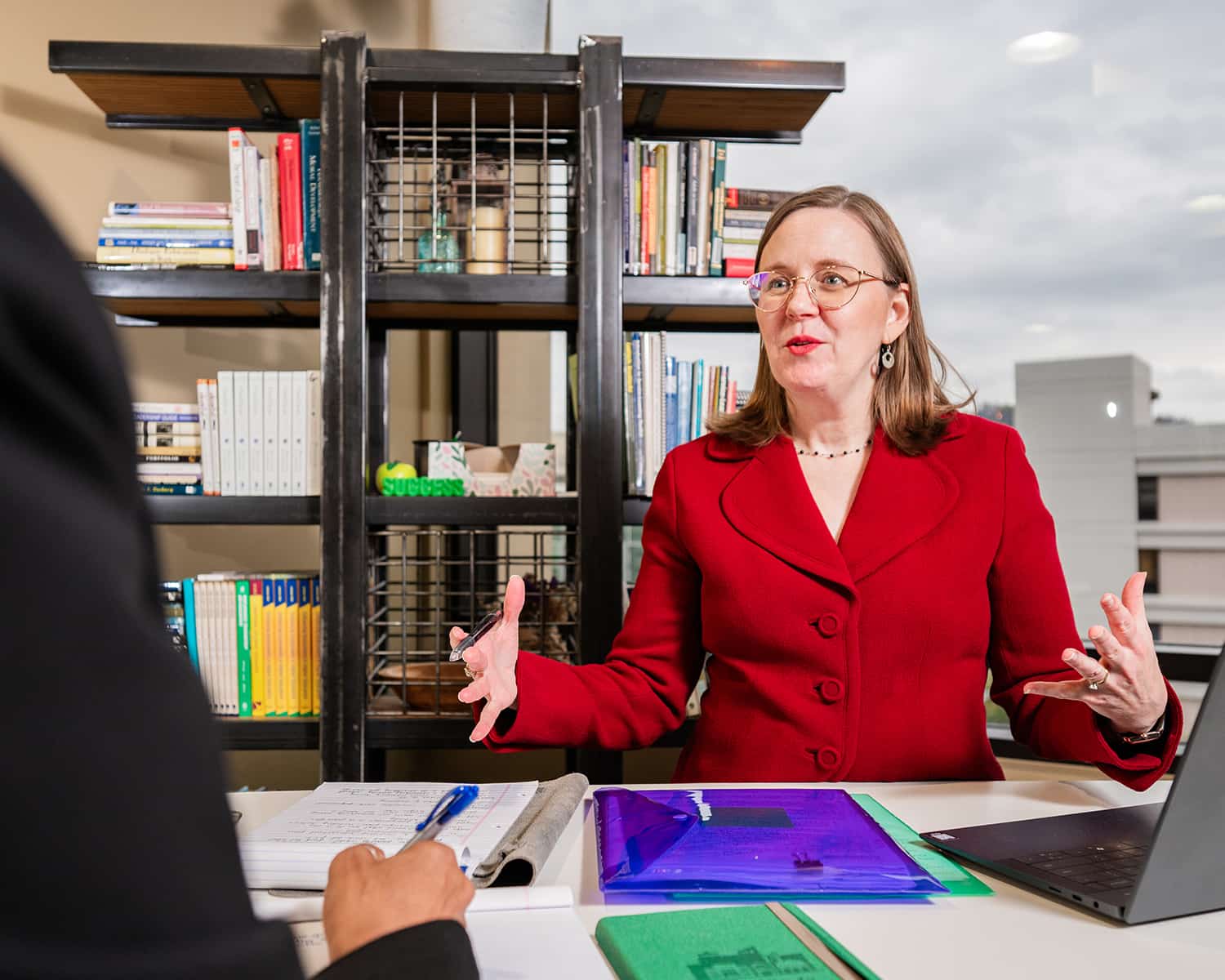
One-on-One Consultations
Personalized, one-on-one consultations designed to support instructors at every stage of their teaching journey.
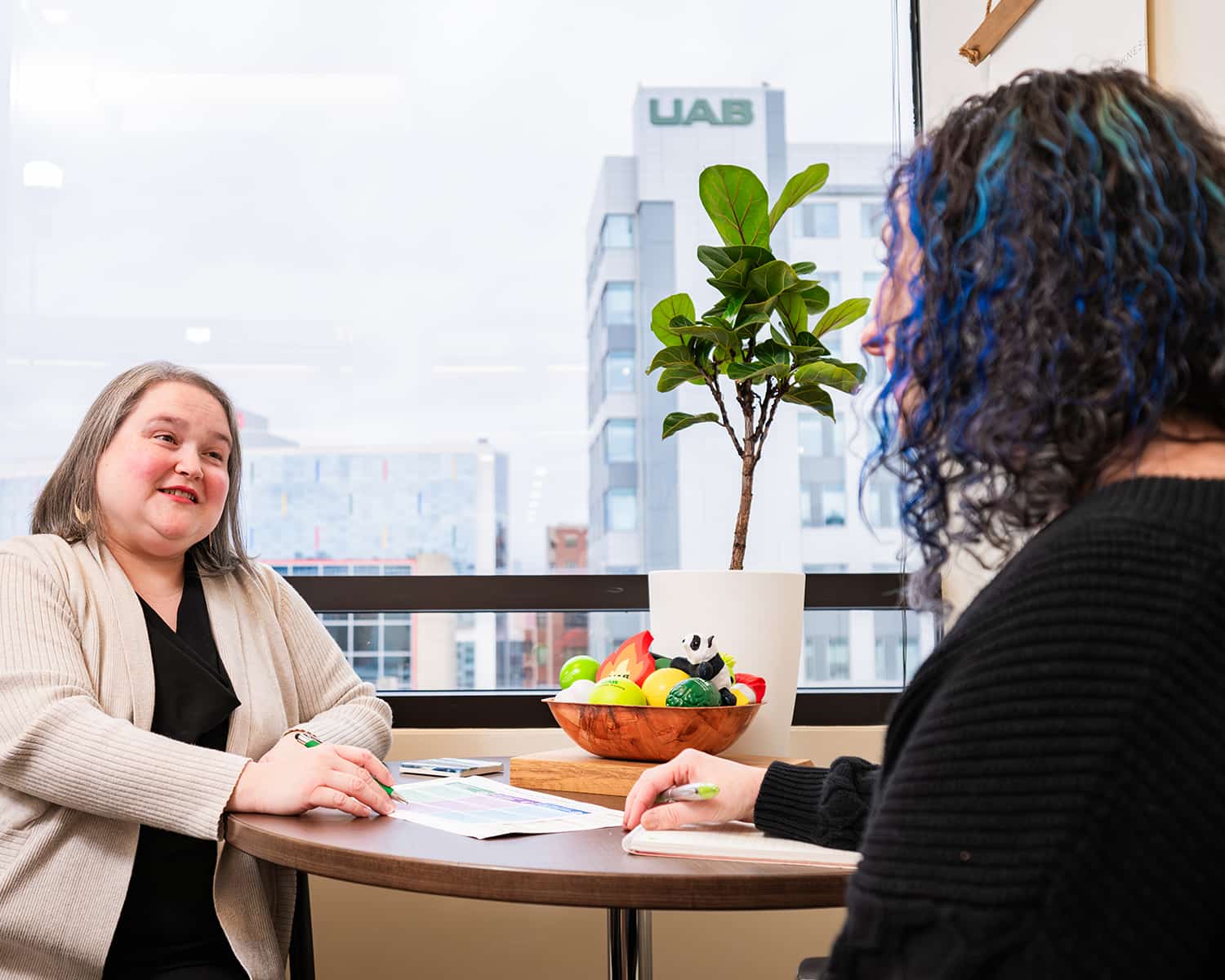
Instructional Design
Work with an instructional designer to build or improve face-to-face, hybrid, and online courses.
Recent News
More news

Upcoming Workshops
More workshops-
APR20
Teaching with Technology: Canvas Gradebook, Part 2 (virtual)
Mon, Apr 20 · 11:00 AM – 12:00 PM -
APR22
Teaching with Technology: Canvas Gradebook Part 2
Wed, Apr 22 · 11:00 AM – 12:00 PM -
APR24
Introduction to Teaching with COIL
Fri, Apr 24 · 9:00 AM – 10:00 AM -
APR29
Addressing accessibility in Word
Wed, Apr 29 · 12:00 PM – 1:00 PM -
APR30
Addressing Accessibility in PowerPoint (Virtual)
Thu, Apr 30 · 12:00 PM – 1:00 PM -
MAY6
Addressing accessibility in PowerPoint
Wed, May 6 · 12:00 PM – 1:00 PM -
MAY7
Addressing accessibility in Word
Thu, May 7 · 12:00 PM – 1:00 PM -
MAY15
Interprofessional Teams in Healthcare - One Day Intensive Workshop, Level 2
Fri, May 15 · 8:30 AM – 4:00 PM -
JUN10
CTL LIFT: Summer Seminar
Wed, Jun 10 · 10:00 AM – 2:00 PM -
JUL17
Accessibility: Earn Your Accessibility Teaching Certificate in a Day
Fri, Jul 17 · 8:30 AM – 4:30 PM -
JUL30
Interprofessional Teams in Healthcare: One Day Intensive Workshop Level I
Thu, Jul 30 · 8:30 AM – 4:00 PM -
SEP11
Teaching in 3D: Incorporating Museum Tours into Course Curriculum
Fri, Sep 11 · 10:00 AM – 12:30 PM