Academic Technologies
 Respondus 4.0 provides faculty the tools to create, import, and manage quizzes and exams, and then print, store, or upload to Canvas. You can create the exams using Word (or any other word processing tool) by using a specific format, or you can assemble test questions from publisher test banks.
Features:
- Supports up to nine question types
- Import questions from MS Word (including embedded images), rich-text, QTI, and tab/comma delimited formats
- Access to thousands of Respondus-compatible publisher test banks — FREE to instructors who adopt a participating textbook
- Publish exams and assessments directly to an online course (media files are automatically uploaded)
- A “batch publish” feature allows assessments and surveys to be published to multiple courses in a single step
- Print exams/surveys directly from Respondus, or save files to MS Word or rich-text format
How to Access Respondus 4.0
Download directions for faculty and staff:
- Click the link above to go to UAB's ServiceNow Catalog for Respondus 4.0.
- Sign in using your BlazerID and password. Only Faculty and staff will be able to see this page. If you are receiving an error that states "You are either not authorized or record is not valid", make sure you are logged in at the top right. If you are a TA and need access, please contact Learning Technologies.
- Download Respondus from the link provided on the ServiceNow page.
- Close all office programs before installing Respondus.
Note: The Equation Editor is not needed, you may skip installation of this part if you wish. - After you install Respondus, you will be presented with a Licensing Screen. This is where you will need the information stored in the box link provided on the service now page.
- Type or copy the contact name and password into the provided boxes and click License.
Guides/Tutorials
Guides
Tutorials
FAQ
-
What if it says my Respondus Projects folder is missing?
When the warning "Respondus Projects folder: (C:\Respondus Projects\) Folder is missing..." or "Respondus Projects folder: (C:\Respondus Projects\) Folder has been renamed or deleted." appears, it is a good indication of a permissions issue or an incorrect installation of the folder, which contains all user files including Respondus question files along with other supporting user files.
In most cases, the Respondus Projects folder was installed in a location where the Windows User account does not have the necessary access to the folder when using Respondus 4.0. If the folder cannot be located, Respondus will try a legacy location "C:\Respondus Projects\".
When installing Respondus 4.0, the Respondus Projects folder is best installed in the user's "C:\Users\{user}\Documents" folder on the local drive, or on another local data drive (usually "D:\") where the user has full read/write access.
The recommend fix is to re-install Respondus 4.0 specifying the user's "C:\Users\{user}\Documents" folder on the local drive
Please note network folders and "cloud drives" are not supported with Respondus 4.0. This includes Microsoft OneDrive, Apple iCloud Drive, and similar "cloud" services.
An alternate option is move the Respondus Project folder to a location on the local system where the Windows user has full read/write permission to access the folder.
- Close Respondus 4.0
- Open Windows Explorer
- Locate the Respondus Projects folder. By default it will be "Respondus Projects" but may have been given a different name. A valid Respondus Projects folder will also contain several user files including the Respondus .rsp project files, the spell checker files (.tlx, .clx) and settings files (.set).
- Copy or move the folder to the Windows user's "Documents" or "My Documents" folder on a local drive. (Do not create a blank Respondus Projects folder.)
- Start Respondus 4.0
- Go to Respondus->File->Preferences->General tab, click on the "Update" button and navigate to the new location of the Respondus Projects folder in the user's My Documents folder on the local drive.
-
What are the system requirements?
Operating System
Windows 11 or 10. (May continue to run in older operating systems that have reached “end-of-life” but user may encounter unexpected results.)
Memory
32 MB RAM minimum.
Hard Disk Space
10 MB of free local drive disk space for program files (may require an additional 150 MB for optional add-ons).
Monitor
1024x768 or 1280x720 minimum resolution.
Download Time
The file size is approximately 15 MB.
Learning Management System
Respondus 4.0 is compatible with the following learning management systems:
- Blackboard Learn 9.x (limited support with Blackboard Ultra)
- D2L Brightspace 10.x
- Instructure Canvas
- Moodle 3-4
Respondus 4.0 is also compatible with systems supporting the IMS QTI 1.x specifications and recommendations (not QTI 2.x) for import and export.
-
Can I retrieve quizzes and questions from Canvas to Respondus?
Instructure Canvas currently does not have the necessary web services and APIs to retrieve quizzes and questions at this time. Retrieve questions from Canvas is on the Respondus Developers list for a future version of Respondus once Instructure has the opportunity to develop the necessary web services.
Meanwhile, you can export a single quiz as a IMS QTI 1.2 XML file for import into Respondus through the IMS QTI personality. Once the QTI file has been imported into Respondus, you can change the current personality back to Instructure Canvas or another LMS personality for publishing.
The steps are:
- Log into your Canvas course
- In the Canvas course, go to Settings->Export Course Content
- Select "Quiz" under "Export Type"
- When the quiz list appears, select only "one" quiz followed by "Create Export" and then download the export file. (See Notes Below)
- Start Respondus 4.0
- In Respondus->Start->Current Personality, select "IMS QTI"
- Go to Respondus->Start->Import Questions.
- In Import Questions->File Name:->Browse, select "Zipped IMS QTI package (.zip)" in the lower left.
- Locate the just downloaded QTI export file and complete the import process.
- Go back to Respondus->Start->Current Personality to change back to "Instructure Canvas" or other LMS.
Notes:
Instructure Canvas currently does not support the export of question groups linked to questions banks in a quiz. Any quizzes with linked question banks will need to be rebuilt without the linked question banks before exporting as a QTI file.
To export any question banks, you will need to build a new quiz from the question bank and then export as a quiz.
-
Respondus Test Generator 4.0 is saying my password has expired. How do I get the new password?
The license for Respondus Test Generator is renewed yearly around June or July.
Current users may be prompted to supply a new password to continue using the product. Instructors can access the UAB IT ServiceNow page which contains the link to the password. This information cannot be posted/shared on a public website. Please fill out an Ask eLearning form if you need further assistance.
Please note: Respondus LockDown Browser (LDB) & Monitor is a separate product and does not require a software passcode. This renewal does not impact use of Respondus LDB & Monitor.
-
Which Canvas Quiz types are supported by Respondus?
Both Canvas Classic Quizzes and Canvas New Quizzes are now suppported by Respondus 4.0. To upload a New Quiz to Canvas, Respondus 4 Version 4.1.0.02 or greater is required.
If you are unable to choose New Quizzes as the Canvas Quiz type, update Respondus 4 to the latest version to unlock this option.
Instructor Training
Respondus offers webinars on this topic periodically.
Group, one-on-one, or virtual sessions are also available to faculty.
Technical Support
Please follow the steps below if you need technical support after reviewing the information, guides, and FAQs above.
-
Contact Respondus Support
Submit a ticket Choose Respondus 4.0 in Product Name Field
-
Ask Learning Technologies
If these support options do not give a satisfactory resolution, please submit a Learning Technologies Support request and include any ticket numbers provided by Respondus 4.0
Privacy & Accessibility
- Details
 Poll Everywhere is a web-based audience response system that lets you embed interactive activities such as polls, questions, and competitions into presentations. On the surface, Poll Everywhere is a simple application that works well for live audiences using mobile devices like phones. People participate by visiting a fast mobile-friendly web page/app or sending text messages. Instructions are displayed on-screen. The poll that is embedded within the presentation or web page will update in real time.
See Poll Everywhere compared to iClicker and Zoom Polls here.
Features:
- Gather responses to gauge students’ comprehension before moving on
- Poll students and display class results instantly
- Increase and manage student participation and interaction
- Engage students with competitions (similar to Kahoot)
- Students can respond via computer, tablet, or phone
- Reduce time on administrative tasks such as grading and attendance
- Interactive Q&A feature
- Customize Poll results
How to Access Poll Everywhere
Instructors
UAB faculty have access to Poll Everywhere Pro accounts:
- No limit on the amount of responses per poll
- Access to the reporting feature
- Customize poll URL
- Response segmentation
- Moderation
- Automatic Censoring
- Access to PowerPoint plug-in
Staff/Students
UAB staff and students have access to Poll Everywhere Higher-Ed accounts:
- Limited to 40 responses per poll (polls can be reset for continued use)
- Can present all activity types
- Access to PowerPoint plug-in
Downloads
Presentation Apps
Poll Everywhere Mobile App
Guides/Tutorials
FAQ
-
Does this cost the students money?
No, our license includes the cost of students signing up as a participant, and they do not have to pay anything. As far as text message responses, Poll Everywhere does not charge anything to participants. If they send a text response, it will be the same price as if they had texted a regular phone number.
-
Why is my poll not displaying/updating?
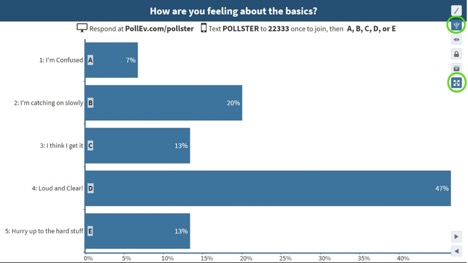
Make sure your Poll has been activated. This can be done from your “My Polls” page or from the activity page. Click the activate icon shown below.

Within a Presentation
To present your activities from within a PowerPoint, Keynote, or Google Slides presentation you will need to have the Poll Everywhere Presentation app installed and be logged in to your account to ensure your questions activate.
Polls are automatically activated when you display a slide containing an embedded poll in presentation mode.
-
What browsers are supported?
Poll Everywhere strongly recommends using the latest version of Chrome, Safari, Firefox, Internet Explorer, and/or Edge. Learn more about specific browser versions.
-
Why isn’t my Activity accepting text message responses?
There may be a few reasons why an activity doesn’t accept text message responses. Firstly, it is important to remember that only Multiple Choice, Word Clouds, and Open Ended activities can accept text message responses. If you have any other activity type or a survey then text responses will not work.
Instructor Training
Archived Workshops
Request Training
Group, one-on-one, or virtual sessions are available to faculty.
Technical Support
Please follow the steps below if you need technical support after reviewing the information, guides, and FAQs above.
-
Contact Poll Everywhere Support
-
Ask Learning Technologies
If these support options do not give a satisfactory resolution, please submit a Learning Technologies Support request and include any ticket numbers provided by Poll Everywhere.
Privacy & Accessibility
- Details
 Kaltura is UAB's multimedia content management system. The system is integrated into Canvas, and can also be used outside of Canvas. Through Kaltura, users have access to tools such as screen recordings, editing, and automatic upload and cloud encoding of their multimedia materials for device agnostic delivery. The media can be inserted into the courses via an embed feature that is integrated into the content editor in Canvas. Kaltura is also used to manage UAB's Lecture Capture and Zoom Cloud recordings.
Features:
- Safely store/archive unlimited amount of Media
- Share media easily in or out of Canvas
- Record presentations, screencasts, or podcasts
- Engage audience with embedded questions
- Easily add captions to videos
- Make simple edits without complicated software
My Media- A portal to all your media hosted on your personal and private media space. When any individual access 'My Media', they will see their media in their account.
Media Gallery- A course specific (student facing) collection of media that you want student to acces in Canvas.
Media Space- A place to access the same media and share videos outside of Canvas.
How to Access Kaltura Media Space
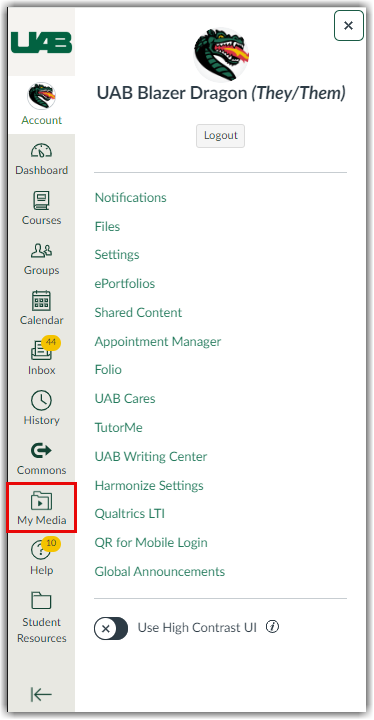
Faculty, staff, and students all have access to Kaltura Media Space. The Kaltura Media Space can be accessed inside a Canvas course or outside the Canvas environment. Kaltura is known as My Media and Media Gallery inside of Canvas. It is known as Media Space outside of Canvas. Choose one of the methods below to access My Media.
Inside Canvas
Login to Canvas, click My Media in the Canvas Global navigation menu. Chrome, Firefox and Edge are recommended browsers for using Kaltura in Canvas.
Outside the Canvas Environment
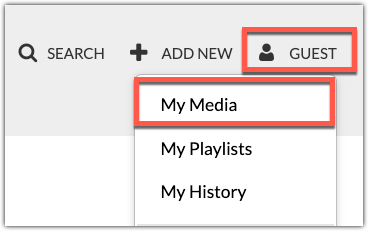
My Media can also be accessed outside the Canvas environment by navigating to mediaspace.uab.edu. Click the Account drop-down menu at the top right, select My Media. This will redirect to the “Central Authentication System” page. Type in your BlazerID and strong password and click Sign-in.
Guides/Tutorials
Instructors/Students
Creating and Uploading Media
- Add Media to My Media
- How to Download Zoom recording and Upload to Kaltura (manually)
- Kaltura Capture Guide
- UAB Lecture Capture
- Manually Record Class Using Kaltura Classroom
Searching and Editing Media
Sharing and Downloading Media
- Embed/Publish Media in Canvas
- Downloading Videos from My Media
- How to Add an Individual to View your Video
- Kaltura Flavor Reinstatement
Captioning Media
- Auto-Generated Captioning Info
- How to edit captions for accuracy
- How to order captions for older content
Interactive Media
- Creating a Kaltura Interactive Video Quiz
- Kaltura Video Submission Assignment
- Interactive Video Paths
Managing Media
Search Kaltura Knowledge Center
Search Kaltura Learning Videos
FAQ
-
Will my media expire?
Yes, but only if it is inactive. Inactive media is depreciated in two phases.
Phase 1: Media not played by anyone within two years will have its flavors removed. This can result in an error message of 'Source Media not found'. Kaltura flavors represent the required renditions of the source file with distinct codecs, frame sizes and bitrates. If your flavors have been removed, and you would like them reinstated, follow the steps listed in the Kaltura Flavor Reinstatement guide.
Phase 2: Media not played for four years the media will be marked for deletion. An email will be sent to the media owner a week before the media is deleted. Restoring the media’s flavors then watching of few seconds of the media will prevent deletion. Deleted media can be recovered by the media owner within a 30-days of deletion by using the new Recycle bin feature in Kaltura. Please reach out to the Office of Learning Technologies if you need help with video recovery.
-
Is there a limit on how much media I can upload?
No, UAB has unlimited media storage with Kaltura.
-
How do I get my videos captioned?
There are two types of video captioning available through MyMedia on Canvas: Machine and Professional.
- Machine Captioning is where computer artificial intelligence is used to create captions. These captions are around 80% accurate and can be edited. This type of captioning can be requested by selecting the desired video(s) and choosing +Order Captions from the Actions dropdown menu in My Media on Canvas. See the
 Modifying Media Guide for more information on ordering and editing machine captioning. Please note machine captioning does not meet the needs of students who are approved for video captioning as a DSS accommodation.
 - Recommended option: Professional captioning is more accurate and can be requested via the UAB Disability Support Services request form. Note: Caption requests on behalf of students requiring accommodations should be done through DSS.
- Machine Captioning is where computer artificial intelligence is used to create captions. These captions are around 80% accurate and can be edited. This type of captioning can be requested by selecting the desired video(s) and choosing +Order Captions from the Actions dropdown menu in My Media on Canvas. See the
-
What if I get a third-party cookie error when trying to view media?
Third-party cookies will need to be enabled in order to view Kaltura videos inside the Canvas environment.
-
What are the system requirements to use Kaltura Capture Application?
Generally speaking, Kaltura Capture should work on most Windows or Macintosh computers, including both laptops and desktops. Please refer to the Kaltura website for more specific technical information on the minimum system requirements.
Please note that you will also need adequate bandwidth or internet speed in order to upload videos to My Media (Kaltura) in a reasonable amount of time. A cable internet connection with at least 75 Mbps download speed and 5 Mbps upload speed is recommended for the best experience. You can test your internet speed using the tool at www.speedtest.net.
If your speed is below the recommended speed, you may be able to improve it by switching from a wifi connection to a wired connection, moving your wireless device close to your wifi router, or by checking to ensure that any other internet users in your home or office and not currently using the connection for any bandwidth-intensive activities.
If you are unable to achieve the recommended speed for uploading Kaltura videos and the uploads are taking too long, you can try recording and uploading a series of shorter videos. For example, instead of recording a single 60-minute lecture video, try recording a series of four 15-minute lecture videos and uploading these videos separately.
For more information on getting started with Kaltura Capture, please refer to our Kaltura Capture article series, beginning with How to Install Kaltura Capture.
-
Kaltura Capture is failing to record, what do I do?
Try each solution below and see if it fixes the issue.
Solution 1 – Quit Kaltura Capture app:
Note that clicking the X does not fully quit the program.On a Windows computer, right-click the Kaltura capture icon, and choose Quit.

On a Mac computer, two-finger click the Kaltura capture icon, choose Quit.

Solution 2 – Restart your Computer:
Kaltura may fail to record if there are too many applications open or if there isn’t enough local memory available. Restarting your computer might help resolve this issue.Solution 3 – Delete and Re-install Kaltura Capture application:
Some issues may be a bug that has been fixed in the most recent version of the app. You can delete the application and reinstall it to see if that fixes the issue.If none of the above steps work, please fill out an Ask OLT ticket and an team member will contact you with next steps.
-
How do I download a video off Kaltura (My Media)
The owner of a video in Kaltura can download the video by using the following directions:
- Access My Media in Canvas or at mediaspace.uab.edu (learn how here)
- Click the Pencil icon to the right of the desired video.
- Click the download icon at the top right of the video player.


Please Note: If this video has two feeds (content and camera), only the parent feed will download (usually content).
-
How do I allow my students/viewers to download my video?
Viewers cannot download your videos by default, but you can allow them to download in one of two methods depending on how you have shared your video.
Canvas Embed:
If you are embedding your video into a Canvas page, discussion, assignment etc. you can: Choose embed options and choose the player with a download option. This allows the viewers to see a download icon at the top right of the video.
Media Gallery or Channel:
If you have published your video to a Media Gallery or Media Space Channel, follow these directions.- Locate the desired video in My Media (learn how here)
- Click the pencil edit icon at the far right of that entry.
- Click the Download tab underneath the video player.
- Check the box to Allow Downloading.
- Click Save.


This allows any viewers to see the option to download the video when viewing the video in the Course Media Gallery or Kaltura Channel.

-
How do I find Kaltura Capture recordings locally on my computer?
How do I find Kaltura Capture recordings locally on my computer?
- Open a Finder window.
- Open Finder's Go menu at the top.
- Choose Go to Folder...
- Type or copy-and-paste: ~/Library/Preferences/Kaltura/Capture/Recordings
- Click the Go button.
Opening the Capture Recordings Folder on Windows
- Open a File Explorer or Windows Explorer window.
- Into the path bar, type or copy-and-paste: %LOCALAPPDATA%\Kaltura\Capture\Recordings
- Press Enter.
Please note: If two feeds were recorded (camera and screen), they will be separate files and cannot be joined together when uploading manually.
-
What happens to Kaltura videos when my course is copied or imported into another course?
This depends on how you shared Kaltura videos in your course. See below for videos published to Media Galleries or videos that were embedded in the course.
Videos published to Media Gallery
When a course is copied or imported into another course, videos that were published to the prior course’s media gallery do NOT copy over.
Instructors can import the entire Media Gallery from one course to another by:
- Navigate to the destination Canvas course and click Media Gallery in the course navigation.
- Click the Channel Actions (A) at the top right, then click Import (B).

- Then choose the course you are importing from (C) and click Import(D).

Videos Embedded in Canvas Course
Videos that are embedded in various places across Canvas such as announcements, pages, modules, assignments, discussions, and quizzes are automatically pulled over as long as you are using the Canvas import or send tool to pull the course or specific content over.
Note: Videos do not successfully copy over if you manually copy and paste content or html code from one course to another.
Technical Support
Please follow the steps below if you need technical support after reviewing the information, guides, and FAQs above.
-
Check Kaltura Status
Kaltura Status Page - Check here to see if there are any known issues before submitting a ticket.
-
Ask Learning Technologies
If these support options do not give a satisfactory resolution, please submit a Learning Technologies Support request and include any ticket numbers provided by Canvas.
Lecture Capture Support
For Issues with LectureCapture, Classroom Technology, or UAB managed computer, please contact UAB IT.
Privacy & Accessibility
- Details
 iClicker is a classroom interactive response system that allows students to participate in polls and answer questions during class. Students can respond with a smart phone or any web-enabled device using the Student iClicker app or web browser.
See iClicker compared to Poll Everywhere and Zoom Polls here.
Features:
- Create question content locally in the applications you already use
- Gather data to gauge students' comprehension before moving on
- Poll students and display class results instantly
- Enhance large lecture class with increased student participation and interaction
- Increase students' understanding and retention of topics by keeping them engaged
- Allow anonymity on controversial questions
- Provide feedback to students on their understanding
- Check if students can apply a concept to a different context
- Transform one-way teacher lecture into teacher-student interaction
- Get a large volume of individual answers immediately
- Reduce time on administrative tasks such as grading and taking attendance
How to Access iClicker
Instructors
Instructors may sign up for UAB paid iClicker accounts by following the steps in this guide.
Download iClicker Cloud Software
Software is required to run the polls.
Download iClicker Cloud Software
Students
Download iClicker Student App
Students can download the iClicker mobile app for iPhone or Android or access via a browser on any web-enabled device. A physical clicker is not required.
Guides/Tutorials
Instructors
Getting Started
- Create Instructor Account
- How to Manage iClicker Cloud Course Settings
- How to Help Students Stay on Task with iClicker Focus - Enable iClicker Focus to help reduce distractions for mobile/laptop users.
- iClicker Cloud Polling Question Types
- How to Ask and Grade Target Questions in iClicker Cloud
- How to Share Your iClicker Cloud Course with a Co-Instructor or TA
- How to Create and Manage Assignments in iClicker Cloud
- How to Invite Students to Your iClicker Course Using Quick Join (Join with Code)
During Class
- How to Run a Polling Session in iClicker Cloud
- How to Create and Manage a Quiz Before Class in iClicker Cloud
- How to Run a Quiz Session with iClicker Cloud
- How to View Attendance with the iClicker Cloud Desktop Software
After Class
- How to Grade and View Polling Results at the iClicker Cloud Instructor Website
- How to Grade and View Quizzing Results at the iClicker Cloud Website
- How to View Exit Poll Responses
- How to Use the Gradebook on the iClicker Cloud Instructor Website
- How to View and Edit Student Scores at the iClicker Cloud Instructor Website
- How to View and Manage Attendance Data in iClicker Cloud
- How to Sync iClicker Grades with Canvas
Students
Getting Started
In Class
After Class
- How to Participate in an Exit Poll
- How to View Course History and Session Results
- How to Use Study Tools in iClicker
Additional Information
- How to use a physical iClicker Base with iClicker Cloud (optional)
- How to Complete an Assignment in iClicker
- iClicker System Requirements
- Can I change my iClicker username or delete my account?
- Troubleshooting Your iClicker Account
- Student Privacy with iClicker Cloud Attendance Geolocation - in person classes only
- iClicker Attendance Geolocation Tips - in person classes only
Technical Support
Please follow the steps below if you need technical support after reviewing the information, guides, and FAQs above.
-
Check Status Page
Status Page - Check to see if there any know issues before submitting a ticket.
-
Contact iClicker Support
-
Ask Learning Technologies
If these support options do not give a satisfactory resolution, please submit a Learning Technologies Support request and include any ticket numbers provided by iClicker.
Privacy & Accessibility
- Details

UAB faculty, staff, and students have access to OneDrive to store and use files with Microsoft Word, Excel, and PowerPoint in the cloud, desktop, mobile or Canvas as part of UAB’s Microsoft Education subscription. Each user has 5TB of storage in a OneDrive account. More information can be found on UAB’s IT Office website.
In Canvas
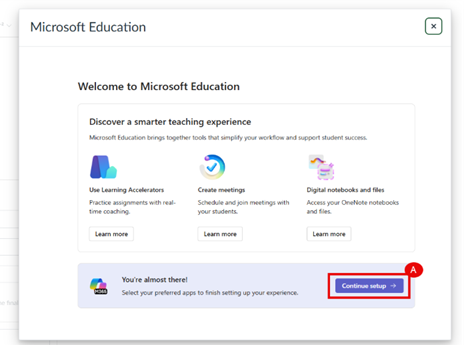
Canvas supports an integration with OneDrive through Microsoft Education in Assignments, Collaborations, Modules, Course Navigation, and the Rich Content Editor. Files can be accessed through Microsoft Education links in Canvas selectingOneDrive where cloud files are displayed. This integration allows students and instructors to use, create, share, and collaborate in real time using Office 365 files within Canvas. Users can also view their OneDrive files directly on Canvas.
Features
- Access OneDrive files from inside Canvas course
- Assign an Microsoft 365 (word, ppt, or excel) file as a cloud assignment
- Allow students to collaborate on documents within Canvas groups
- Students can select files from their OneDrive to submit to online assignments
- Embed OneDrive files anywhere the rich content editor is available
- Add OneDrive files to Modules that are updated automatically
- Grade OneDrive submissions via Canvas SpeedGrader
How to Access OneDrive
Both faculty and students are able to access OneDrive in several places across the Canvas platform. Below are the different ways Office 365 is integrated.
Note: It is important for users to log into Microsoft Education with full UAB email address (@uab.edu) and not just their BlazerID.
-
Course Navigation
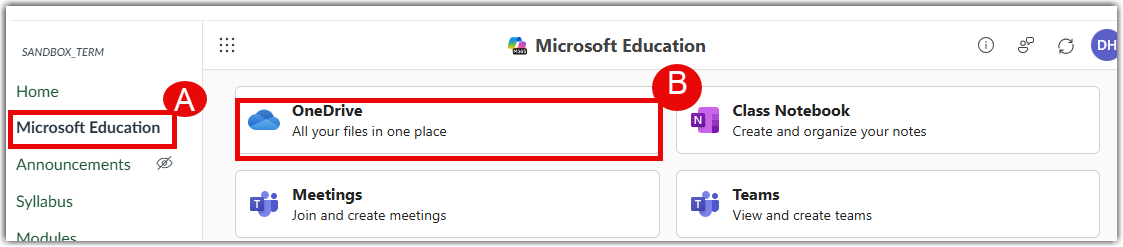
The Microsoft Education adds a link to Microsoft Education → OneDrive in the Course Navigation menu. This link, most commonly named OneDrive,allows users to access Office 365,allows users to access Office 365 through OneDrive. After logging in to their user accounts, users can view all Office 365 files displayed in their OneDrive account.
-
Cloud Assignments
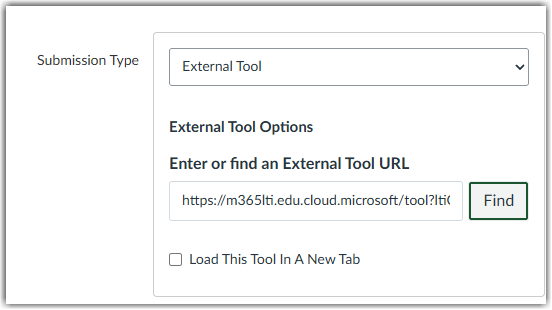
A Microsoft Office 365 assignment in Canvas can be created in two ways. One is as an external tool submission, which uses the Microsoft Education to let students edit and submit files from OneDrive. Instructors can create an online embedded assignment using Microsoft Education LTI as an external tool. When using the Microsoft Education 365 external tool, this assignment type creates a view-only template of the assignment file for students. Supported file types include Word, PowerPoint, and Excel. Please see our guide for more information on creating this assignment type.
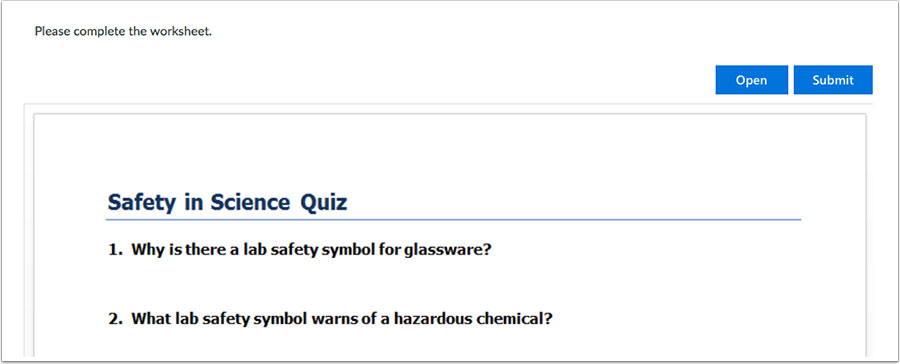
When students open the assignment, Office 365 creates a copy of the file in the student’s OneDrive folder for the course, which can be accessed via Microsoft Education → OneDrive → Office 365 files. Each student works on their own copy of the document according to the assignment instructions. Once students are ready to submit, they return to the Canvas assignment page and submit the assignment. Instructors can then view and grade each student’s document copy using SpeedGrader.
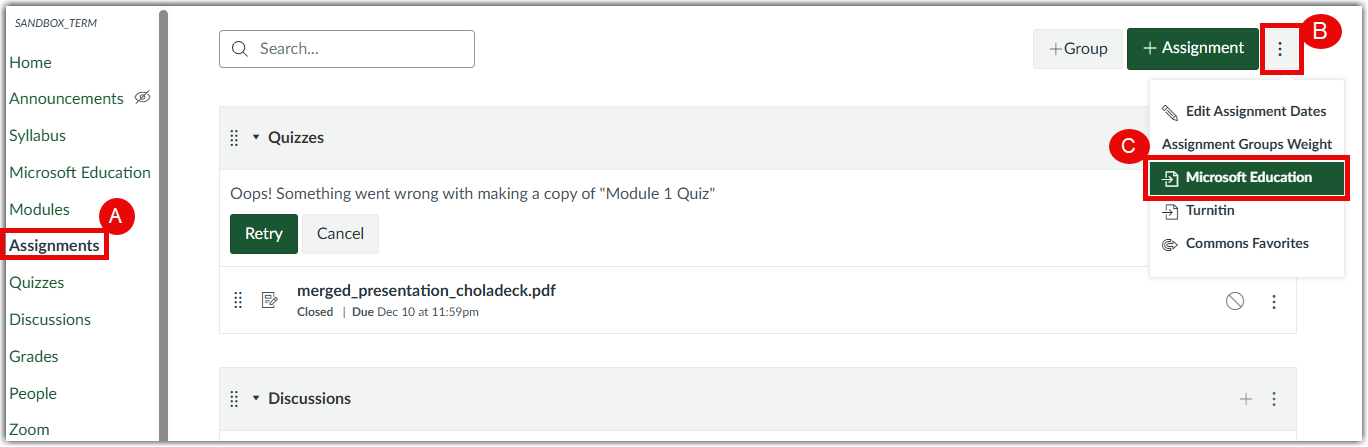
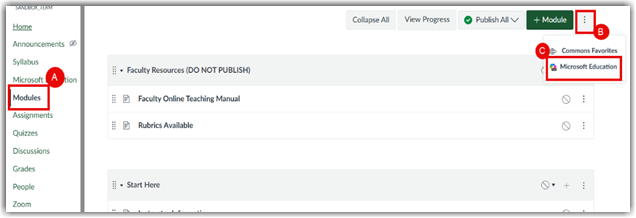
The second way to create an assignment using Microsoft Education tools is directly from the Assignments page in Canvas. From the Assignments page, click the three-dot (More Options) menu located in the upper-right corner of the screen, then select Microsoft Education from the menu. Using this option, instructors can create or attach cloud-based Microsoft files (such as Word, Excel, or PowerPoint) directly to an assignment. Students can open these files within Canvas, work on them online using Microsoft 365, and submit their completed work without needing to download or upload files manually.
Both access methods provide seamless integration between Canvas and Microsoft Education, making it easy for students to collaborate, save progress automatically in the cloud, and submit assignments directly through Canvas.
-
File Upload Assignments
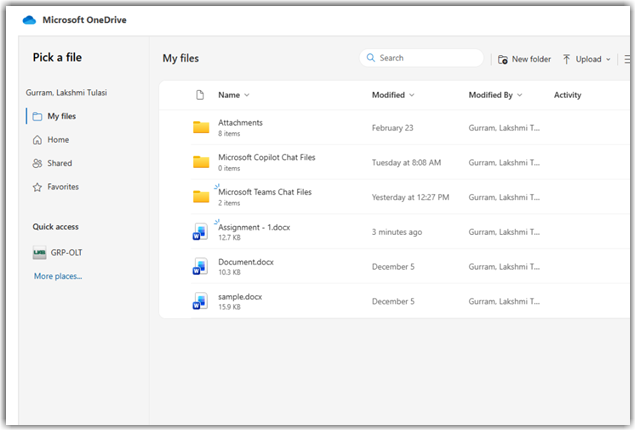
Instructors can also continue to create regular file upload assignments. When file uploads are allowed, students can select files directly from their Microsoft OneDrive using the file picker. Students will see their OneDrive folders and files (such as Word, PowerPoint, or Excel documents) and can choose a file to upload without needing to download it to their device.
-
Collaborations
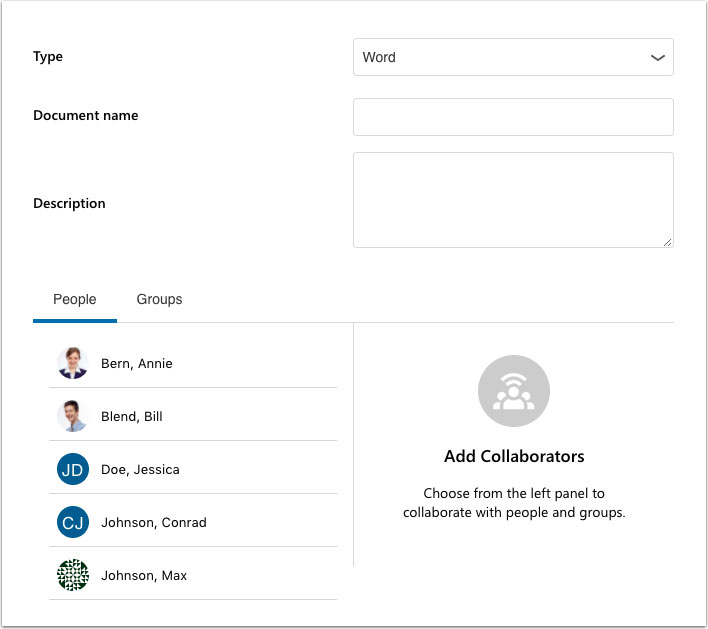
Users can create collaborative Microsoft Word, PowerPoint, or Excel documents. The document creator can add individual users or course groups to participate in the collaboration. Collaborators can be added or removed at any time. Once a user is added, the shared document appears in the user’s Microsoft OneDrive and remains accessible unless sharing permissions are changed or the document is removed.
-
Modules
Instructors can also continue to create regular file upload assignments. When file uploads are allowed, students can select files directly from their Microsoft OneDrive using the file picker. Students will see their OneDrive folders and files (such as Word, PowerPoint, or Excel documents) and can choose a file to upload without needing to download it to their device.
-
Rich Content Editor
The Office 365 LTI (Microsoft Education) adds a OneDrive icon to the Canvas Rich Content Editor, allowing instructors and students to access files from their OneDrive and insert them as inline links. The icon is available anywhere the Rich Content Editor is used—such as pages, assignments, discussions, and announcements (as permitted)—and supports sharing and viewing cloud-based Microsoft documents directly within Canvas.
Guides/Tutorials
FAQ
-
How do I allow students to submit OneDrive files to assignments?
Any assignment that allows submission via File Uploads automatically allows students to submit files from their OneDrive account.
-
How do I grade Office 365 submissions?
Office 365 files display in SpeedGrader with the Office 365 Viewer. This allows you to grade Office 365 submission in SpeedGrader.
-
Can I upload files to my OneDrive from within my Canvas course?
No, the Canvas integration with OneDrive only allows you to submit or link to the contents of your OneDrive from within your course. To upload files to your OneDrive, go to office.com and sign-in with your UAB email address (@uab.edu) and Strong Password.
-
Are there any limitations to Office 365 Cloud assignments?
Yes, some of the standard Canvas options such as group assignment, peer-review, plagiarism detection, and manual file submissions are not available when using cloud assignments.
Instructor Training
Technical Support
Please follow the steps below if you need technical support after reviewing the information, guides, and FAQs above.
-
Contact Office 365 Support
-
Ask Learning Technologies
If these support options do not give a satisfactory resolution, please submit a Learning Technologies Support request and include any ticket numbers provided by Office 365.
Privacy & Accessibility
- Details